

User management is an Enterprise edition feature. See pricing for details.
Opening the User management page
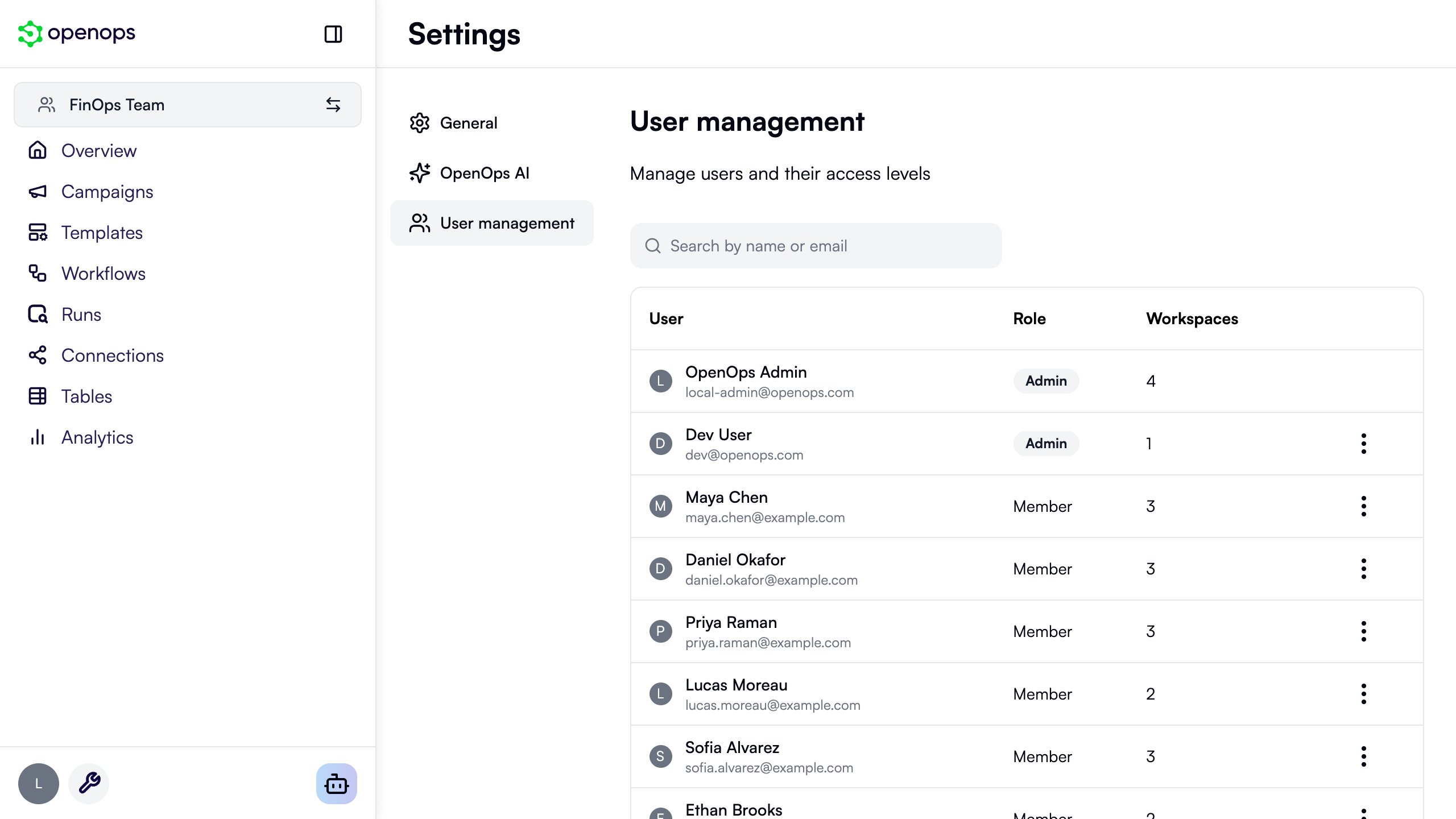
Only organization admins can open this page:- Click the Settings icon (wrench) at the bottom of the sidebar.
- Select the User management tab.
Organization roles
Each user has one of two organization roles:- Admin - Full access to users, workspaces, and integrations. Can change other users’ organization roles, create and delete workspaces, and manage workspace members.
- Member - Can manage integrations and view templates. Cannot manage users. What a Member can do with workflows, runs, and connections depends on their role in each workspace. For example, a Member with the Viewer role has read-only access to that workspace.
Changing a user’s organization role
- On the User management page, click the three-dot menu (⋯) on the user’s row.
- Select Change role.
- Select Admin or Member.
- Click Save.
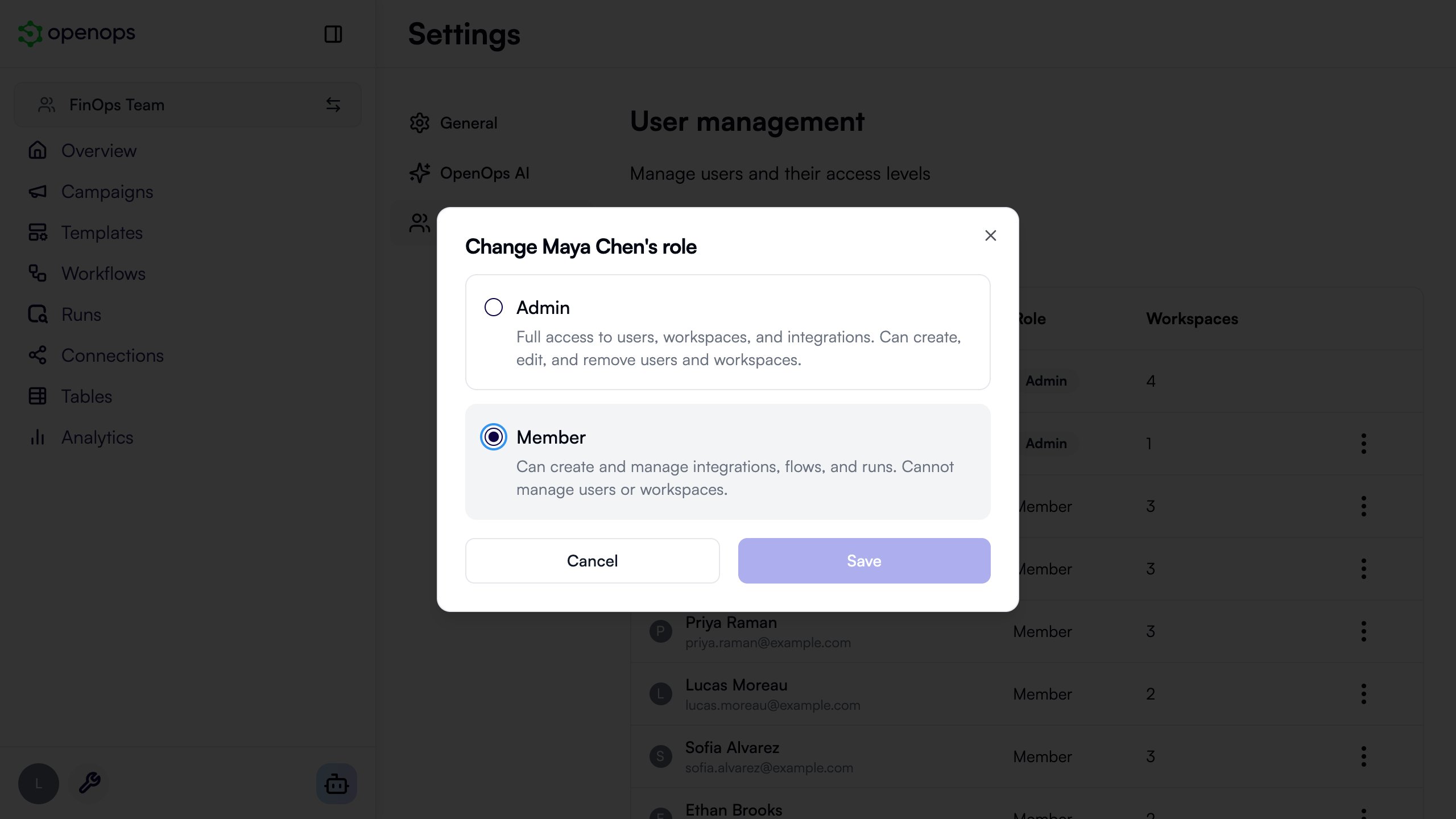
- Promoting to Admin gives the user the Admin role in all of their workspaces.
- Demoting to Member makes the user a Workspace owner of the workspaces they created, and of any workspace where no one else can manage members. In all other workspaces, they become a Contributor.
Rules for changing roles
To make sure your organization always has someone who can manage it, OpenOps enforces these rules:- You can’t change your own organization role.
- You can’t demote the last admin of the organization. Promote another user to Admin first.
Adding users to the organization
How users join your organization depends on how your environment signs users in:- With SSO, users are added automatically the first time they sign in through your identity provider.
- Without SSO, an admin creates each user account through the API. See User Management for the API calls.