> ## Documentation Index
> Fetch the complete documentation index at: https://docs.openops.com/llms.txt
> Use this file to discover all available pages before exploring further.
# CloudHealth
> A tutorial on integrating CloudHealth with OpenOps to resolve rightsizing recommendations
export const NarrowImage = ({src, alt, widthPercent}) => {
const className = `narrow-image-${useId().replace(/:/g, '-')}`;
const widthRule = widthPercent ? `width: ${widthPercent}%;` : '';
return <>
 ;
};
[CloudHealth](https://www.vmware.com/products/app-platform/tanzu-cloudhealth) is a cloud cost management and optimization platform that helps companies manage their multi-cloud environments, including AWS, Azure, Google Cloud, private, and hybrid cloud setups.
CloudHealth provides cost visibility, allocation, and optimization, suggesting actions such as rightsizing, reserved instance purchases, and idle resource cleanup.
While CloudHealth is great for analysis and reporting, it's not really built to orchestrate automation across teams. That's what OpenOps does best, and integrating the two is a great way to get the best of both worlds. Let CloudHealth find issues, and let OpenOps act on them, triggering workflows, automations, and notifications.
## What this tutorial will cover
This tutorial guides you step by step to create two workflows in OpenOps:
1. The first workflow, *Fill the Project-Owner mapping table*, fetches all project names from AWS instance metadata stored in CloudHealth and writes them to an OpenOps table. This assumes that, in your organization, cloud resource ownership is allocated on a per-project basis. The finished workflow is [available here](https://docs.openops.com/workflows/fill-project-owner-mapping-table.json).
2. The second workflow, *CloudHealth Rightsizing Recommendations*, fetches AWS EC2 rightsizing recommendations from CloudHealth, looks up owners of the projects they fall into, notifies owners via Slack, and implements resolutions from owners by creating Jira tickets, snoozing, or dismissing recommendations. The finished workflow is [available here](https://docs.openops.com/workflows/cloudhealth-rightsizing-recommendations.json).
## Prerequisites
To follow this tutorial, you will need:
1. A CloudHealth account configured to provide recommendations for AWS EC2 instances.
2. A Slack workspace to send notifications to.
3. A Jira Cloud instance to file issues.
## Setting up connections to services
At several steps in this tutorial, OpenOps will need to interact with CloudHealth, Slack, and Jira. To enable this interaction, you need to configure what OpenOps calls "connections" to these services.
While you could do this as you go, it's easier to set up connections in advance and use them throughout the tutorial.
In the left pane of your OpenOps instance, click **Connections**.
### Set up a CloudHealth connection
Click **New Connection** in the top right, then select **CloudHealth** from the list of services. This will open a new dialog that looks like this:
;
};
[CloudHealth](https://www.vmware.com/products/app-platform/tanzu-cloudhealth) is a cloud cost management and optimization platform that helps companies manage their multi-cloud environments, including AWS, Azure, Google Cloud, private, and hybrid cloud setups.
CloudHealth provides cost visibility, allocation, and optimization, suggesting actions such as rightsizing, reserved instance purchases, and idle resource cleanup.
While CloudHealth is great for analysis and reporting, it's not really built to orchestrate automation across teams. That's what OpenOps does best, and integrating the two is a great way to get the best of both worlds. Let CloudHealth find issues, and let OpenOps act on them, triggering workflows, automations, and notifications.
## What this tutorial will cover
This tutorial guides you step by step to create two workflows in OpenOps:
1. The first workflow, *Fill the Project-Owner mapping table*, fetches all project names from AWS instance metadata stored in CloudHealth and writes them to an OpenOps table. This assumes that, in your organization, cloud resource ownership is allocated on a per-project basis. The finished workflow is [available here](https://docs.openops.com/workflows/fill-project-owner-mapping-table.json).
2. The second workflow, *CloudHealth Rightsizing Recommendations*, fetches AWS EC2 rightsizing recommendations from CloudHealth, looks up owners of the projects they fall into, notifies owners via Slack, and implements resolutions from owners by creating Jira tickets, snoozing, or dismissing recommendations. The finished workflow is [available here](https://docs.openops.com/workflows/cloudhealth-rightsizing-recommendations.json).
## Prerequisites
To follow this tutorial, you will need:
1. A CloudHealth account configured to provide recommendations for AWS EC2 instances.
2. A Slack workspace to send notifications to.
3. A Jira Cloud instance to file issues.
## Setting up connections to services
At several steps in this tutorial, OpenOps will need to interact with CloudHealth, Slack, and Jira. To enable this interaction, you need to configure what OpenOps calls "connections" to these services.
While you could do this as you go, it's easier to set up connections in advance and use them throughout the tutorial.
In the left pane of your OpenOps instance, click **Connections**.
### Set up a CloudHealth connection
Click **New Connection** in the top right, then select **CloudHealth** from the list of services. This will open a new dialog that looks like this:
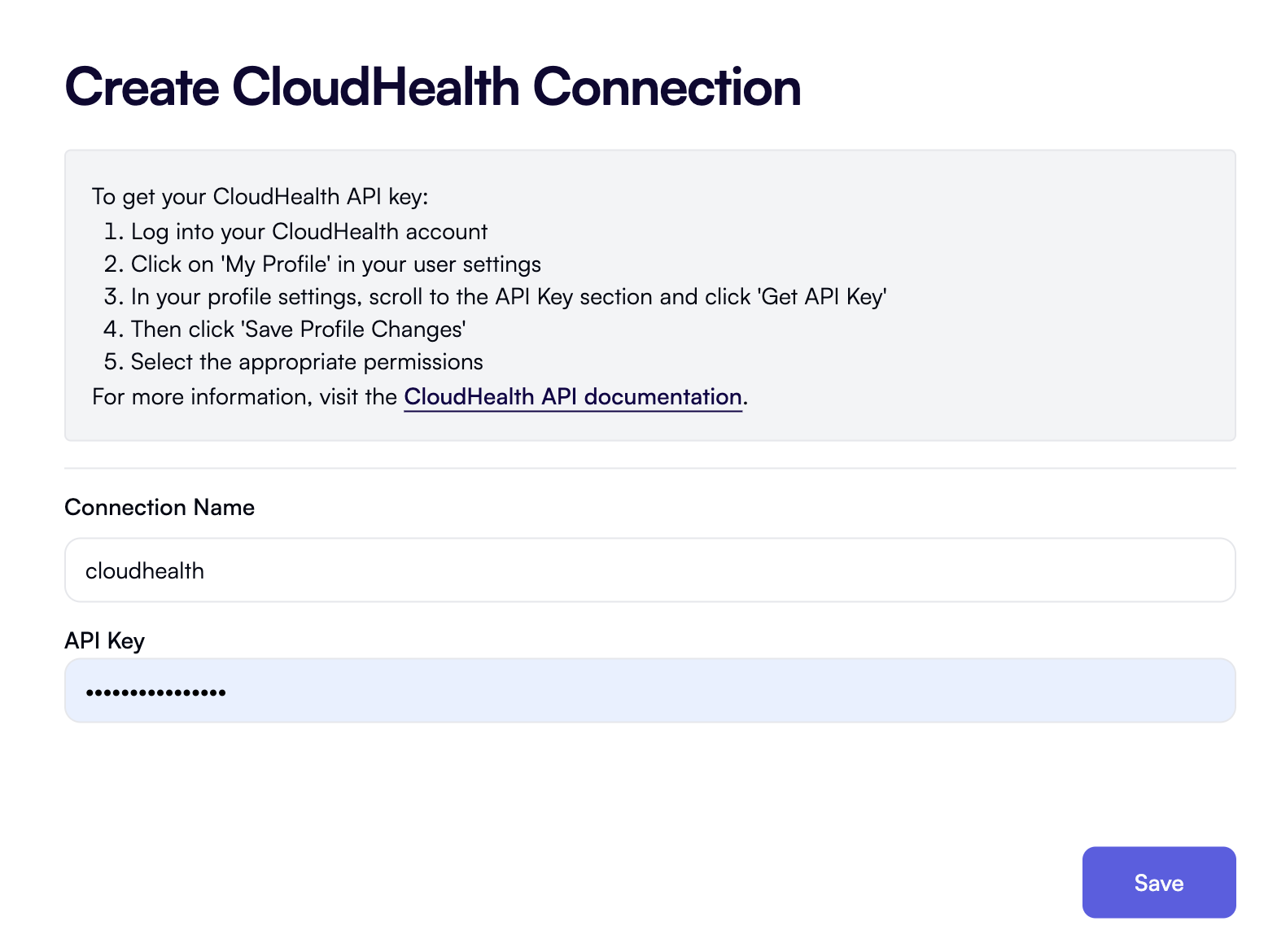 In the **API Key** field, enter your CloudHealth API key. If you don't have it at hand, follow the instructions in the dialog to generate an API key. Once you have the key, paste it into the **API Key** field and click **Save**.
### Set up a Slack connection
Click **New Connection** in the top right, then select **Slack** from the list of services. This will open the **Create Slack Connection** dialog that looks like this:
In the **API Key** field, enter your CloudHealth API key. If you don't have it at hand, follow the instructions in the dialog to generate an API key. Once you have the key, paste it into the **API Key** field and click **Save**.
### Set up a Slack connection
Click **New Connection** in the top right, then select **Slack** from the list of services. This will open the **Create Slack Connection** dialog that looks like this:
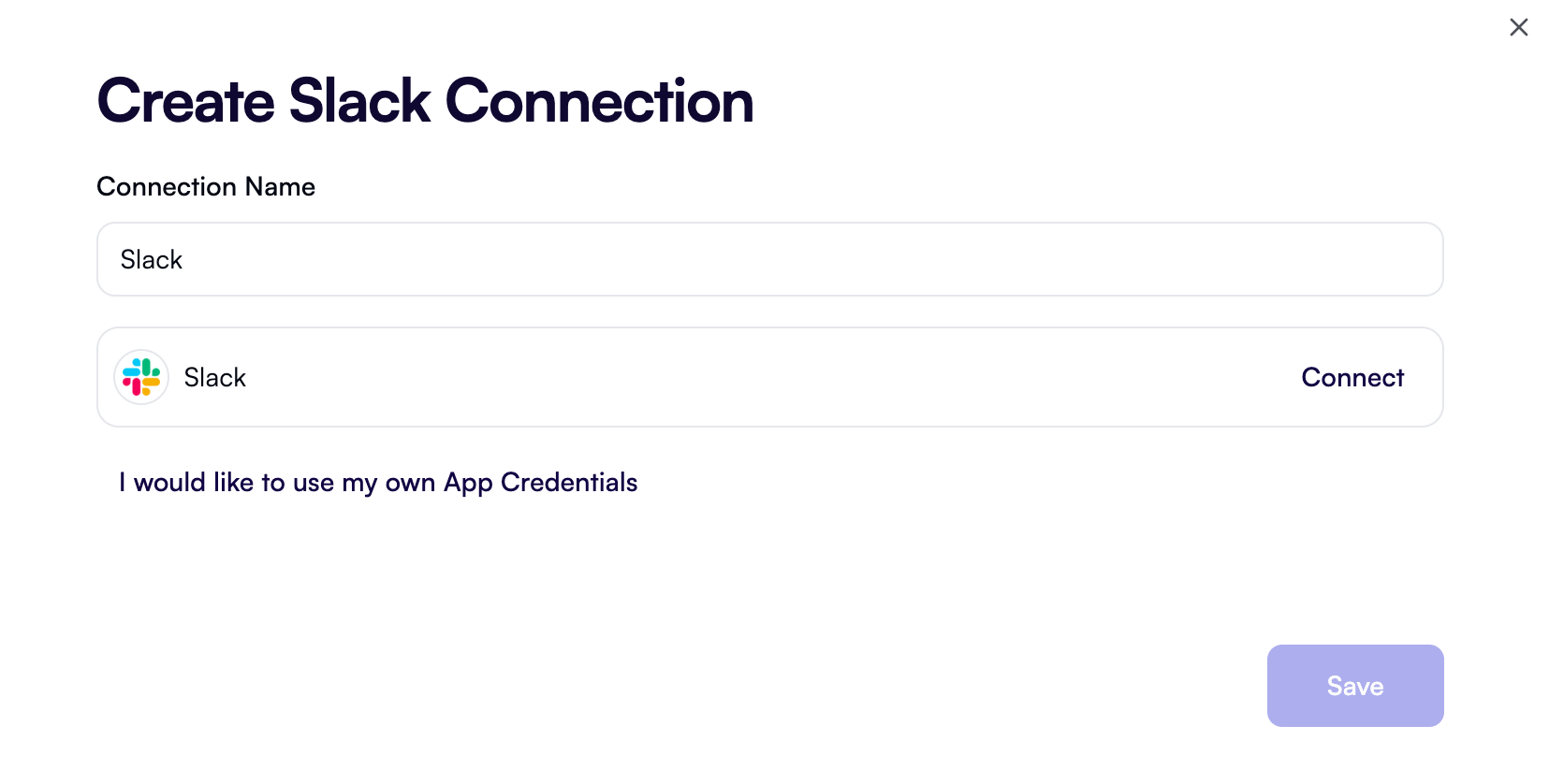 Click **Connect**. This will open a pop-up window asking you to authorize OpenOps to connect to your Slack workspace:
Review the permissions that OpenOps is requesting, then click **Allow**.
Back in the **Create Slack Connection** dialog, click **Save**.
### Set up a Jira connection
Click **New Connection** in the top right, then select **Jira Cloud** from the list of services. This will open the **Create Jira Connection** dialog that looks like this:
Click **Connect**. This will open a pop-up window asking you to authorize OpenOps to connect to your Slack workspace:
Review the permissions that OpenOps is requesting, then click **Allow**.
Back in the **Create Slack Connection** dialog, click **Save**.
### Set up a Jira connection
Click **New Connection** in the top right, then select **Jira Cloud** from the list of services. This will open the **Create Jira Connection** dialog that looks like this:
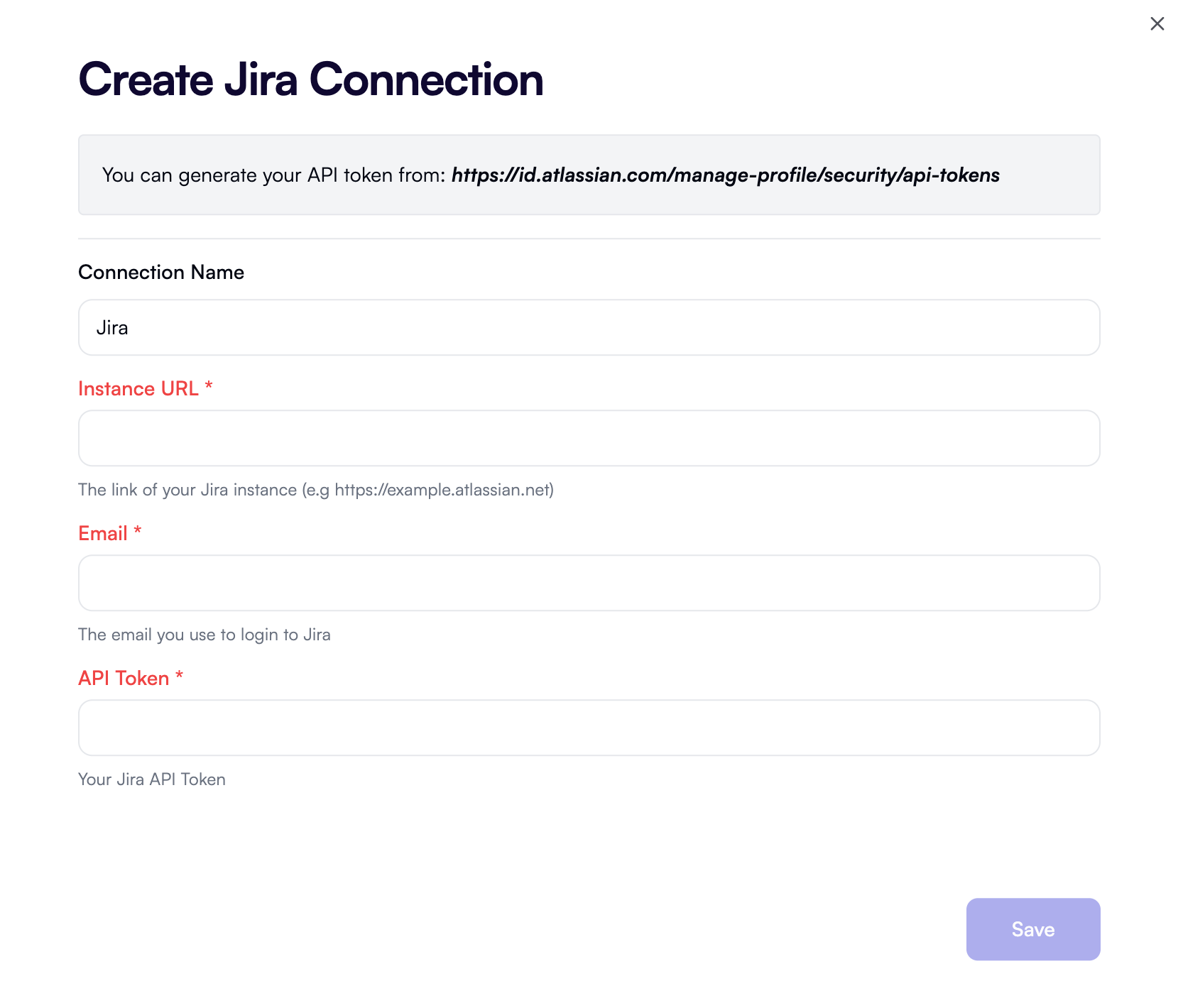 In **Instance URL**, enter the URL of your Jira Cloud instance, such as `https://your-company.atlassian.net`.
In **Email**, enter your Jira Cloud account email.
In **API Token**, enter a Jira Cloud API token with permissions to create issues. If you don't have a token at hand, follow the instructions in the dialog to generate one.
Click **Save**.
After you've set up all the connections, you should see them listed in the **Connections** view in OpenOps:
In **Instance URL**, enter the URL of your Jira Cloud instance, such as `https://your-company.atlassian.net`.
In **Email**, enter your Jira Cloud account email.
In **API Token**, enter a Jira Cloud API token with permissions to create issues. If you don't have a token at hand, follow the instructions in the dialog to generate one.
Click **Save**.
After you've set up all the connections, you should see them listed in the **Connections** view in OpenOps:
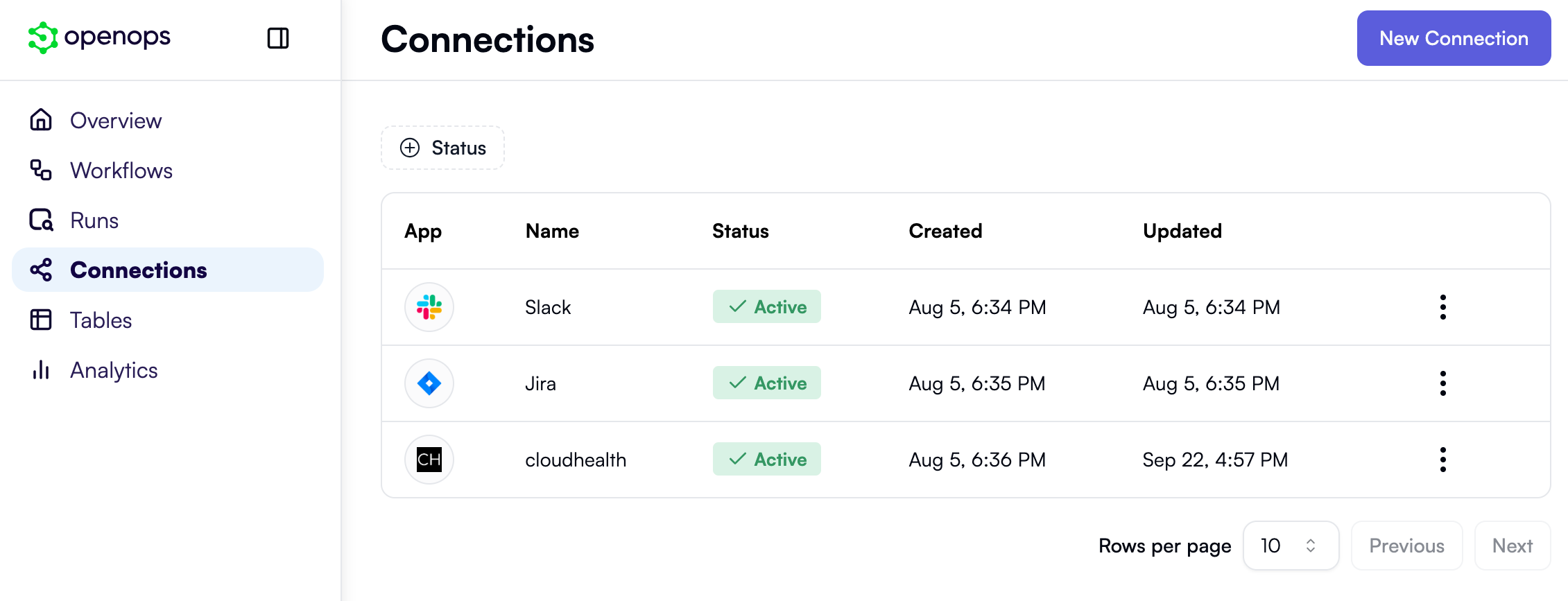 You can now proceed to creating the actual workflows.
## Creating a workflow to fill the project-owner mapping table
The first workflow you're going to build will help track resource ownership by project. For this workflow to operate, it needs an OpenOps table to store project information. Let's create the table first.
If you don't want to follow this section step by step, you can [download the finished workflow](https://docs.openops.com/workflows/fill-project-owner-mapping-table.json) and [import](/workflow-management/import-export/#importing-workflows) it.
### Create a project-owner mapping table
To create the table that will store project names and their owners, follow these steps:
1. In the left-side OpenOps menu bar, click **Tables**.
2. Under the **Tables** heading, click **OpenOps Dataset** to expand the list of tables.
3. At the bottom of the list, click **New table**.
4. In the **Name** text field, enter *CloudHealth project-owner mapping*.
5. Click **Add table**.
6. When the new table is created, it has a few default fields (a *field* in OpenOps tables is what we typically call a column). You won't need them. Instead, create two new fields. Start with a field for the project name:
1. Click **+** in the table header to create a new field.
2. In the list of field data types, click **Single line text**.
3. Replace the default field name with *CloudHealth project*.
4. Click **Create**.
7. Create a second field for the owner email:
1. Click **+** in the table header to create a new field.
2. In the list of field data types, click **Email**.
3. Replace the default field name with *Owner email*.
8. Now, make *CloudHealth project* the primary field:
1. Click the down arrow in the header of the **Name** field created by default.
2. Click **Change primary field**.
3. In the **Primary field** dropdown, select *CloudHealth project*.
4. Click **Change**.
9. Delete the three default fields: **Name**, **Notes**, and **Active**. For each of these fields, click the down arrow in the header, then click **Delete field**.
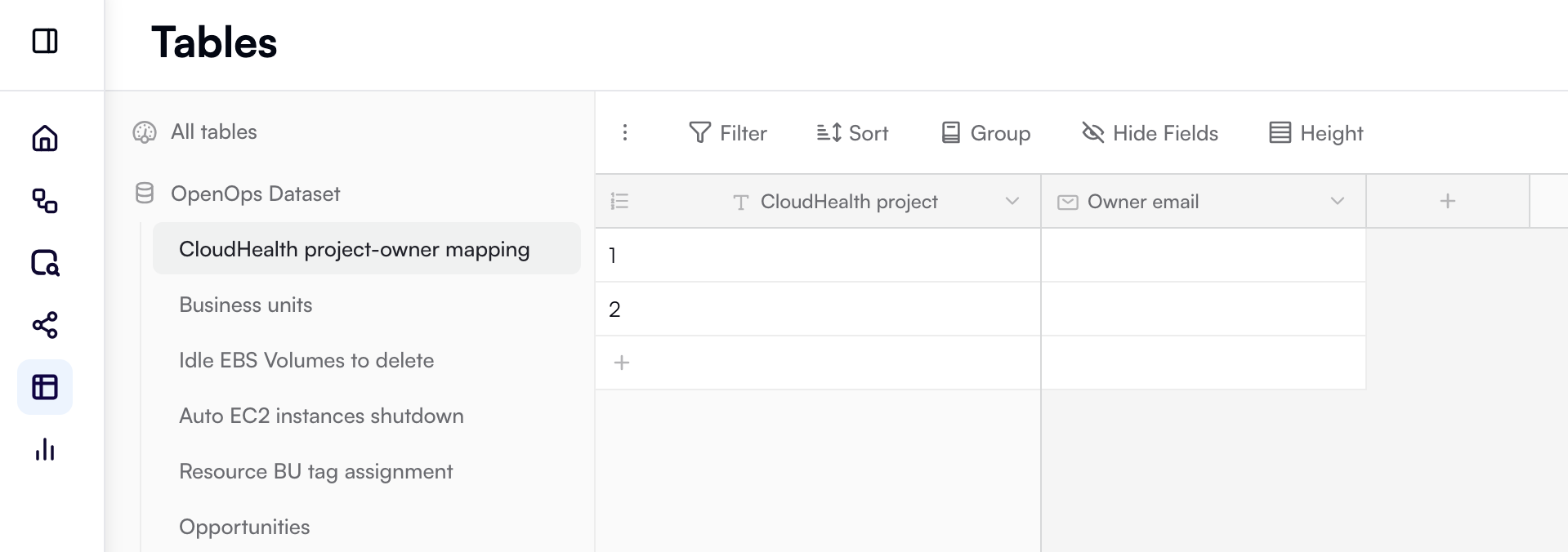
The resulting project-owner mapping table should look like this:
You can now proceed to creating the actual workflows.
## Creating a workflow to fill the project-owner mapping table
The first workflow you're going to build will help track resource ownership by project. For this workflow to operate, it needs an OpenOps table to store project information. Let's create the table first.
If you don't want to follow this section step by step, you can [download the finished workflow](https://docs.openops.com/workflows/fill-project-owner-mapping-table.json) and [import](/workflow-management/import-export/#importing-workflows) it.
### Create a project-owner mapping table
To create the table that will store project names and their owners, follow these steps:
1. In the left-side OpenOps menu bar, click **Tables**.
2. Under the **Tables** heading, click **OpenOps Dataset** to expand the list of tables.
3. At the bottom of the list, click **New table**.
4. In the **Name** text field, enter *CloudHealth project-owner mapping*.
5. Click **Add table**.
6. When the new table is created, it has a few default fields (a *field* in OpenOps tables is what we typically call a column). You won't need them. Instead, create two new fields. Start with a field for the project name:
1. Click **+** in the table header to create a new field.
2. In the list of field data types, click **Single line text**.
3. Replace the default field name with *CloudHealth project*.
4. Click **Create**.
7. Create a second field for the owner email:
1. Click **+** in the table header to create a new field.
2. In the list of field data types, click **Email**.
3. Replace the default field name with *Owner email*.
8. Now, make *CloudHealth project* the primary field:
1. Click the down arrow in the header of the **Name** field created by default.
2. Click **Change primary field**.
3. In the **Primary field** dropdown, select *CloudHealth project*.
4. Click **Change**.
9. Delete the three default fields: **Name**, **Notes**, and **Active**. For each of these fields, click the down arrow in the header, then click **Delete field**.
The resulting project-owner mapping table should look like this:
 ### Create a new workflow
Now that you've prepared a project-owner mapping table, you can start creating a workflow that takes advantage of it.
In the left-side OpenOps menu bar, click **Workflows**. When the list of workflows opens, click the **+ New Workflow** button in the top right.
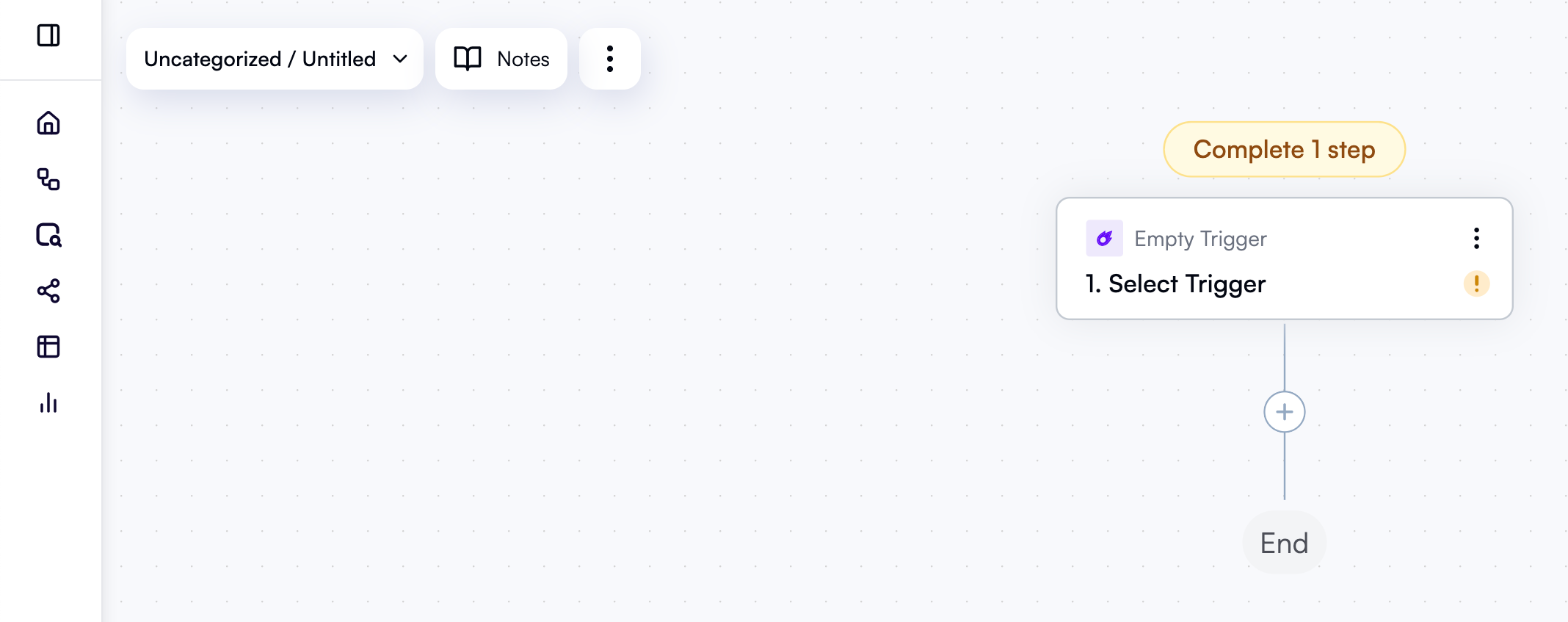
OpenOps will open its workflow editor with a new untitled workflow that initially contains only an empty trigger step:
### Create a new workflow
Now that you've prepared a project-owner mapping table, you can start creating a workflow that takes advantage of it.
In the left-side OpenOps menu bar, click **Workflows**. When the list of workflows opens, click the **+ New Workflow** button in the top right.
OpenOps will open its workflow editor with a new untitled workflow that initially contains only an empty trigger step:
 In the top left, click the down arrow next to the workflow name, then click **Rename** and rename the workflow *Fill the Project-Owner mapping table*.
### Configure the trigger to run every week
The first thing that needs to be done is to configure your workflow to run on a schedule.
In the workflow editor, click the trigger step. When a dropdown with types of triggers opens, select **Schedule**, then **Every Week**.
After selecting the trigger type and frequency, you'll see the trigger step's properties pane on the right, with the **Configure** tab open. Under **Day of the week**, select **Monday**. Under **Hour of the day**, select **Noon**. Keep the default time zone (UTC), or set it to the time zone you're in.
Now, open the **Test** tab in the properties pane. Under **Step output**, click **Load Data**. This tests your step. Going forward, you'll need to test all steps before you can test the entire workflow. While in the case of a trigger this is more of a formality, in many cases testing individual steps will help you spot and fix configuration errors quickly.
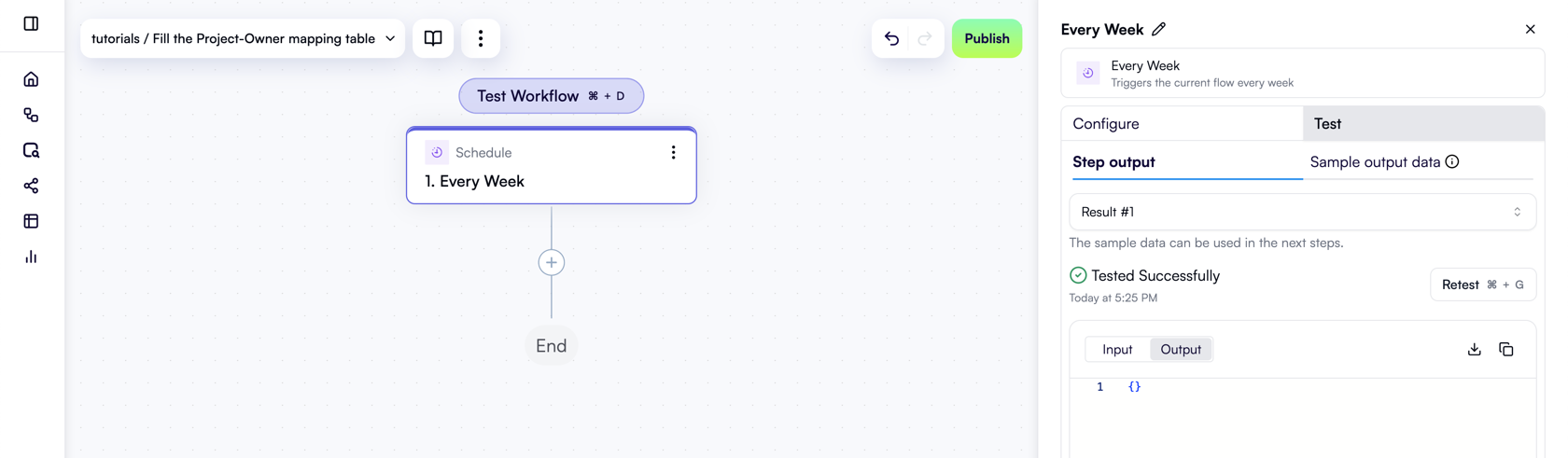
Here's what your workflow should look like at this point:
In the top left, click the down arrow next to the workflow name, then click **Rename** and rename the workflow *Fill the Project-Owner mapping table*.
### Configure the trigger to run every week
The first thing that needs to be done is to configure your workflow to run on a schedule.
In the workflow editor, click the trigger step. When a dropdown with types of triggers opens, select **Schedule**, then **Every Week**.
After selecting the trigger type and frequency, you'll see the trigger step's properties pane on the right, with the **Configure** tab open. Under **Day of the week**, select **Monday**. Under **Hour of the day**, select **Noon**. Keep the default time zone (UTC), or set it to the time zone you're in.
Now, open the **Test** tab in the properties pane. Under **Step output**, click **Load Data**. This tests your step. Going forward, you'll need to test all steps before you can test the entire workflow. While in the case of a trigger this is more of a formality, in many cases testing individual steps will help you spot and fix configuration errors quickly.
Here's what your workflow should look like at this point:
 ### Get all AWS instances from CloudHealth
The goal of this workflow is to get all project names from AWS instance metadata stored in CloudHealth and write them to an OpenOps table. This way, the EC2 rightsizing workflow you'll create next can look up project owners based on project names.
Therefore, the first action of this workflow is to fetch information about all AWS instances from CloudHealth.
In the workflow graph, under the trigger, click **+** to add a new step.
In the pop-up menu, scroll down and click **CloudHealth**. In the list of CloudHealth-related actions, select **Search Assets**:
This adds a new step to the workflow graph and displays the action's properties pane on the right. You'll now need to configure the action.
First, at the very top of the properties pane, click **Edit Step Name** next to the default name and rename the step *Get all AWS instances*.
For **API Key**, select your existing CloudHealth connection that you set up earlier.
Set **Asset Type** to **AWSInstance**.
Click the **Test** tab in the properties pane. Under **Step output**, click **Test Step**. This will test the action and display its output.
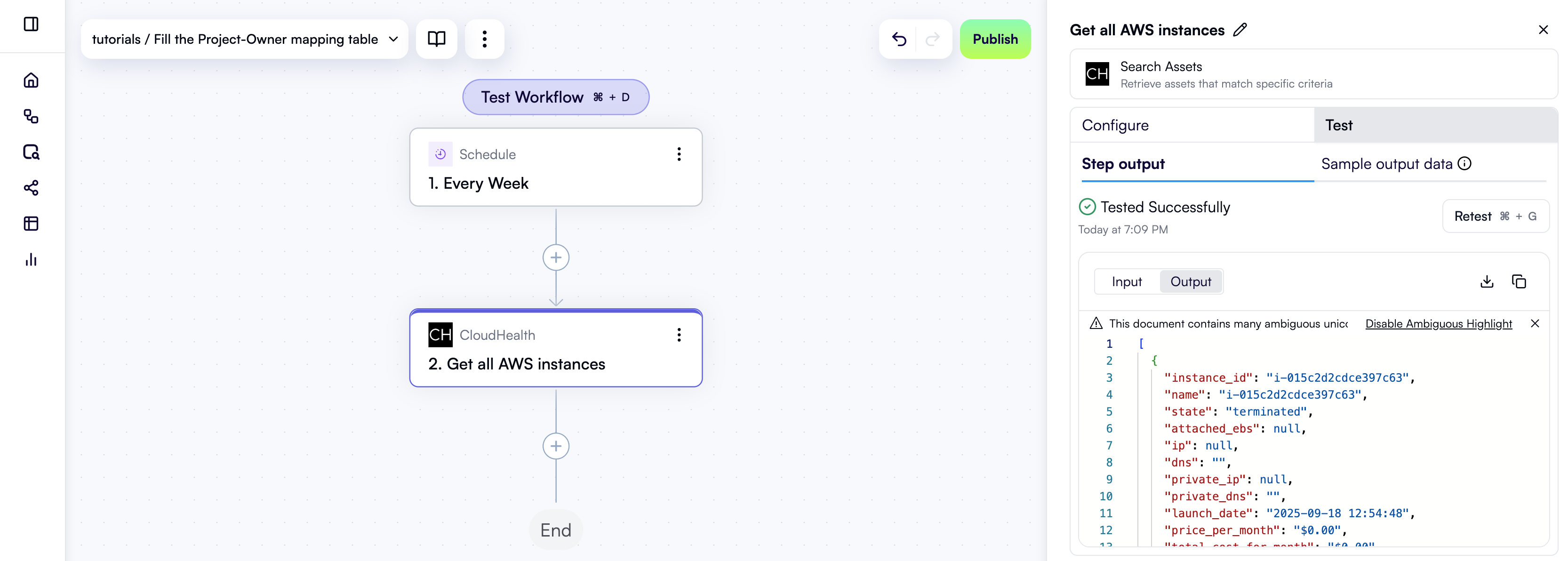
Your workflow should now look like this:
### Get all AWS instances from CloudHealth
The goal of this workflow is to get all project names from AWS instance metadata stored in CloudHealth and write them to an OpenOps table. This way, the EC2 rightsizing workflow you'll create next can look up project owners based on project names.
Therefore, the first action of this workflow is to fetch information about all AWS instances from CloudHealth.
In the workflow graph, under the trigger, click **+** to add a new step.
In the pop-up menu, scroll down and click **CloudHealth**. In the list of CloudHealth-related actions, select **Search Assets**:
This adds a new step to the workflow graph and displays the action's properties pane on the right. You'll now need to configure the action.
First, at the very top of the properties pane, click **Edit Step Name** next to the default name and rename the step *Get all AWS instances*.
For **API Key**, select your existing CloudHealth connection that you set up earlier.
Set **Asset Type** to **AWSInstance**.
Click the **Test** tab in the properties pane. Under **Step output**, click **Test Step**. This will test the action and display its output.
Your workflow should now look like this:
 ### Extract distinct project names
Now that you have a list of all AWS instances, you need to know which projects they belong to. For this, let's create a JavaScript code block that goes through the metadata of all instances, extracts project names, and returns a list of distinct project names.
In the workflow graph, click **+** to add a new step.
In the pop-up menu, select **Code** in the left pane, then click **Custom TypeScript Code** in the right pane. This adds a new step to the workflow graph and displays the code block's properties pane on the right.
At the top of the properties pane, click **Edit Step Name** and rename the step *Extract distinct project names*.
Next, you need to let the custom code action know exactly what data it should process. Under **Inputs** in the properties pane, click **Add Item**, which will display two new fields. Enter `instances` in the left field. When you click in the right field, the **Data Selector** view opens. Inside that view, click **Insert** alongside the **Get all AWS instances** entry:
### Extract distinct project names
Now that you have a list of all AWS instances, you need to know which projects they belong to. For this, let's create a JavaScript code block that goes through the metadata of all instances, extracts project names, and returns a list of distinct project names.
In the workflow graph, click **+** to add a new step.
In the pop-up menu, select **Code** in the left pane, then click **Custom TypeScript Code** in the right pane. This adds a new step to the workflow graph and displays the code block's properties pane on the right.
At the top of the properties pane, click **Edit Step Name** and rename the step *Extract distinct project names*.
Next, you need to let the custom code action know exactly what data it should process. Under **Inputs** in the properties pane, click **Add Item**, which will display two new fields. Enter `instances` in the left field. When you click in the right field, the **Data Selector** view opens. Inside that view, click **Insert** alongside the **Get all AWS instances** entry:
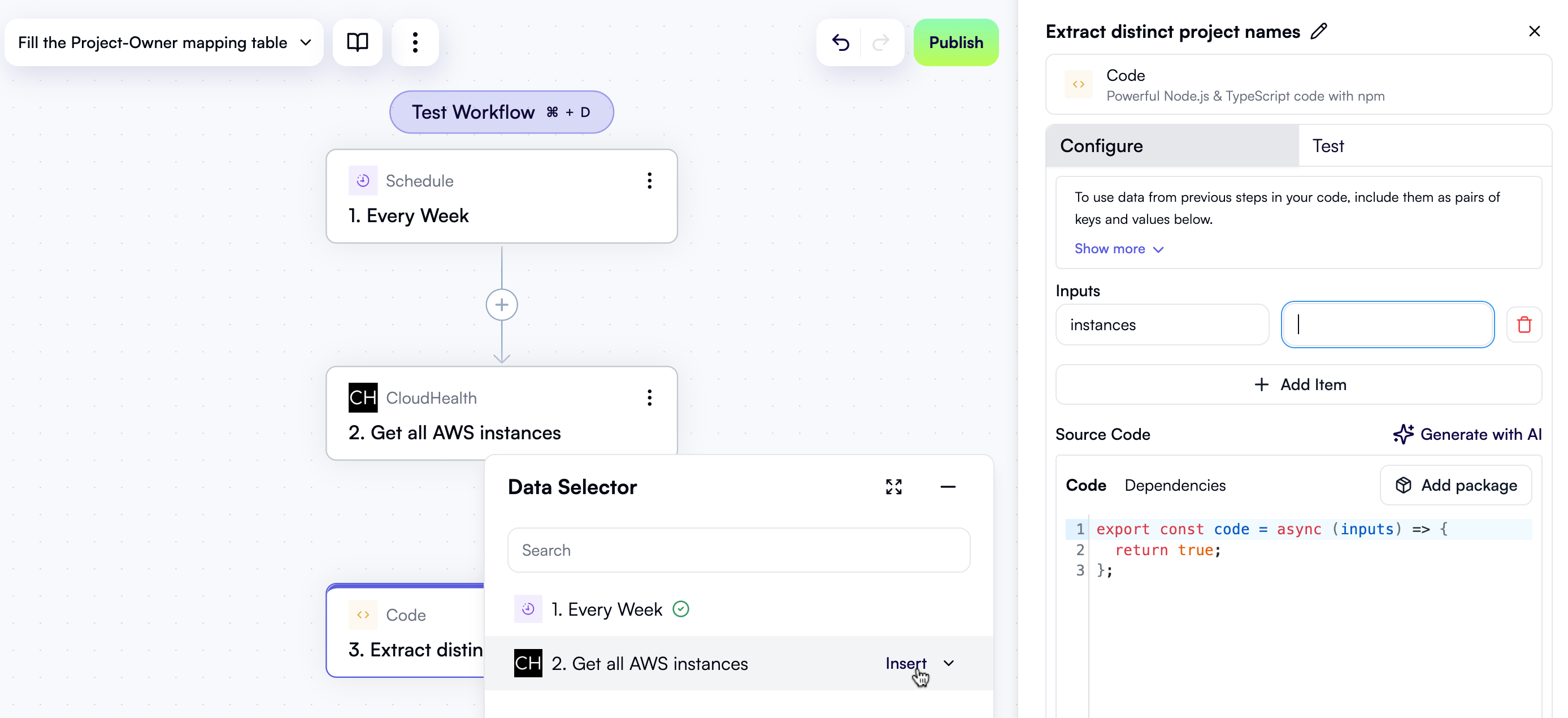 This ensures that the code action gets the list of instances as an input.
Next, inside the **Code** editor field, replace the placeholder with the following JavaScript code snippet:
```javascript theme={null}
export const code = async (inputs) => {
const projectsOnly = inputs.instances.map(item => {
const match = item.groups.match(/Project:\s*([^,]+)/);
const project = match ? match[1].trim() : null;
return project;
})
return [...new Set(projectsOnly)];
};
```
This is what the **Configure** tab in the properties pane should now look like:
This ensures that the code action gets the list of instances as an input.
Next, inside the **Code** editor field, replace the placeholder with the following JavaScript code snippet:
```javascript theme={null}
export const code = async (inputs) => {
const projectsOnly = inputs.instances.map(item => {
const match = item.groups.match(/Project:\s*([^,]+)/);
const project = match ? match[1].trim() : null;
return project;
})
return [...new Set(projectsOnly)];
};
```
This is what the **Configure** tab in the properties pane should now look like:
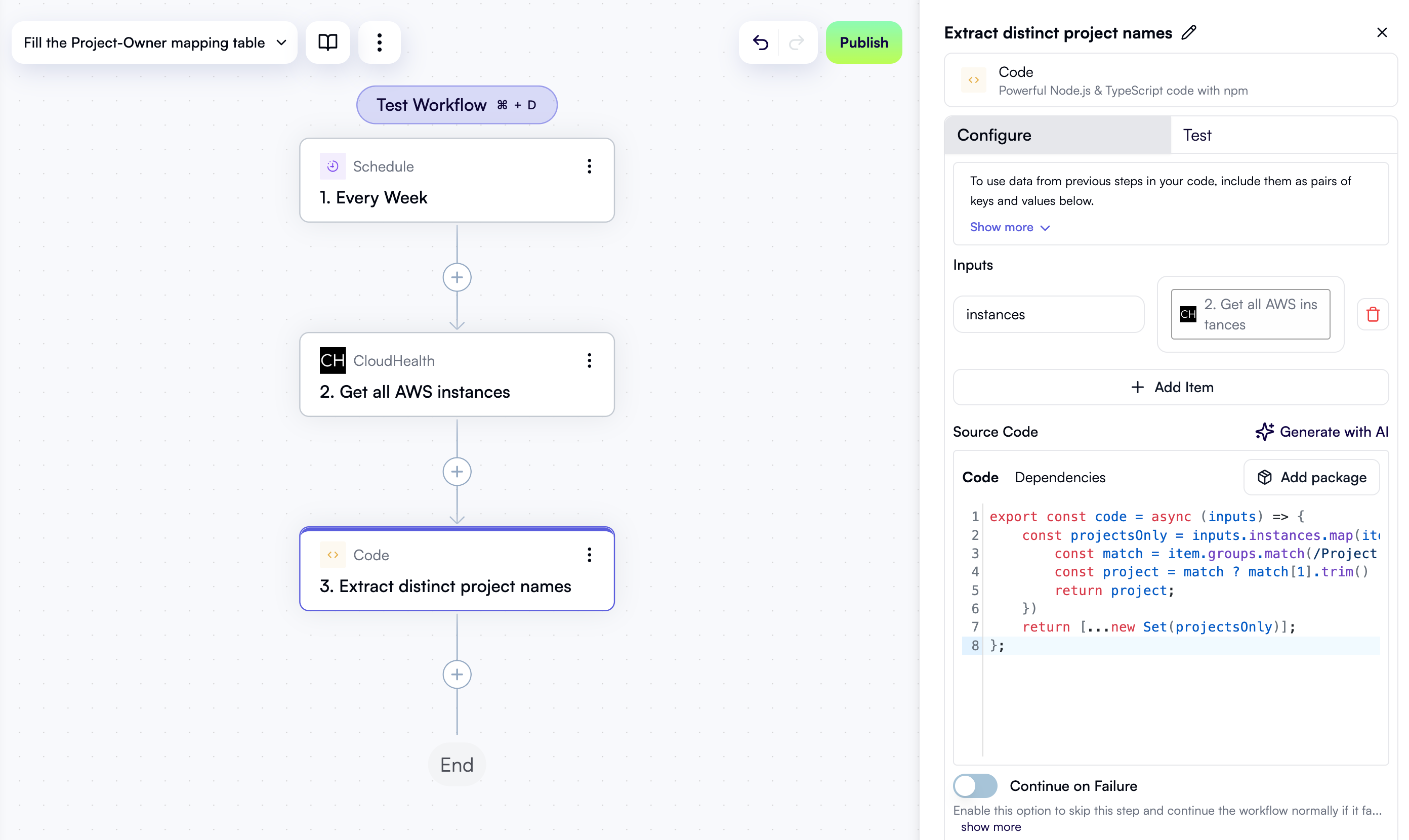 Click the **Test** tab in the properties pane. Under **Step output**, click **Test Step**. After testing, you should see an array containing all project names in the **Output** area:
### Iterate over project names
Now that you have a list of all project names, create a loop to go through each of them and decide what to do with them.
First, click **+** in the workflow editor to add a new step.
In the pop-up menu, select **Loop on Items** in the left pane, then click **Loop on Items** in the right pane.
At the top of the properties pane, click **Edit Step Name** and rename the step *For each project name*.
Click in the **Items** field. In the **Data Selector** view that opens, click **Insert** alongside the **3. Extract distinct project names** entry. This passes the list of project names obtained in the previous step as the input for the loop to iterate over.
This is what the **Configure** tab in the properties pane should now look like:
Click the **Test** tab in the properties pane. Under **Step output**, click **Test Step**. After testing, you should see an array containing all project names in the **Output** area:
### Iterate over project names
Now that you have a list of all project names, create a loop to go through each of them and decide what to do with them.
First, click **+** in the workflow editor to add a new step.
In the pop-up menu, select **Loop on Items** in the left pane, then click **Loop on Items** in the right pane.
At the top of the properties pane, click **Edit Step Name** and rename the step *For each project name*.
Click in the **Items** field. In the **Data Selector** view that opens, click **Insert** alongside the **3. Extract distinct project names** entry. This passes the list of project names obtained in the previous step as the input for the loop to iterate over.
This is what the **Configure** tab in the properties pane should now look like:
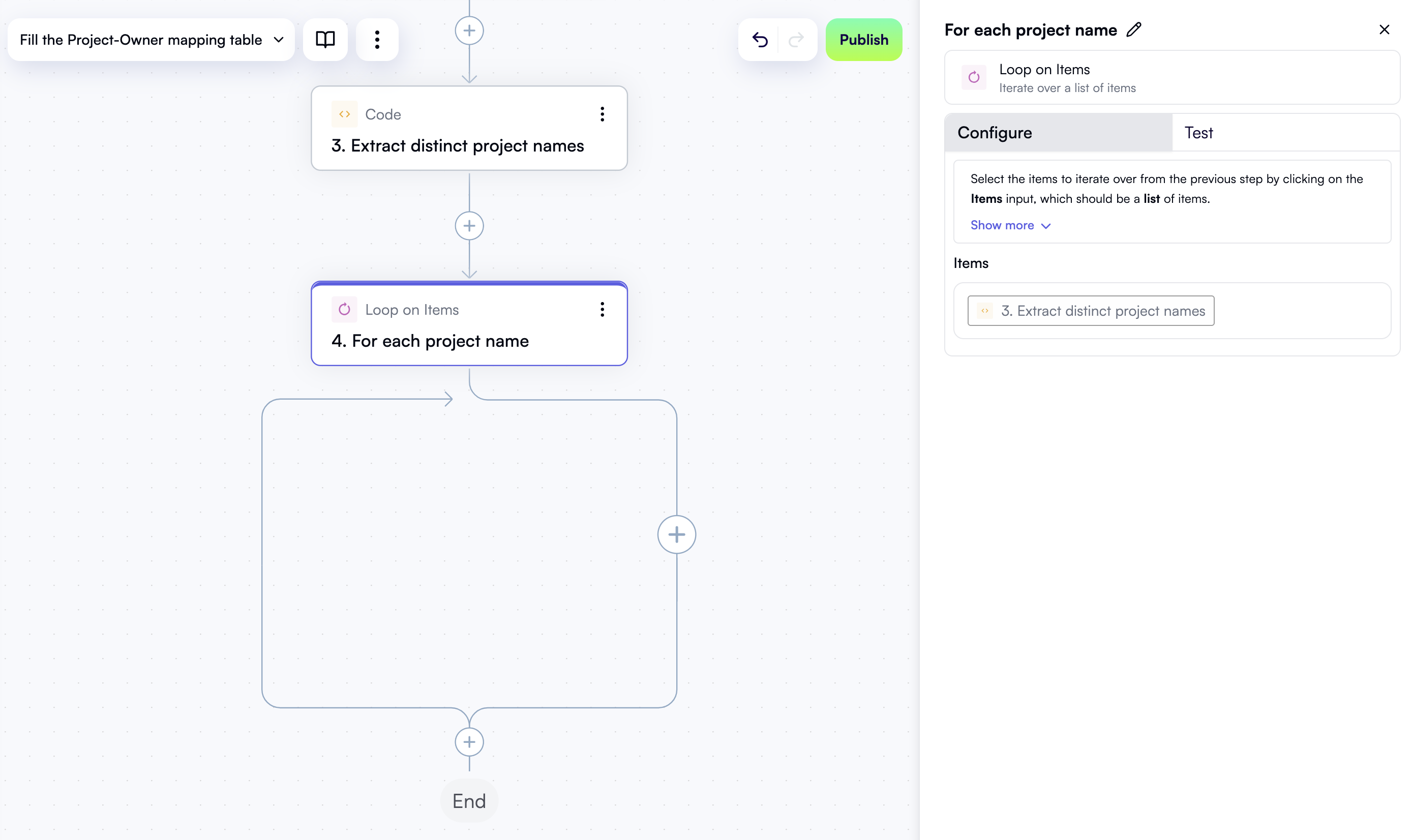 Click the **Test** tab in the properties pane. Under **Step output**, click **Test Step**. The test output should be an object representing the first item in the list of project names:
```json theme={null}
{
"item": "Other",
"index": 1
}
```
### Check if the project name is already in the table
If a project is already listed in the table and a project owner email is already defined for it, you don't need to update the existing record. This avoids overwriting project emails that were added earlier.
First, let's see if the project name is already in the table.
In the workflow editor, click the **+** button *inside* the loop:
In the pop-up menu, select **OpenOps Tables** in the left pane, then click **Get Records** in the right pane.
At the top of the properties pane, click **Edit Step Name** and rename the step *Get project record*.
For the **Table** field, select **CloudHealth project-owner mapping** — that's the table you created manually earlier.
Under **Fields to filter by**, click **Add Item**. This will open a new area to define a search filter. Inside the area:
* In the **Field name** dropdown, select **CloudHealth project**.
* In the **Filter type** dropdown, select **Is equal**.
* In the **CloudHealth project** field, use **Data Selector** to expand the **4. For each project name** entry from the previous step, then click **Insert** alongside the **item** entry:
Here's what the new step in the workflow graph and the **Configure** tab in its properties pane should now look like:
Click the **Test** tab in the properties pane. Under **Step output**, click **Test Step**. The test output should be an object representing the first item in the list of project names:
```json theme={null}
{
"item": "Other",
"index": 1
}
```
### Check if the project name is already in the table
If a project is already listed in the table and a project owner email is already defined for it, you don't need to update the existing record. This avoids overwriting project emails that were added earlier.
First, let's see if the project name is already in the table.
In the workflow editor, click the **+** button *inside* the loop:
In the pop-up menu, select **OpenOps Tables** in the left pane, then click **Get Records** in the right pane.
At the top of the properties pane, click **Edit Step Name** and rename the step *Get project record*.
For the **Table** field, select **CloudHealth project-owner mapping** — that's the table you created manually earlier.
Under **Fields to filter by**, click **Add Item**. This will open a new area to define a search filter. Inside the area:
* In the **Field name** dropdown, select **CloudHealth project**.
* In the **Filter type** dropdown, select **Is equal**.
* In the **CloudHealth project** field, use **Data Selector** to expand the **4. For each project name** entry from the previous step, then click **Insert** alongside the **item** entry:
Here's what the new step in the workflow graph and the **Configure** tab in its properties pane should now look like:
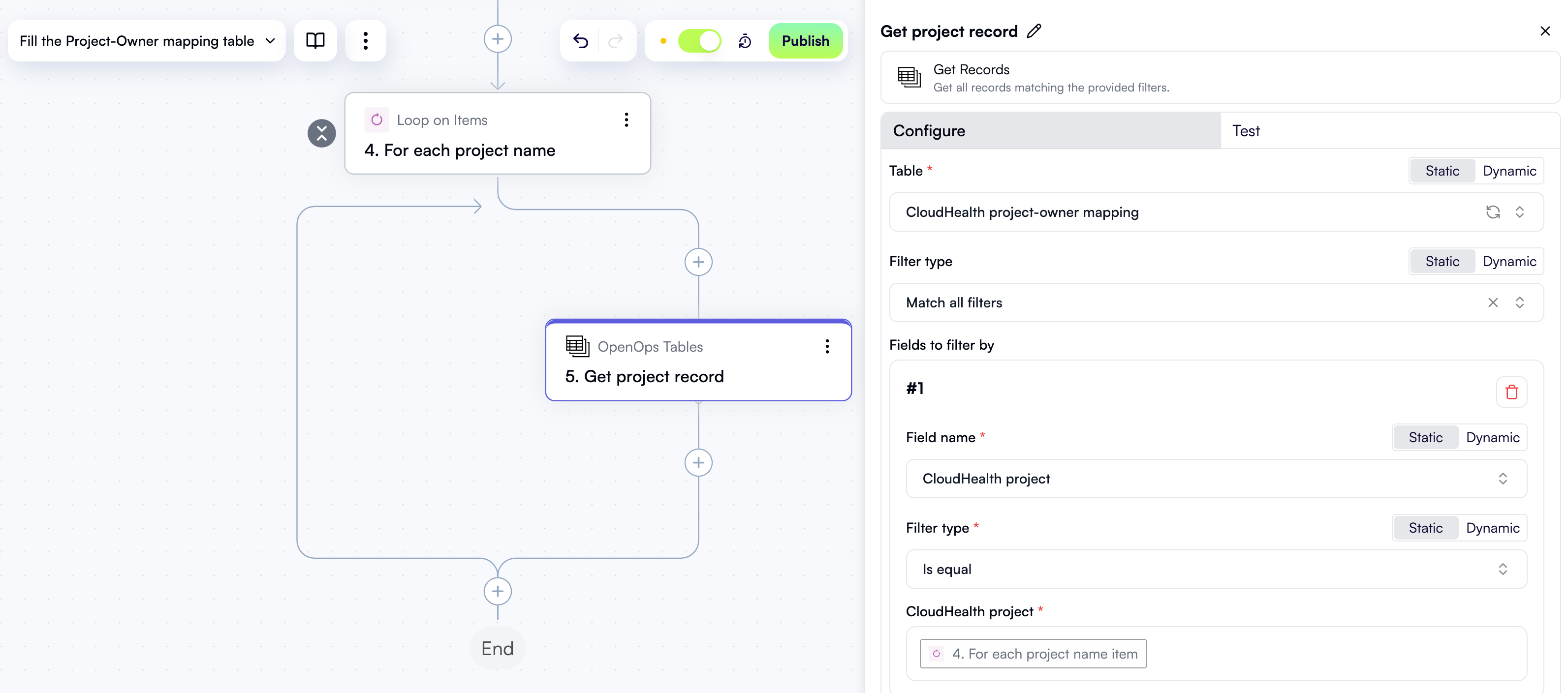 Click the **Test** tab in the properties pane. Under **Step output**, click **Test Step**. After testing, the output is a JSON object representing the search results in the OpenOps table. Since the table is empty so far, the output looks like this:
```json theme={null}
{
"count": 0,
"items": []
}
```
This is a problem because the configuration of the next step assumes that a record has been found. In cases like this, OpenOps allows you to override the actual testing output. To do this, click **Sample output** in the **Test** tab. In the **Output** area, paste the following JSON, then click **Apply**:
```json theme={null}
{
"count": 1,
"items": [
{
"id": 9,
"order": "4.00000000000000000000",
"CloudHealth project": "Other",
"Owner email": "your@email.here"
}
]
}
```
### Check if a project owner email is already defined
Now, if the project name is already in the table, you need to check whether a project owner email is defined for it. If it is, you don't need to update the existing record.
In the workflow editor, click **+** to add a new step.
In the pop-up menu, select **Condition** in the left pane, then click **Condition** in the right pane.
At the top of the properties pane, click **Edit Step Name** and rename the step *Is email already defined?*.
Under **Continue If**, click the left field with the placeholder text *First value*. In **Data Selector**, expand **5. Get project record**, then **items**, then **items\[1]**. Click **Insert** alongside the **Owner email** entry:
In the dropdown between the two fields, select **Exists**.
Here's what the new step in the workflow graph and the **Configure** tab in its properties pane should now look like:
Click the **Test** tab in the properties pane. Under **Step output**, click **Test Step**. After testing, the output is a JSON object representing the search results in the OpenOps table. Since the table is empty so far, the output looks like this:
```json theme={null}
{
"count": 0,
"items": []
}
```
This is a problem because the configuration of the next step assumes that a record has been found. In cases like this, OpenOps allows you to override the actual testing output. To do this, click **Sample output** in the **Test** tab. In the **Output** area, paste the following JSON, then click **Apply**:
```json theme={null}
{
"count": 1,
"items": [
{
"id": 9,
"order": "4.00000000000000000000",
"CloudHealth project": "Other",
"Owner email": "your@email.here"
}
]
}
```
### Check if a project owner email is already defined
Now, if the project name is already in the table, you need to check whether a project owner email is defined for it. If it is, you don't need to update the existing record.
In the workflow editor, click **+** to add a new step.
In the pop-up menu, select **Condition** in the left pane, then click **Condition** in the right pane.
At the top of the properties pane, click **Edit Step Name** and rename the step *Is email already defined?*.
Under **Continue If**, click the left field with the placeholder text *First value*. In **Data Selector**, expand **5. Get project record**, then **items**, then **items\[1]**. Click **Insert** alongside the **Owner email** entry:
In the dropdown between the two fields, select **Exists**.
Here's what the new step in the workflow graph and the **Configure** tab in its properties pane should now look like:
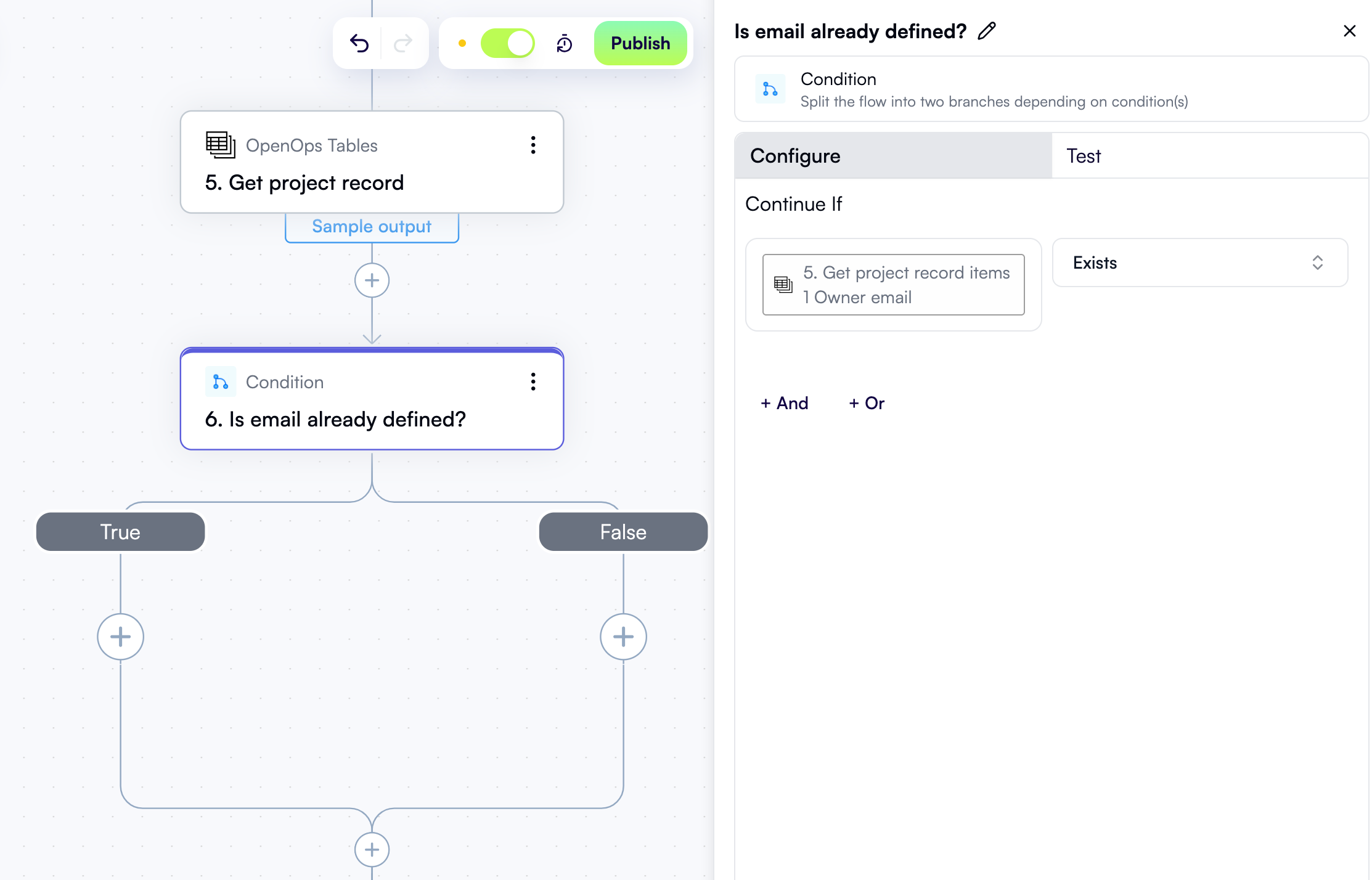 Click the **Test** tab in the properties pane. Under **Step output**, click **Test Step**. After testing, the output is a JSON object representing the condition evaluation:
```json theme={null}
{
"condition": true
}
```
### Add project name to the OpenOps table
Now you need to add a record with the project name to the OpenOps table, unless it's already there *and* the owner email is defined.
To do this, click **+** in the workflow editor under the **False** branch of the **Is email already defined?** condition.
In the pop-up menu, select **OpenOps Tables** in the left pane, then click **Add or Update Record** in the right pane.
In the properties pane of the new step, rename the step *Add project to mapping table*.
For the **Table** field, select **CloudHealth project-owner mapping**.
Click the **Primary Key Value** field to open the **Data Selector** view. In this view, expand the **4. For each project name** entry, then click **Insert** alongside the **item** entry.
Under **Fields to update**, click **Add Item**. This opens a new area where you specify what to add in the **Owner email** field of your OpenOps table. Inside this area:
* In the **Field name** dropdown, select **Owner email**.
* In the **Owner email** field, enter your own email address. You'll use this to test the EC2 rightsizing workflow described next. Your account in your organization's Slack workspace should be registered to this email. Once both workflows described in this tutorial are complete, replace your email with the actual project owners' emails.
Here's what the **Configure** tab in the properties pane should now look like:
Click the **Test** tab in the properties pane. Under **Step output**, click **Test Step**. After testing, the output is a JSON object representing the condition evaluation:
```json theme={null}
{
"condition": true
}
```
### Add project name to the OpenOps table
Now you need to add a record with the project name to the OpenOps table, unless it's already there *and* the owner email is defined.
To do this, click **+** in the workflow editor under the **False** branch of the **Is email already defined?** condition.
In the pop-up menu, select **OpenOps Tables** in the left pane, then click **Add or Update Record** in the right pane.
In the properties pane of the new step, rename the step *Add project to mapping table*.
For the **Table** field, select **CloudHealth project-owner mapping**.
Click the **Primary Key Value** field to open the **Data Selector** view. In this view, expand the **4. For each project name** entry, then click **Insert** alongside the **item** entry.
Under **Fields to update**, click **Add Item**. This opens a new area where you specify what to add in the **Owner email** field of your OpenOps table. Inside this area:
* In the **Field name** dropdown, select **Owner email**.
* In the **Owner email** field, enter your own email address. You'll use this to test the EC2 rightsizing workflow described next. Your account in your organization's Slack workspace should be registered to this email. Once both workflows described in this tutorial are complete, replace your email with the actual project owners' emails.
Here's what the **Configure** tab in the properties pane should now look like:
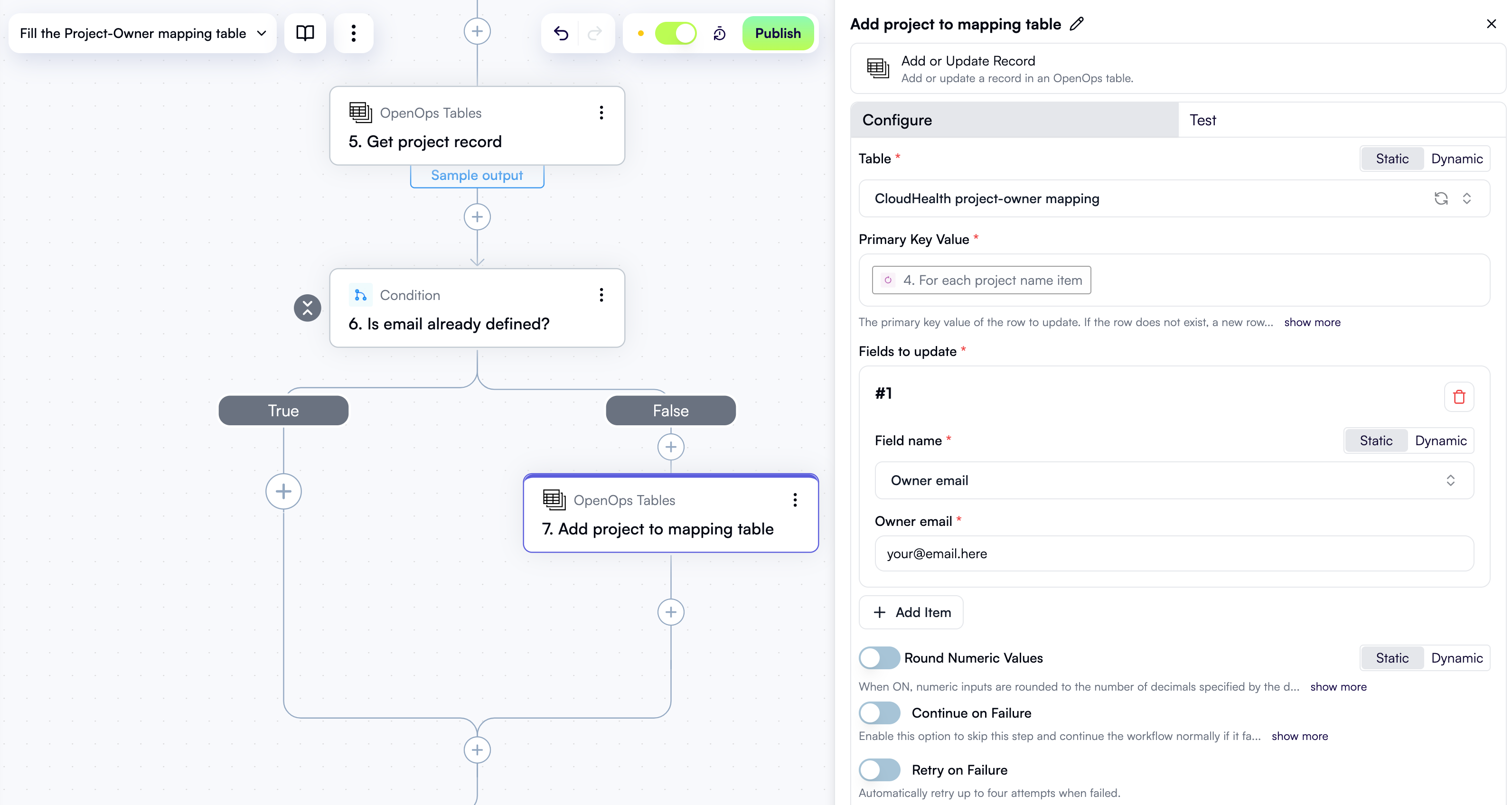 Click the **Test** tab in the properties pane. Under **Step output**, click **Test Step**. After testing, the output is a JSON object representing the new row added to the table:
```json theme={null}
{
"id": 1,
"order": "1.00000000000000000000",
"CloudHealth project": "Other",
"Owner email": "your@email.here"
}
```
### Test and publish the workflow
You now have all the steps needed to populate the project-owner mapping table. The final task is to test and publish the workflow.
To test the workflow, scroll to the top of the workflow graph and click the **Test Workflow** button above the trigger:
Although this is called "testing", OpenOps will actually run the entire workflow, performing all actions as if it were running on its defined schedule. Once the run completes, you should see green checkmarks next to each step in the **Run Details** pane on the right, along with a **Run Succeeded** status message at the bottom:
Click the **Test** tab in the properties pane. Under **Step output**, click **Test Step**. After testing, the output is a JSON object representing the new row added to the table:
```json theme={null}
{
"id": 1,
"order": "1.00000000000000000000",
"CloudHealth project": "Other",
"Owner email": "your@email.here"
}
```
### Test and publish the workflow
You now have all the steps needed to populate the project-owner mapping table. The final task is to test and publish the workflow.
To test the workflow, scroll to the top of the workflow graph and click the **Test Workflow** button above the trigger:
Although this is called "testing", OpenOps will actually run the entire workflow, performing all actions as if it were running on its defined schedule. Once the run completes, you should see green checkmarks next to each step in the **Run Details** pane on the right, along with a **Run Succeeded** status message at the bottom:
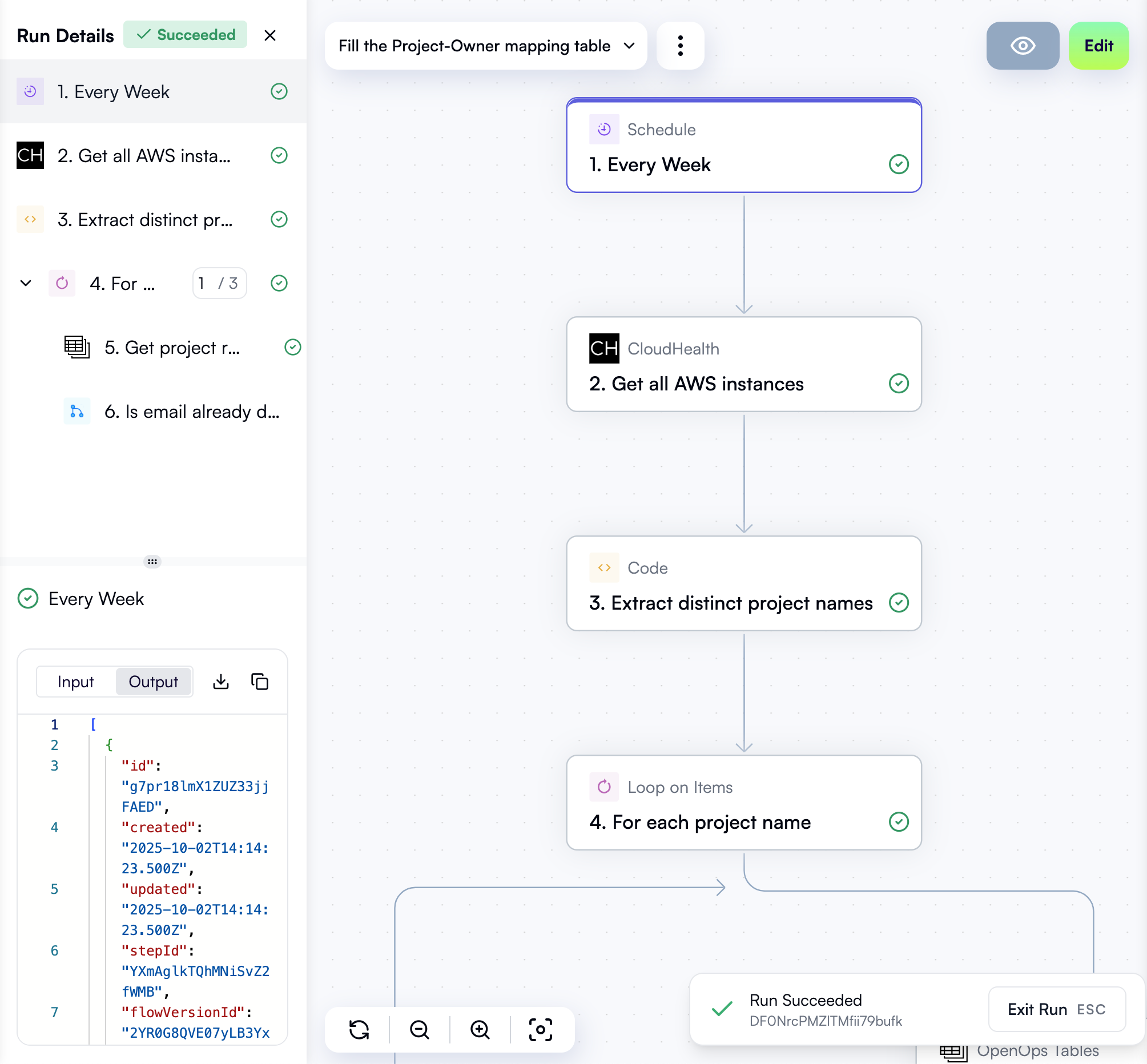 Click **Edit** in the top right to return to the workflow editor. Then click **Publish** in the same corner to make the workflow live.
After publishing, the workflow will run on the schedule you defined, which is every Monday at noon UTC.
If you click **Workflows** in the left-side menu, you'll see the workflow you just published. Its runs will appear in the view that opens when you click **Runs** in the same menu.
### Review the project-owner mapping table
Click **Tables** in the left-side menu. Under **OpenOps Dataset**, click **CloudHealth project-owner mapping**. After running the workflow, the table should look something like this:
Click **Edit** in the top right to return to the workflow editor. Then click **Publish** in the same corner to make the workflow live.
After publishing, the workflow will run on the schedule you defined, which is every Monday at noon UTC.
If you click **Workflows** in the left-side menu, you'll see the workflow you just published. Its runs will appear in the view that opens when you click **Runs** in the same menu.
### Review the project-owner mapping table
Click **Tables** in the left-side menu. Under **OpenOps Dataset**, click **CloudHealth project-owner mapping**. After running the workflow, the table should look something like this:
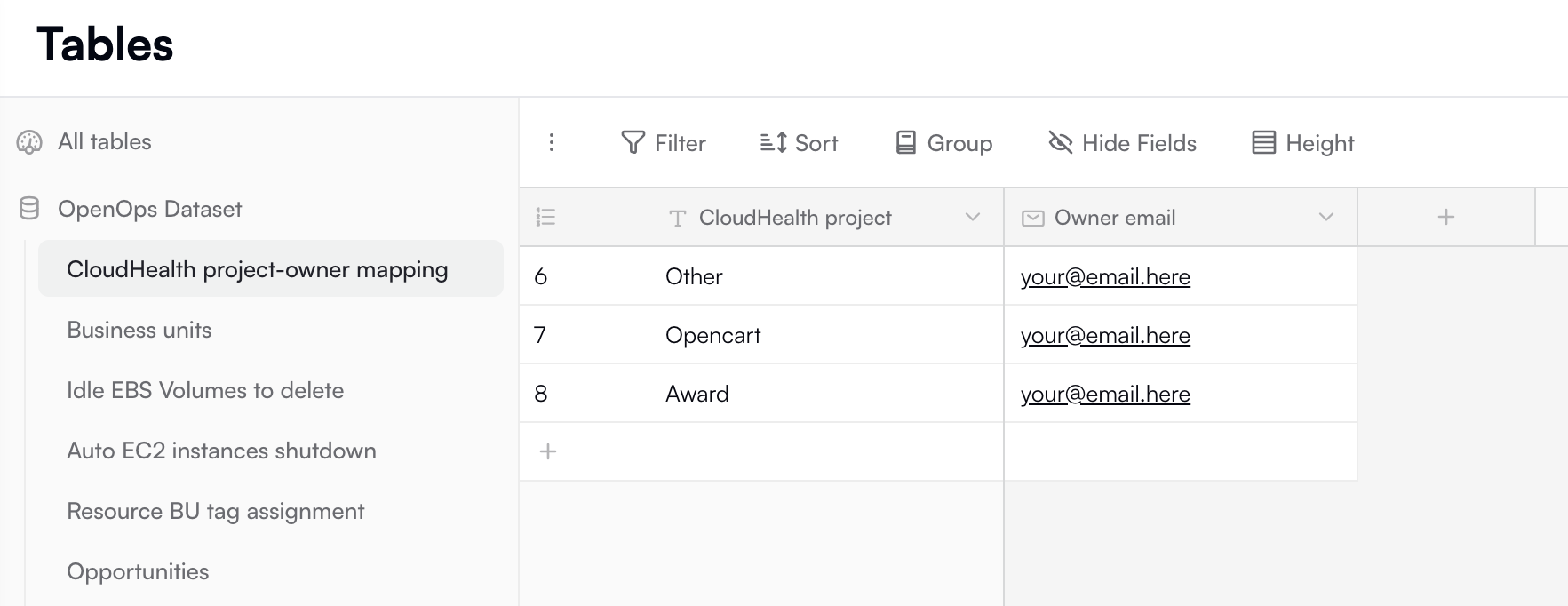 At this point, you have everything you need to begin building the second workflow.
## Creating a workflow to process CloudHealth rightsizing recommendations
Now let's create another workflow — this one will process CloudHealth EC2 rightsizing recommendations.
If you don't want to follow this section step by step, you can [download the finished workflow](https://docs.openops.com/workflows/cloudhealth-rightsizing-recommendations.json) and [import](/workflow-management/import-export/#importing-workflows) it.
### Create a new workflow
In the **Overview** or **Workflows** view in OpenOps, click the **+ New Workflow** button in the top right.
When the OpenOps workflow editor opens with a blank workflow, click the down arrow next to the workflow name in the top left, then click **Rename**, and change the name to *CloudHealth Rightsizing Recommendations*.
### Configure the trigger to run every working day
Click the trigger step in the workflow editor. In the trigger type dropdown, select **Schedule**, then choose **Every Day**.
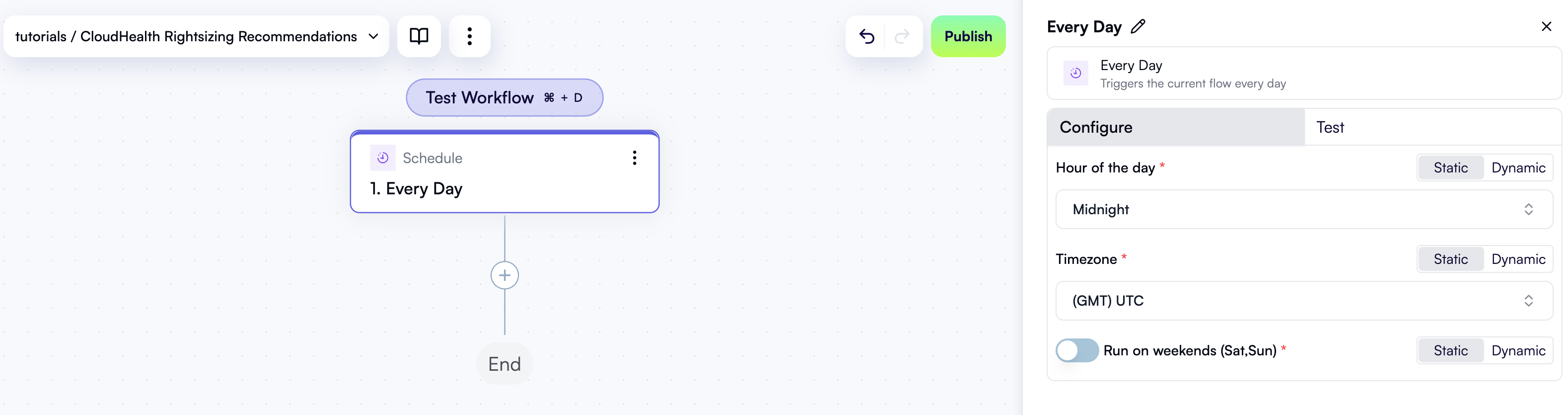
In the trigger step's properties pane on the right, under the **Configure** tab, keep the default settings. With these defaults, the workflow will run every day (excluding weekends) at midnight UTC:
At this point, you have everything you need to begin building the second workflow.
## Creating a workflow to process CloudHealth rightsizing recommendations
Now let's create another workflow — this one will process CloudHealth EC2 rightsizing recommendations.
If you don't want to follow this section step by step, you can [download the finished workflow](https://docs.openops.com/workflows/cloudhealth-rightsizing-recommendations.json) and [import](/workflow-management/import-export/#importing-workflows) it.
### Create a new workflow
In the **Overview** or **Workflows** view in OpenOps, click the **+ New Workflow** button in the top right.
When the OpenOps workflow editor opens with a blank workflow, click the down arrow next to the workflow name in the top left, then click **Rename**, and change the name to *CloudHealth Rightsizing Recommendations*.
### Configure the trigger to run every working day
Click the trigger step in the workflow editor. In the trigger type dropdown, select **Schedule**, then choose **Every Day**.
In the trigger step's properties pane on the right, under the **Configure** tab, keep the default settings. With these defaults, the workflow will run every day (excluding weekends) at midnight UTC:
 Next, open the **Test** tab in the properties pane, and under **Step output**, click **Load Data**. Remember: testing every step is important. Testing earlier steps enables you to test later ones — and eventually the full workflow.
### Fetch rightsizing recommendations from CloudHealth
Now it's time to add the first action step. Since this workflow is built around processing CloudHealth recommendations, let's start there.
In the workflow graph, under the trigger, click the **+** button to add a new step.
In the pop-up menu, scroll down and click **CloudHealth**. From the list of available CloudHealth actions, select **Get Recommendations**:
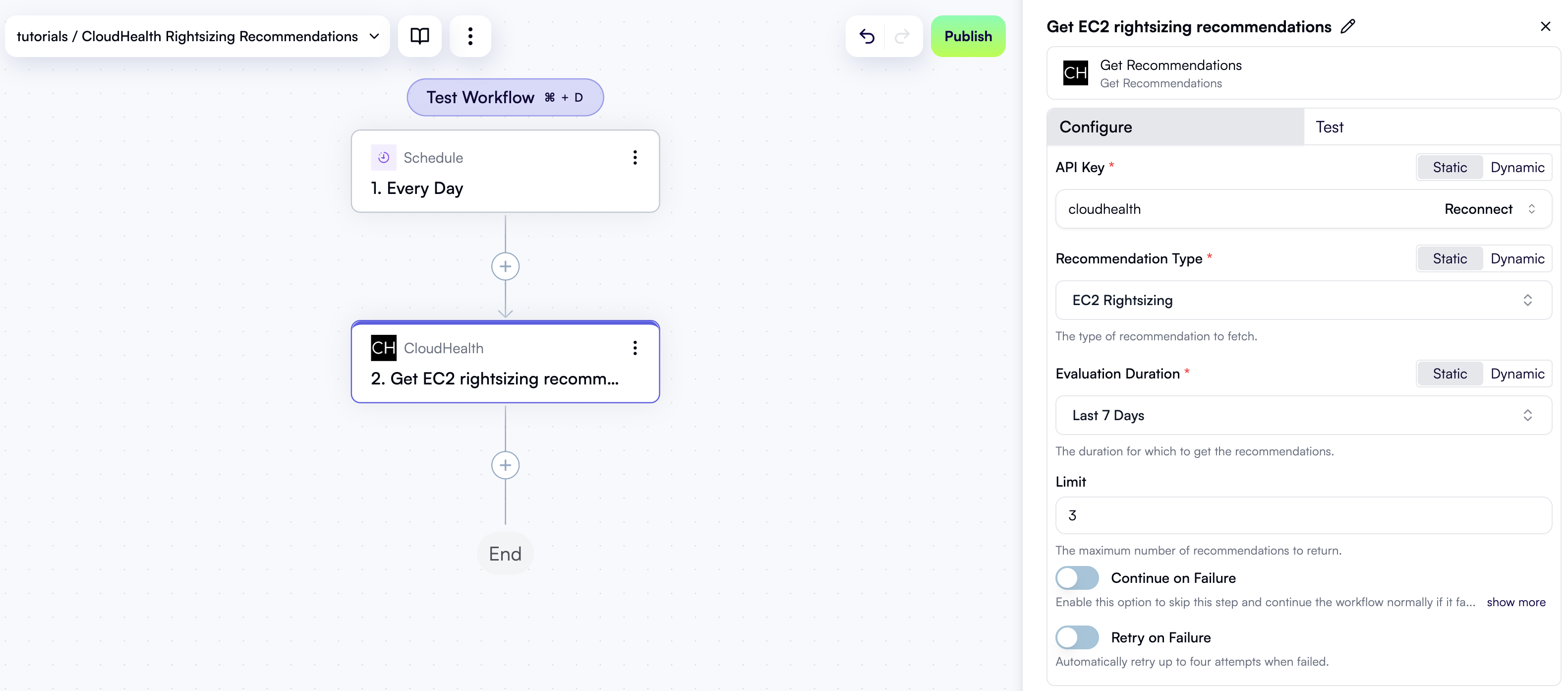
At the top of the new step's properties pane, click **Edit Step Name** and rename the step *Get EC2 rightsizing recommendations*.
Under **API Key**, select the CloudHealth connection you created earlier.
Then, configure the remaining action properties like this:
* Under **Recommendation Type**, select **EC2 Rightsizing**.
* Under **Evaluation Duration**, select **Last 7 Days**.
* Under **Limit**, set the value to `3` to retrieve the top 3 recommendations. This should be enough for testing purposes. Later on, when you've completed this tutorial, feel free to increase this value or set this field empty to fetch all available recommendations.
Your workflow should now look like this:
Next, open the **Test** tab in the properties pane, and under **Step output**, click **Load Data**. Remember: testing every step is important. Testing earlier steps enables you to test later ones — and eventually the full workflow.
### Fetch rightsizing recommendations from CloudHealth
Now it's time to add the first action step. Since this workflow is built around processing CloudHealth recommendations, let's start there.
In the workflow graph, under the trigger, click the **+** button to add a new step.
In the pop-up menu, scroll down and click **CloudHealth**. From the list of available CloudHealth actions, select **Get Recommendations**:
At the top of the new step's properties pane, click **Edit Step Name** and rename the step *Get EC2 rightsizing recommendations*.
Under **API Key**, select the CloudHealth connection you created earlier.
Then, configure the remaining action properties like this:
* Under **Recommendation Type**, select **EC2 Rightsizing**.
* Under **Evaluation Duration**, select **Last 7 Days**.
* Under **Limit**, set the value to `3` to retrieve the top 3 recommendations. This should be enough for testing purposes. Later on, when you've completed this tutorial, feel free to increase this value or set this field empty to fetch all available recommendations.
Your workflow should now look like this:
 Click the **Test** tab in the properties pane. Under **Step output**, click **Test Step**. This will test the action and display its output in the bottom-right pane. Because the action returns a list of recommendations, expect JSON output similar to this:
```json theme={null}
{
"rightsizingRecommendations": {
"edges": [
{
"node": {
"targetAsset": { ... },
"currentMetrics": [ ... ],
"currentUtilizationStatus": "UNDER_TARGET",
"options": [ ... ],
"currentMonthlyPrice": 112.96,
"projectedMonthlyPrice": 66.48167,
"projectedMonthlySavings": 46.478333,
"currentCost": 67.77599,
"projectedCost": 66.48167,
"projectedSavingsByCost": 1.2943289,
"terminateRecommendation": false,
"__typename": "RightsizingRecommendation"
},
"__typename": "RightsizingRecommendationEdge"
},
... more nodes
],
"utilizationStatusSummary": { ... },
"pageInfo": { ... },
"totalCount": 18,
"__typename": "RightsizingRecommendationConnection"
}
}
```
### Loop over recommendations
CloudHealth returns a list of recommendations, but you'll want to process them one at a time. To do this, let's use a **Loop on Items** action.
In the workflow graph, click the **+** button to add a new step.
In the pop-up menu, select **Loop on Items** in the left pane, then click **Loop on Items** in the right pane.
At the top of the new step's properties pane, click **Edit Step Name** and rename the step *For each recommendation*.
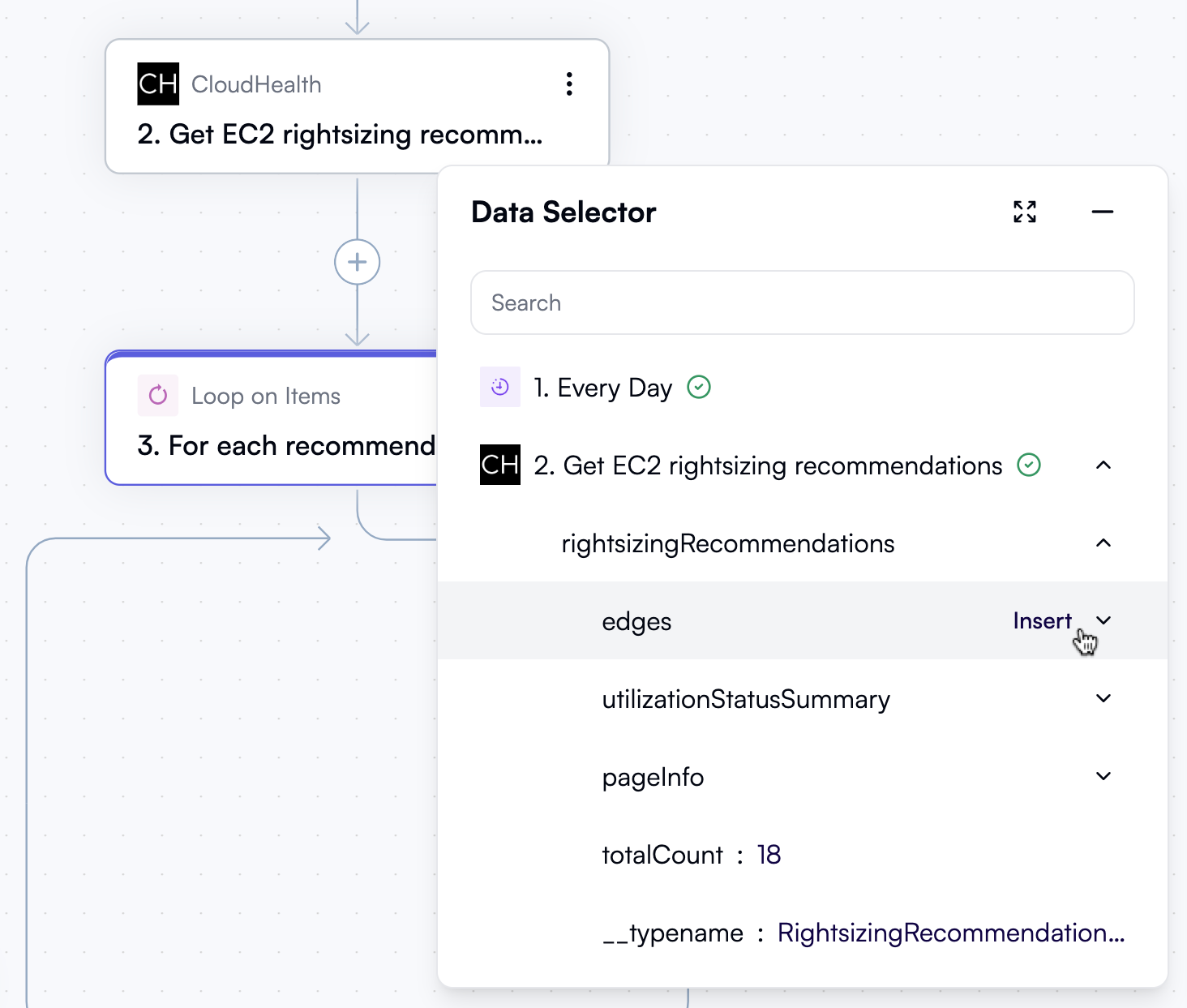
In the properties pane, click the **Items** field. In the **Data Selector** view that opens, expand **2. Get EC2 rightsizing recommendations**, then expand **rightsizingRecommendations**, and click **Insert** alongside the **edges** entry:
Click the **Test** tab in the properties pane. Under **Step output**, click **Test Step**. This will test the action and display its output in the bottom-right pane. Because the action returns a list of recommendations, expect JSON output similar to this:
```json theme={null}
{
"rightsizingRecommendations": {
"edges": [
{
"node": {
"targetAsset": { ... },
"currentMetrics": [ ... ],
"currentUtilizationStatus": "UNDER_TARGET",
"options": [ ... ],
"currentMonthlyPrice": 112.96,
"projectedMonthlyPrice": 66.48167,
"projectedMonthlySavings": 46.478333,
"currentCost": 67.77599,
"projectedCost": 66.48167,
"projectedSavingsByCost": 1.2943289,
"terminateRecommendation": false,
"__typename": "RightsizingRecommendation"
},
"__typename": "RightsizingRecommendationEdge"
},
... more nodes
],
"utilizationStatusSummary": { ... },
"pageInfo": { ... },
"totalCount": 18,
"__typename": "RightsizingRecommendationConnection"
}
}
```
### Loop over recommendations
CloudHealth returns a list of recommendations, but you'll want to process them one at a time. To do this, let's use a **Loop on Items** action.
In the workflow graph, click the **+** button to add a new step.
In the pop-up menu, select **Loop on Items** in the left pane, then click **Loop on Items** in the right pane.
At the top of the new step's properties pane, click **Edit Step Name** and rename the step *For each recommendation*.
In the properties pane, click the **Items** field. In the **Data Selector** view that opens, expand **2. Get EC2 rightsizing recommendations**, then expand **rightsizingRecommendations**, and click **Insert** alongside the **edges** entry:
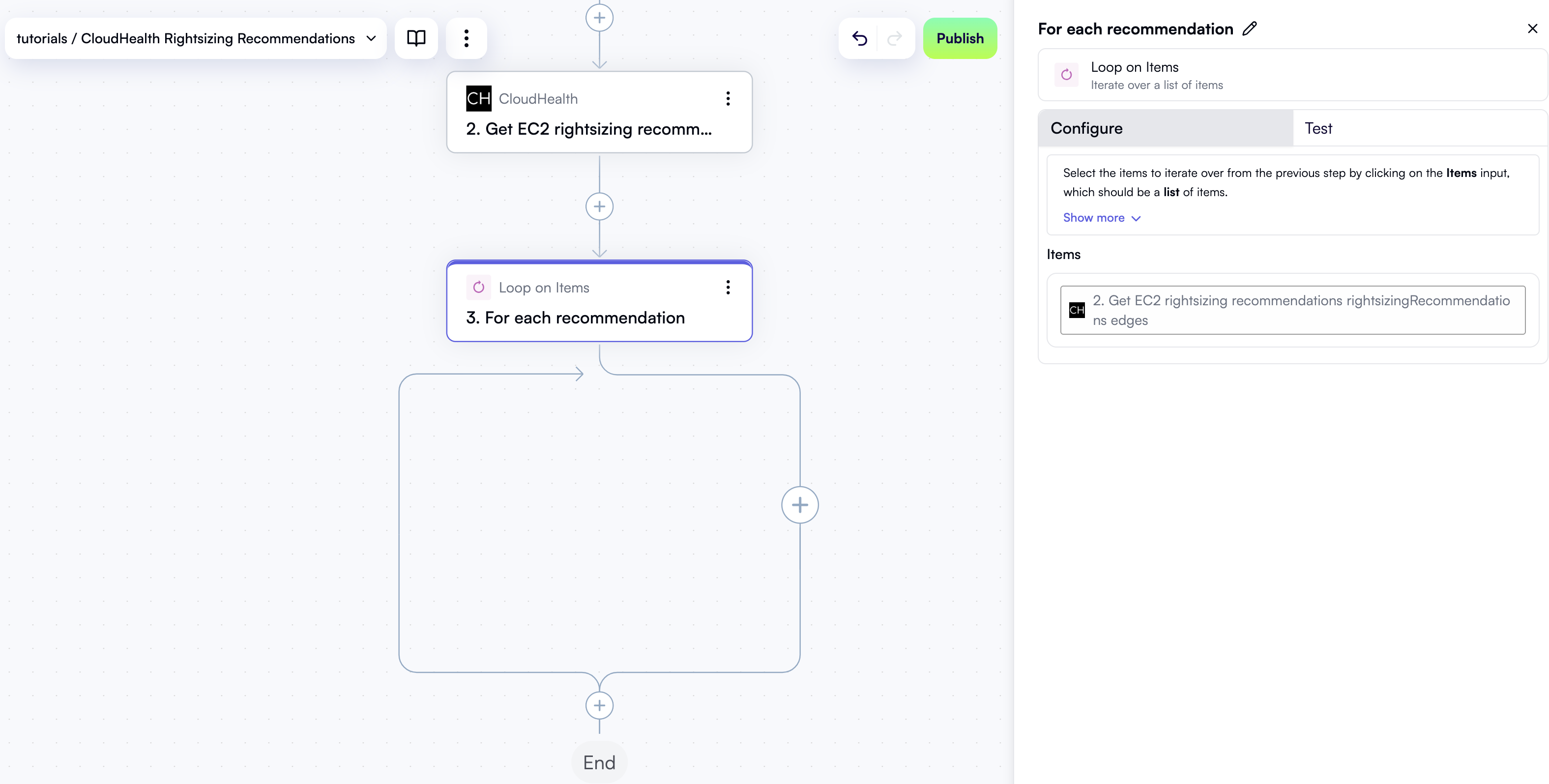
 Your new step in the workflow graph and the **Configure** tab in its properties pane should now look like this:
 Open the **Test** tab in the properties pane. Under **Step output**, click **Test Step**. The output should be a JSON object representing the first rightsizing recommendation:
```json theme={null}
{
"item": {
"node": {
"targetAsset": { ... },
"currentMetrics": [ ... ],
"currentUtilizationStatus": "UNDER_TARGET",
"options": [ ... ],
"currentMonthlyPrice": 112.96,
"projectedMonthlyPrice": 66.48167,
"projectedMonthlySavings": 46.478333,
"currentCost": 67.77599,
"projectedCost": 66.48167,
"projectedSavingsByCost": 1.2943289,
"terminateRecommendation": false,
"__typename": "RightsizingRecommendation"
},
"__typename": "RightsizingRecommendationEdge"
},
"index": 1
}
```
All further steps in this workflow will be added inside this loop.
### Generate opportunity ID
The first step inside the loop will generate an ID for the current recommendation. Since CloudHealth does not provide this ID, you'll need to create one yourself. The ID will be used to save the recommendation in the preconfigured *Opportunities* table in OpenOps, track its status, and, most importantly, determine whether to send a Slack notification to the project owner.
While you could simplify the workflow greatly without tracking recommendations in an OpenOps table, you then wouldn't be able to select which notifications to send and which to ignore. As a result, project owners would potentially receive multiple notifications for the same recommendation, which would get frustrating very soon.
Inside the loop in the workflow graph, click **+** to add a new step.
In the pop-up menu, select **Text Operations** in the left pane, then click **Concatenate** in the right pane.
At the top of the new step's properties pane, click **Edit Step Name** and rename the step *Opportunity ID*.
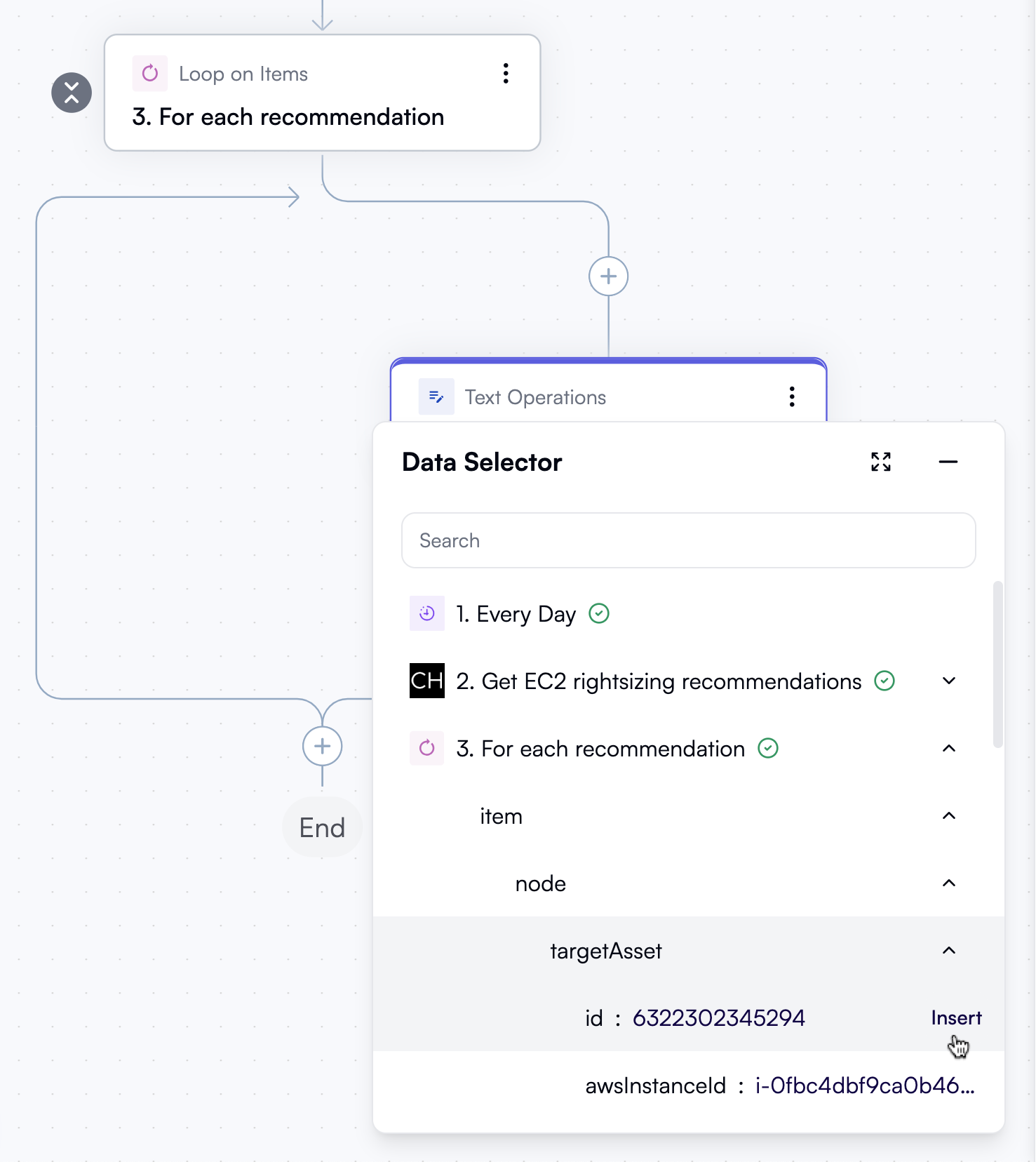
In the properties pane, under **Texts**, click **Add Item**. Click the new field to open the **Data Selector** view. From there, expand **3. For each recommendation**, then **item**, then **node**, then **targetAsset**, and click **Insert** alongside the **id** entry:
Open the **Test** tab in the properties pane. Under **Step output**, click **Test Step**. The output should be a JSON object representing the first rightsizing recommendation:
```json theme={null}
{
"item": {
"node": {
"targetAsset": { ... },
"currentMetrics": [ ... ],
"currentUtilizationStatus": "UNDER_TARGET",
"options": [ ... ],
"currentMonthlyPrice": 112.96,
"projectedMonthlyPrice": 66.48167,
"projectedMonthlySavings": 46.478333,
"currentCost": 67.77599,
"projectedCost": 66.48167,
"projectedSavingsByCost": 1.2943289,
"terminateRecommendation": false,
"__typename": "RightsizingRecommendation"
},
"__typename": "RightsizingRecommendationEdge"
},
"index": 1
}
```
All further steps in this workflow will be added inside this loop.
### Generate opportunity ID
The first step inside the loop will generate an ID for the current recommendation. Since CloudHealth does not provide this ID, you'll need to create one yourself. The ID will be used to save the recommendation in the preconfigured *Opportunities* table in OpenOps, track its status, and, most importantly, determine whether to send a Slack notification to the project owner.
While you could simplify the workflow greatly without tracking recommendations in an OpenOps table, you then wouldn't be able to select which notifications to send and which to ignore. As a result, project owners would potentially receive multiple notifications for the same recommendation, which would get frustrating very soon.
Inside the loop in the workflow graph, click **+** to add a new step.
In the pop-up menu, select **Text Operations** in the left pane, then click **Concatenate** in the right pane.
At the top of the new step's properties pane, click **Edit Step Name** and rename the step *Opportunity ID*.
In the properties pane, under **Texts**, click **Add Item**. Click the new field to open the **Data Selector** view. From there, expand **3. For each recommendation**, then **item**, then **node**, then **targetAsset**, and click **Insert** alongside the **id** entry:
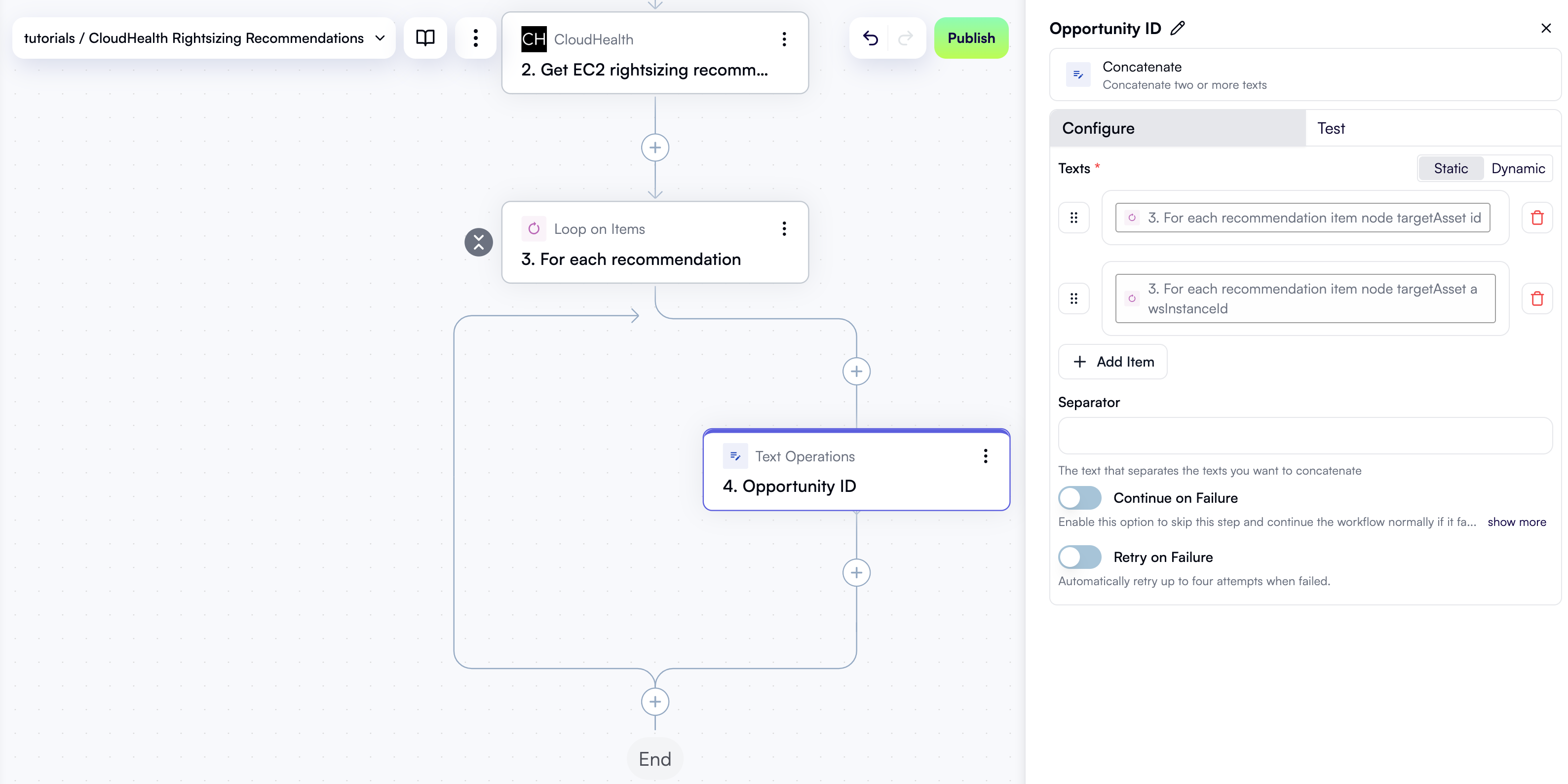
 Next, under **Texts**, click **Add Item** again to add another field. Open the **Data Selector** view once more, expand **3. For each recommendation**, then **item**, then **node**, then **targetAsset**, and click **Insert** alongside the **awsInstanceId** entry:
Your new step in the workflow graph and the **Configure** tab in its properties pane should now look like this:
Next, under **Texts**, click **Add Item** again to add another field. Open the **Data Selector** view once more, expand **3. For each recommendation**, then **item**, then **node**, then **targetAsset**, and click **Insert** alongside the **awsInstanceId** entry:
Your new step in the workflow graph and the **Configure** tab in its properties pane should now look like this:
 Open the **Test** tab in the properties pane. Under **Step output**, click **Test Step**. The output should be a string that concatenates the two IDs you just configured:
```text theme={null}
6322302345294i-0fbc4dbf9ca0b46c0
```
### Look up the opportunity in the OpenOps table
Now that you have an opportunity ID, the next step is to check whether a recommendation with this ID already exists in the *Opportunities* table in OpenOps.
Inside the loop in the workflow graph, click **+** to add a new step.
In the pop-up menu, select **OpenOps Tables** in the left pane, then click **Get Records** in the right pane.
At the top of the new step's properties pane, click **Edit Step Name** and rename the step *Find table entry for opportunity*.
In the **Configure** tab in the properties pane, under **Table**, select **Opportunities**.
Under **Fields to filter by**, click **Add Item**. In the new filter section:
* Under **Field name**, select **External Opportunity Id**.
* Under **Filter type**, select **Is equal**.
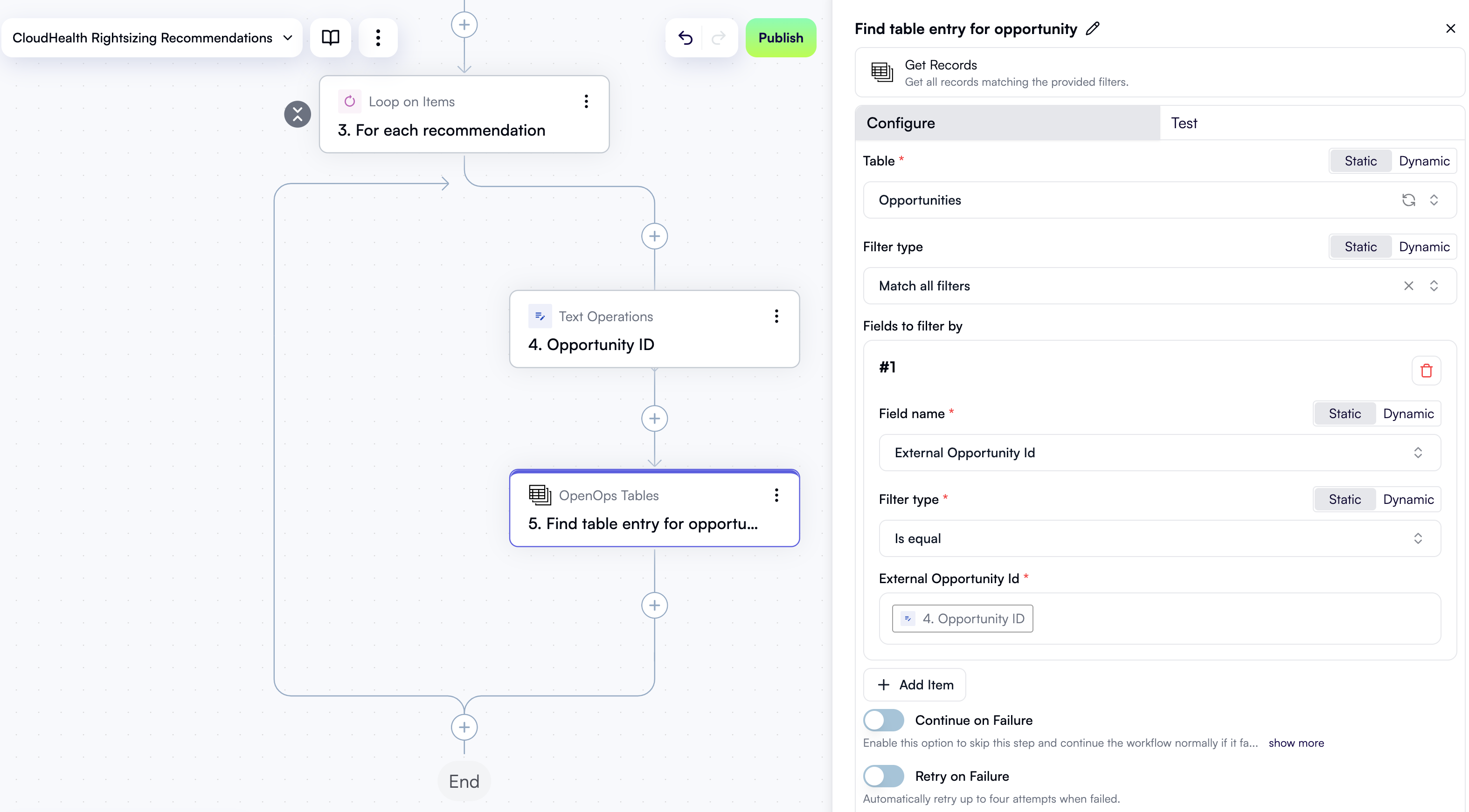
* In the **External Opportunity Id** field, open the **Data Selector** view and click **Insert** alongside the **4. Opportunity ID** entry.
The new step in the workflow graph and the **Configure** tab in its properties pane should now look like this:
Open the **Test** tab in the properties pane. Under **Step output**, click **Test Step**. The output should be a string that concatenates the two IDs you just configured:
```text theme={null}
6322302345294i-0fbc4dbf9ca0b46c0
```
### Look up the opportunity in the OpenOps table
Now that you have an opportunity ID, the next step is to check whether a recommendation with this ID already exists in the *Opportunities* table in OpenOps.
Inside the loop in the workflow graph, click **+** to add a new step.
In the pop-up menu, select **OpenOps Tables** in the left pane, then click **Get Records** in the right pane.
At the top of the new step's properties pane, click **Edit Step Name** and rename the step *Find table entry for opportunity*.
In the **Configure** tab in the properties pane, under **Table**, select **Opportunities**.
Under **Fields to filter by**, click **Add Item**. In the new filter section:
* Under **Field name**, select **External Opportunity Id**.
* Under **Filter type**, select **Is equal**.
* In the **External Opportunity Id** field, open the **Data Selector** view and click **Insert** alongside the **4. Opportunity ID** entry.
The new step in the workflow graph and the **Configure** tab in its properties pane should now look like this:
 Next, open the **Test** tab in the properties pane. Under **Step output**, click **Test Step**. The output will be an object showing the number of matching table entries and their contents. Since this is a new recommendation, there should be no existing entries. The expected output looks like this:
```json theme={null}
{
"count": 0,
"items": []
}
```
However, if the recommendation already exists in the table, the output will have a different structure. Because the next step of the workflow relies on part of that output, you'll need to provide a sample output for testing.
To do this, click **Sample output** in the **Test** tab. In the **Output** area, paste the following JSON, then click **Apply**:
```json theme={null}
{
"count": 1,
"items": [
{
"id": 48,
"order": "1.00000000000000000000",
"ID": "6cc0f15a-f3eb-4d77-b6b3-2f51eebbe8cf",
"Status": {
"id": 5,
"value": "Created",
"color": "grey"
},
"Opportunity Type": null,
"Estimated savings USD per month": null,
"Resource Id": null,
"Workflow": null,
"Service": null,
"Region": null,
"Account": null,
"Owner": null,
"Follow-up task": null,
"Opportunity generator": null,
"External Opportunity Id": "6322302345294i-0fbc4dbf9ca0b46c0",
"Complexity": null,
"Risk": null,
"Opportunity details": null,
"Snoozed until": null,
"Resolution notes": null,
"Creation time": "2025-09-22T13:44:52.980710Z",
"Last modified time": "2025-09-22T13:44:52.980710Z"
}
]
}
```
### Save table entry ID to OpenOps storage
You now need to map the ID of the current recommendation to the ID of its entry in the *Opportunities* table, and save this mapping to OpenOps' built-in key-value storage. This will be required later in the workflow when deciding whether to send a notification to the project owner.
Inside the loop in the workflow graph, click **+** to add a new step.
In the pop-up menu, select **Storage** in the left pane, then click **Put** in the right pane.
At the top of the new step's properties pane, click **Edit Step Name** and rename the step *Save table record ID to storage*.
In the **Key** field, use **Data Selector** to select **4. Opportunity ID**.
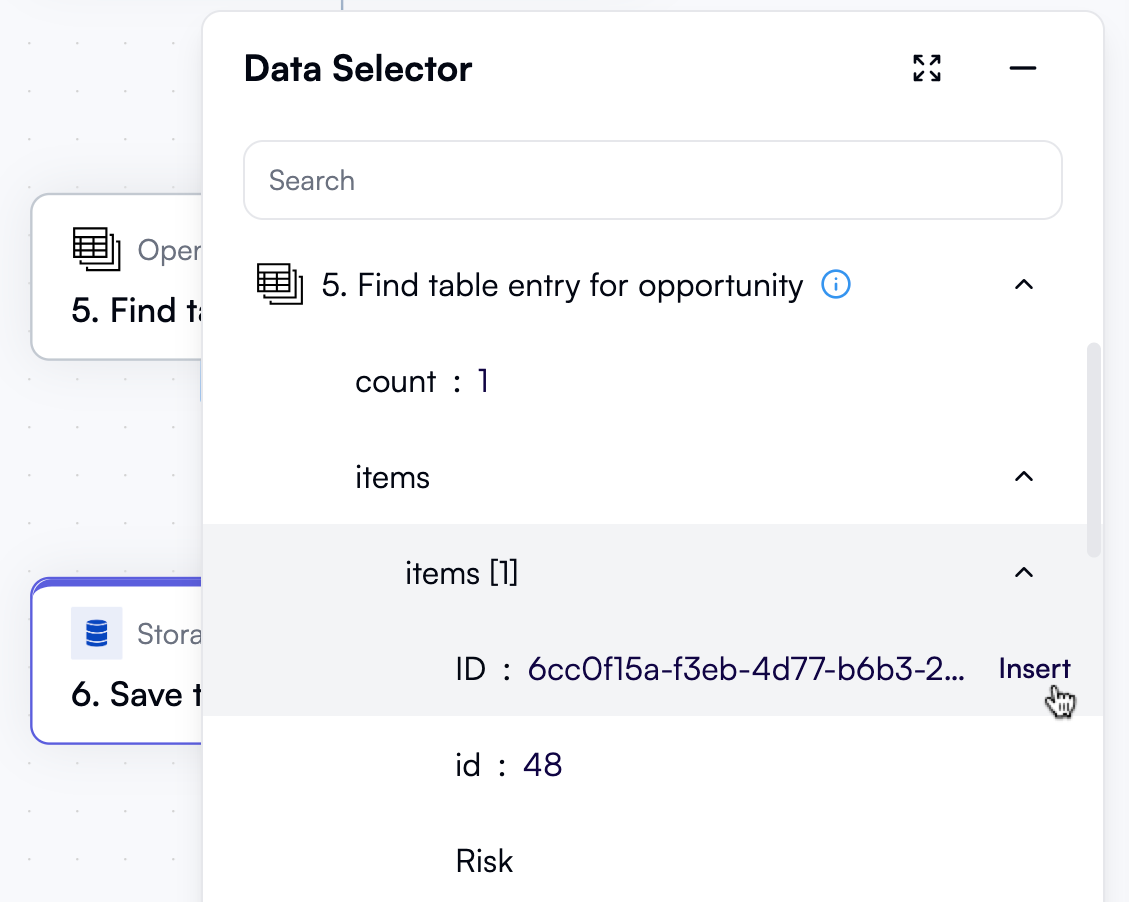
In the **Value** field, open **Data Selector**, expand **5. Find table entry for opportunity**, then **items**, then **items\[1]**. Click **Insert** alongside the uppercase **ID** entry:
Next, open the **Test** tab in the properties pane. Under **Step output**, click **Test Step**. The output will be an object showing the number of matching table entries and their contents. Since this is a new recommendation, there should be no existing entries. The expected output looks like this:
```json theme={null}
{
"count": 0,
"items": []
}
```
However, if the recommendation already exists in the table, the output will have a different structure. Because the next step of the workflow relies on part of that output, you'll need to provide a sample output for testing.
To do this, click **Sample output** in the **Test** tab. In the **Output** area, paste the following JSON, then click **Apply**:
```json theme={null}
{
"count": 1,
"items": [
{
"id": 48,
"order": "1.00000000000000000000",
"ID": "6cc0f15a-f3eb-4d77-b6b3-2f51eebbe8cf",
"Status": {
"id": 5,
"value": "Created",
"color": "grey"
},
"Opportunity Type": null,
"Estimated savings USD per month": null,
"Resource Id": null,
"Workflow": null,
"Service": null,
"Region": null,
"Account": null,
"Owner": null,
"Follow-up task": null,
"Opportunity generator": null,
"External Opportunity Id": "6322302345294i-0fbc4dbf9ca0b46c0",
"Complexity": null,
"Risk": null,
"Opportunity details": null,
"Snoozed until": null,
"Resolution notes": null,
"Creation time": "2025-09-22T13:44:52.980710Z",
"Last modified time": "2025-09-22T13:44:52.980710Z"
}
]
}
```
### Save table entry ID to OpenOps storage
You now need to map the ID of the current recommendation to the ID of its entry in the *Opportunities* table, and save this mapping to OpenOps' built-in key-value storage. This will be required later in the workflow when deciding whether to send a notification to the project owner.
Inside the loop in the workflow graph, click **+** to add a new step.
In the pop-up menu, select **Storage** in the left pane, then click **Put** in the right pane.
At the top of the new step's properties pane, click **Edit Step Name** and rename the step *Save table record ID to storage*.
In the **Key** field, use **Data Selector** to select **4. Opportunity ID**.
In the **Value** field, open **Data Selector**, expand **5. Find table entry for opportunity**, then **items**, then **items\[1]**. Click **Insert** alongside the uppercase **ID** entry:
 The new step in the workflow graph and the **Configure** tab in its properties pane should now look like this:
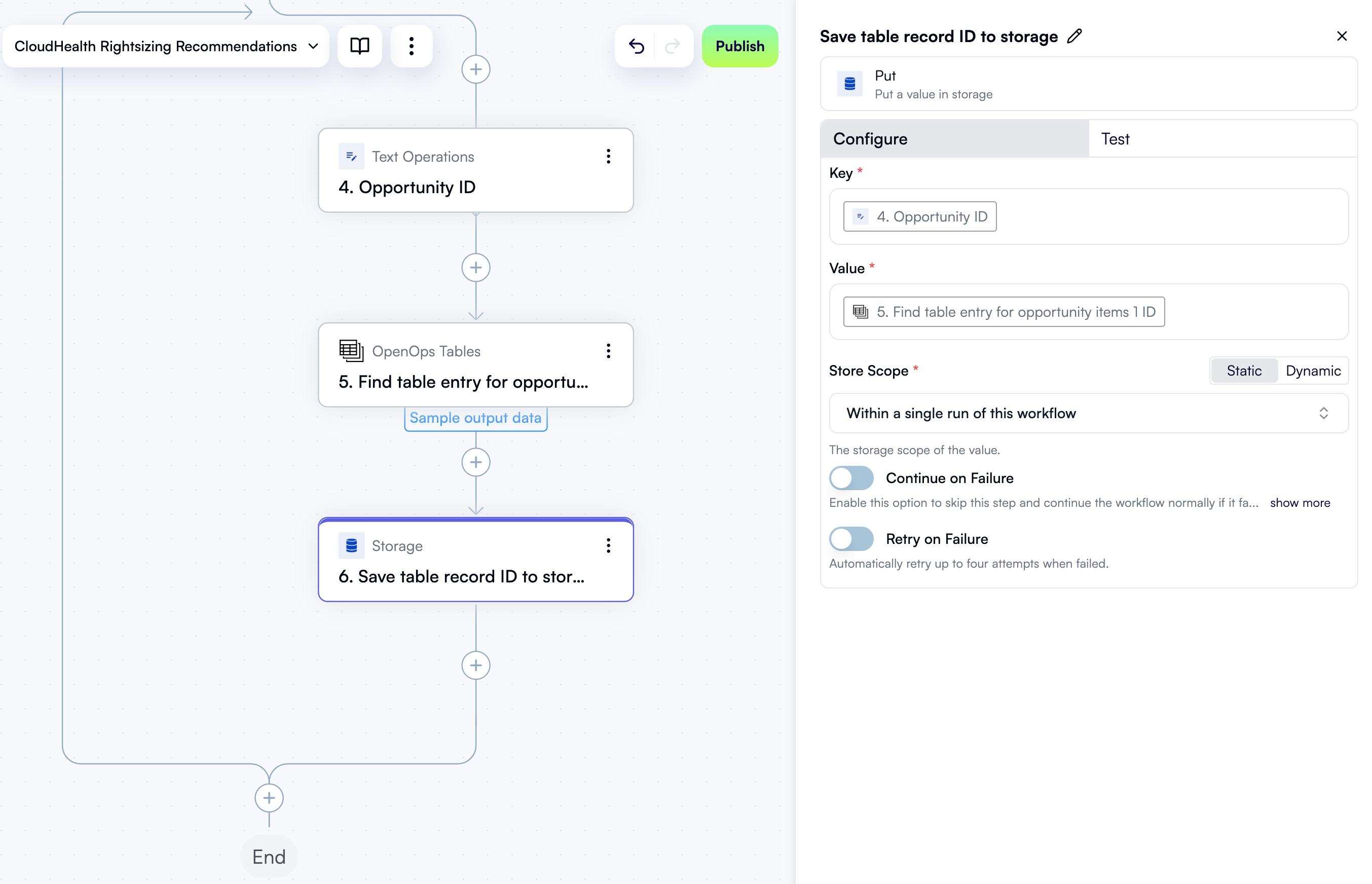 Click the **Test** tab in the properties pane, then under **Step output**, click **Test Step**. The output will be the value of the ID field in the *Opportunities* table entry representing the current recommendation:
```text theme={null}
6cc0f15a-f3eb-4d77-b6b3-2f51eebbe8cf
```
### Check if a table entry exists
When you run a published workflow, an entry for a CloudHealth recommendation may or may not already exist in the *Opportunities* table. What happens next in the workflow depends on whether the entry exists. To check this, you'll add a condition step.
Inside the loop in the workflow graph, click **+** to add a new step.
In the pop-up menu, select **Condition** in the left pane, then click **Condition** in the right pane.
At the top of the new step's properties pane, click **Edit Step Name** and rename the step *If no table entry for opportunity*.
Under **Continue If**, click the left field with the placeholder *First value*. In the **Data Selector** view, expand **5. Find table entry for opportunity** and click **Insert** alongside the **count** entry.
In the dropdown between the two fields, select **(Number) Is less than**.
In the right field, enter `1`.
The new step in the workflow graph and the **Configure** tab in its properties pane should now look like this:
Click the **Test** tab in the properties pane, then under **Step output**, click **Test Step**. The output will be the value of the ID field in the *Opportunities* table entry representing the current recommendation:
```text theme={null}
6cc0f15a-f3eb-4d77-b6b3-2f51eebbe8cf
```
### Check if a table entry exists
When you run a published workflow, an entry for a CloudHealth recommendation may or may not already exist in the *Opportunities* table. What happens next in the workflow depends on whether the entry exists. To check this, you'll add a condition step.
Inside the loop in the workflow graph, click **+** to add a new step.
In the pop-up menu, select **Condition** in the left pane, then click **Condition** in the right pane.
At the top of the new step's properties pane, click **Edit Step Name** and rename the step *If no table entry for opportunity*.
Under **Continue If**, click the left field with the placeholder *First value*. In the **Data Selector** view, expand **5. Find table entry for opportunity** and click **Insert** alongside the **count** entry.
In the dropdown between the two fields, select **(Number) Is less than**.
In the right field, enter `1`.
The new step in the workflow graph and the **Configure** tab in its properties pane should now look like this:
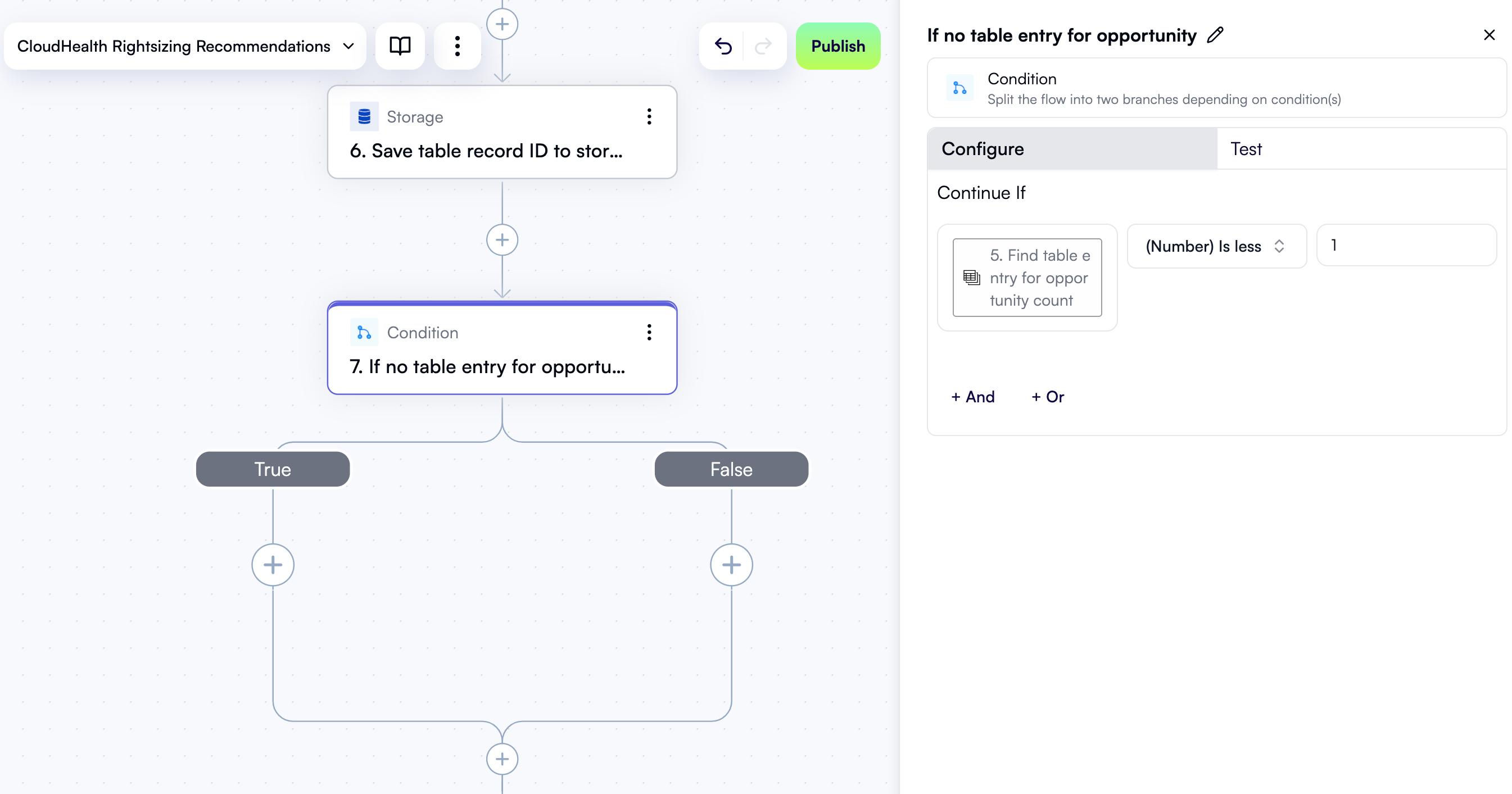 This condition evaluates to `true` if there's no table entry for the current recommendation, and `false` if one exists.
Click the **Test** tab in the properties pane, then under **Step output**, click **Test Step**. Since you added sample output data for step five that contains a table entry, the test output will be `false`:
```json theme={null}
{
"condition": false
}
```
### If no table entry, create one
If the condition above evaluates to `true`, it means the *Opportunities* table doesn't have a record for the recommendation. In this case, you'll create a new table entry and save its ID to storage for later use.
#### Create a new table entry
Inside the **True** branch of the condition, click **+** to add a new step.
In the pop-up menu, select **OpenOps Tables** in the left pane, then click **Add or Update Record** in the right pane.
At the top of the new step's properties pane, click **Edit Step Name** and rename the step *Add table entry for opportunity*.
For the **Table** field, select **Opportunities**.
Leave the **Primary Key Value** field empty so that OpenOps generates a unique ID for the new record.
Under **Fields to update**, click **Add Item**. In the new area:
* In the **Field name** dropdown, select **External Opportunity Id**.
* In the **External Opportunity Id** field, open the **Data Selector** view and click **Insert** alongside the **4. Opportunity ID** entry.
Click **Add Item** again to add another field. In the new area:
* In the **Field name** dropdown, select **Status**.
* In the **Status** dropdown, select **Created**.
Here's what the **Configure** tab in the properties pane should now look like:
This condition evaluates to `true` if there's no table entry for the current recommendation, and `false` if one exists.
Click the **Test** tab in the properties pane, then under **Step output**, click **Test Step**. Since you added sample output data for step five that contains a table entry, the test output will be `false`:
```json theme={null}
{
"condition": false
}
```
### If no table entry, create one
If the condition above evaluates to `true`, it means the *Opportunities* table doesn't have a record for the recommendation. In this case, you'll create a new table entry and save its ID to storage for later use.
#### Create a new table entry
Inside the **True** branch of the condition, click **+** to add a new step.
In the pop-up menu, select **OpenOps Tables** in the left pane, then click **Add or Update Record** in the right pane.
At the top of the new step's properties pane, click **Edit Step Name** and rename the step *Add table entry for opportunity*.
For the **Table** field, select **Opportunities**.
Leave the **Primary Key Value** field empty so that OpenOps generates a unique ID for the new record.
Under **Fields to update**, click **Add Item**. In the new area:
* In the **Field name** dropdown, select **External Opportunity Id**.
* In the **External Opportunity Id** field, open the **Data Selector** view and click **Insert** alongside the **4. Opportunity ID** entry.
Click **Add Item** again to add another field. In the new area:
* In the **Field name** dropdown, select **Status**.
* In the **Status** dropdown, select **Created**.
Here's what the **Configure** tab in the properties pane should now look like:
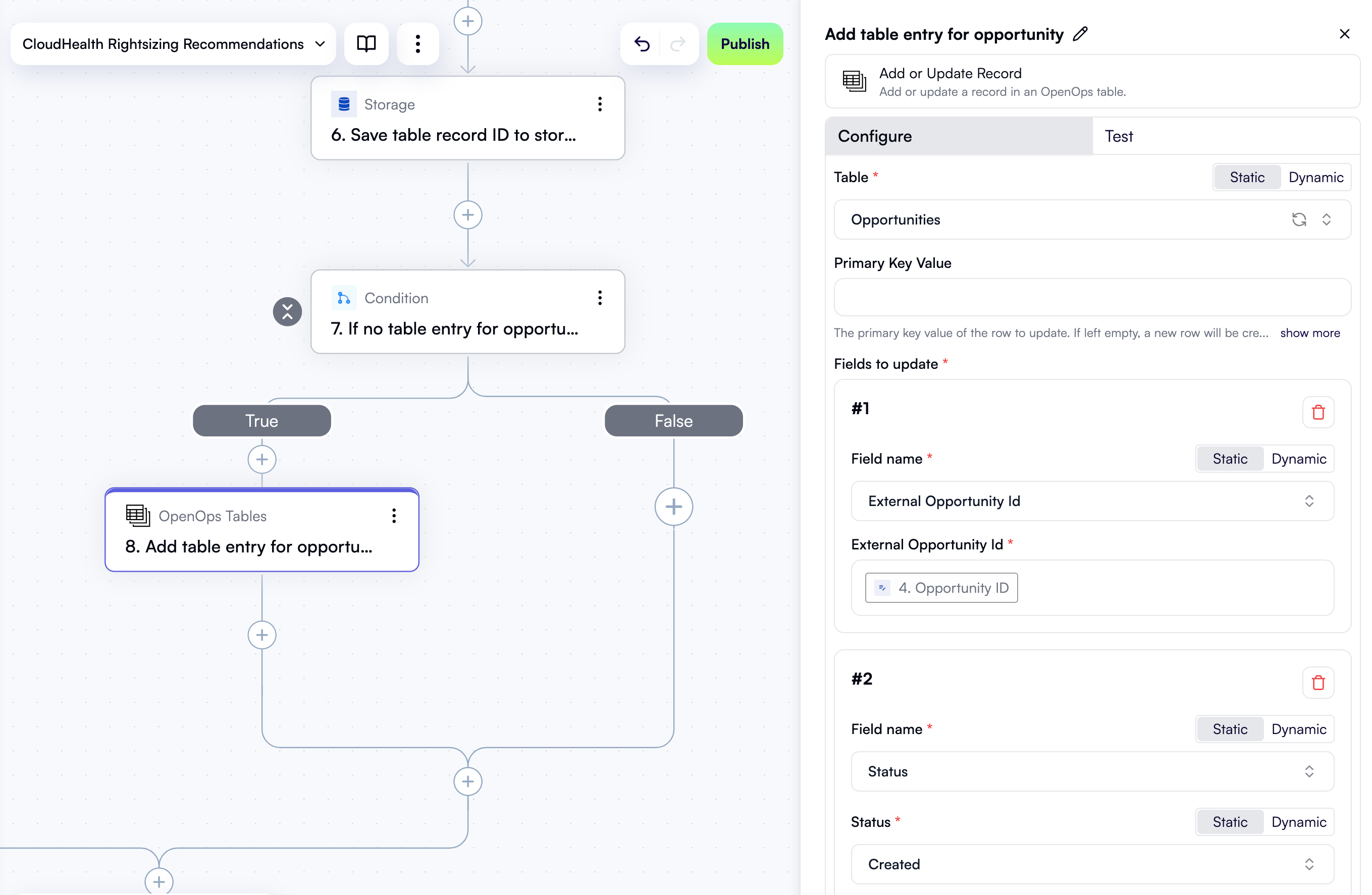 Click the **Test** tab in the properties pane, then under **Step output**, click **Test Step**. The output will represent a new entry in the *Opportunities* table:
```json theme={null}
{
"id": 49,
"order": "2.00000000000000000000",
"ID": "43bd78d2-18d9-4908-b035-c854364a19bd",
"Status": {
"id": 5,
"value": "Created",
"color": "grey"
},
"Opportunity Type": null,
"Estimated savings USD per month": null,
"Resource Id": null,
"Workflow": null,
"Service": null,
"Region": null,
"Account": null,
"Owner": null,
"Follow-up task": null,
"Opportunity generator": null,
"External Opportunity Id": "6322302345294i-0fbc4dbf9ca0b46c0",
"Complexity": null,
"Risk": null,
"Opportunity details": null,
"Snoozed until": null,
"Resolution notes": null,
"Creation time": "2025-09-22T15:05:23.232427Z",
"Last modified time": "2025-09-22T15:05:23.232427Z"
}
```
#### Save table entry ID to storage
Now that you have a new table entry, save its ID to OpenOps' built-in key-value storage.
Inside the **True** branch of the condition, click **+** to add a new step.
In the pop-up menu, select **Storage** in the left pane, then click **Put** in the right pane.
At the top of the new step's properties pane, click **Edit Step Name** and rename the step *Update table record ID in storage*. You use the word "update" here because a key-value pair was already created in a prior step, but since no table record existed, its value was empty.
In the **Key** field, use **Data Selector** to select **4. Opportunity ID**.
In the **Value** field, open **Data Selector**, expand **8. Add table entry for opportunity**, then click **Insert** alongside the uppercase **ID** entry:
Here's what the **Configure** tab in the properties pane should now look like:
Click the **Test** tab in the properties pane, then under **Step output**, click **Test Step**. The output will represent a new entry in the *Opportunities* table:
```json theme={null}
{
"id": 49,
"order": "2.00000000000000000000",
"ID": "43bd78d2-18d9-4908-b035-c854364a19bd",
"Status": {
"id": 5,
"value": "Created",
"color": "grey"
},
"Opportunity Type": null,
"Estimated savings USD per month": null,
"Resource Id": null,
"Workflow": null,
"Service": null,
"Region": null,
"Account": null,
"Owner": null,
"Follow-up task": null,
"Opportunity generator": null,
"External Opportunity Id": "6322302345294i-0fbc4dbf9ca0b46c0",
"Complexity": null,
"Risk": null,
"Opportunity details": null,
"Snoozed until": null,
"Resolution notes": null,
"Creation time": "2025-09-22T15:05:23.232427Z",
"Last modified time": "2025-09-22T15:05:23.232427Z"
}
```
#### Save table entry ID to storage
Now that you have a new table entry, save its ID to OpenOps' built-in key-value storage.
Inside the **True** branch of the condition, click **+** to add a new step.
In the pop-up menu, select **Storage** in the left pane, then click **Put** in the right pane.
At the top of the new step's properties pane, click **Edit Step Name** and rename the step *Update table record ID in storage*. You use the word "update" here because a key-value pair was already created in a prior step, but since no table record existed, its value was empty.
In the **Key** field, use **Data Selector** to select **4. Opportunity ID**.
In the **Value** field, open **Data Selector**, expand **8. Add table entry for opportunity**, then click **Insert** alongside the uppercase **ID** entry:
Here's what the **Configure** tab in the properties pane should now look like:
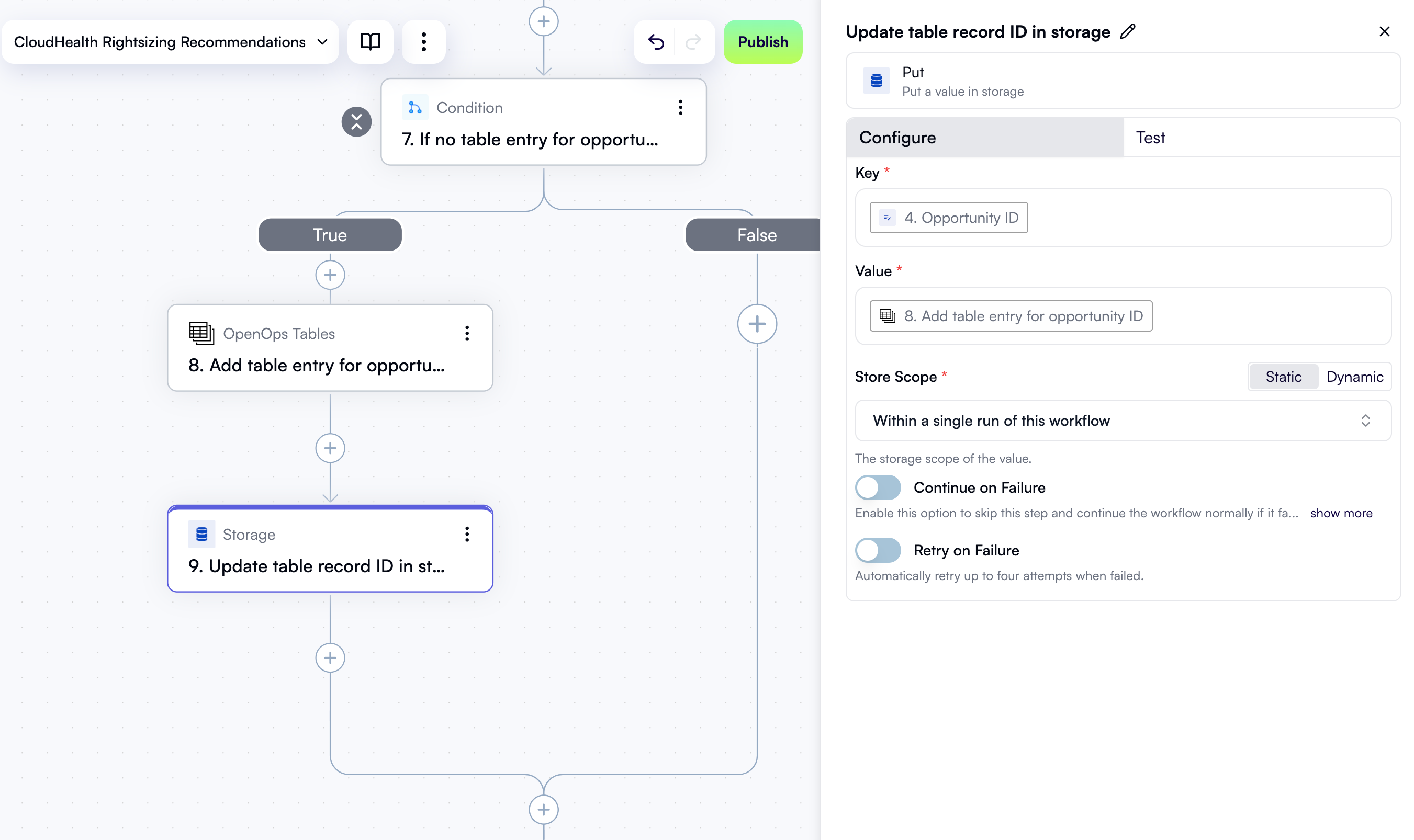 Click the **Test** tab in the properties pane, then under **Step output**, click **Test Step**. The output will be the value of the ID field in the *Opportunities* table entry that represents the current recommendation:
```text theme={null}
43bd78d2-18d9-4908-b035-c854364a19bd
```
### If a table entry exists, check the status
You've just handled a case where a new table entry needs to be created, adding steps to the **True** branch of the condition step that we called *If no table entry for opportunity*.
If a table entry already exists, there's also something that needs to be done. Let's now add actions to the **False** branch of the condition.
#### Check if an existing table entry is in the "Created" state
Inside the **False** branch of the condition, click **+** to add a new step.
In the pop-up menu, select **Condition** in the left pane, then click **Condition** in the right pane.
At the top of the new step's properties pane, click **Edit Step Name** and rename the step *Table entry exists but opportunity is marked as new*.
Under **Continue If**, click the left field. In the **Data Selector** view, expand **5. Find table entry for opportunity**, then **items**, then **items\[1]**, then **Status**. Click **Insert** alongside the **value** entry:
In the dropdown between the two fields, select **(Text) Is**.
In the right field, enter `Created`.
The new step in the workflow graph and the **Configure** tab in its properties pane should now look like this:
Click the **Test** tab in the properties pane, then under **Step output**, click **Test Step**. The output will be the value of the ID field in the *Opportunities* table entry that represents the current recommendation:
```text theme={null}
43bd78d2-18d9-4908-b035-c854364a19bd
```
### If a table entry exists, check the status
You've just handled a case where a new table entry needs to be created, adding steps to the **True** branch of the condition step that we called *If no table entry for opportunity*.
If a table entry already exists, there's also something that needs to be done. Let's now add actions to the **False** branch of the condition.
#### Check if an existing table entry is in the "Created" state
Inside the **False** branch of the condition, click **+** to add a new step.
In the pop-up menu, select **Condition** in the left pane, then click **Condition** in the right pane.
At the top of the new step's properties pane, click **Edit Step Name** and rename the step *Table entry exists but opportunity is marked as new*.
Under **Continue If**, click the left field. In the **Data Selector** view, expand **5. Find table entry for opportunity**, then **items**, then **items\[1]**, then **Status**. Click **Insert** alongside the **value** entry:
In the dropdown between the two fields, select **(Text) Is**.
In the right field, enter `Created`.
The new step in the workflow graph and the **Configure** tab in its properties pane should now look like this:
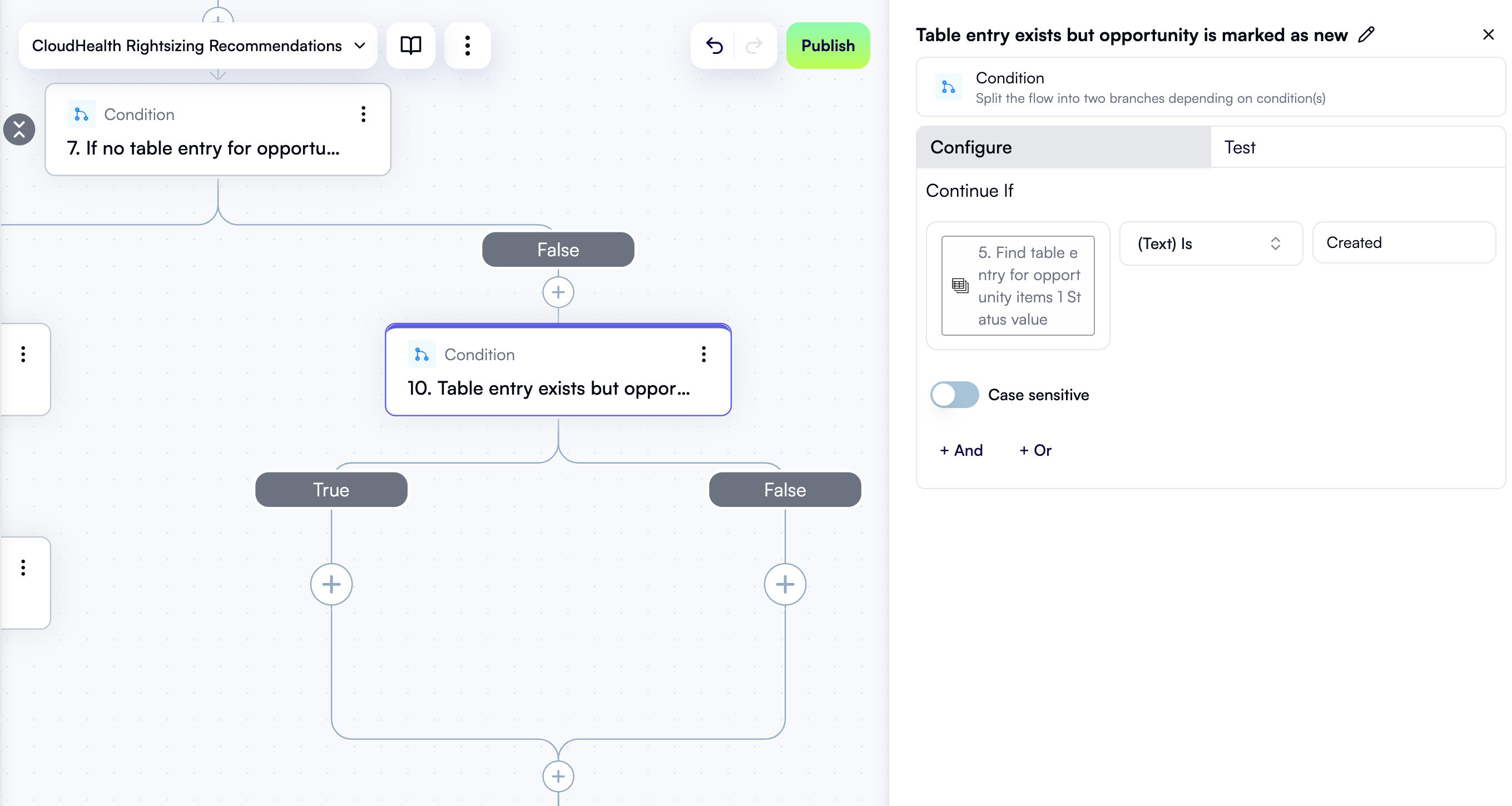 Click the **Test** tab in the properties pane, then under **Step output**, click **Test Step**.
#### If the current status is "Created", update it
If a table entry for a recommendation already exists, but it's in the "Created" state, this means a project owner has been notified about this recommendation the last time the workflow was run but has not taken any action yet. In this case, you should change the status to avoid notifying the project owner again.
In the **True** branch of the *Table entry exists but opportunity is marked as new* condition, click **+** to add a new step.
In the pop-up menu, select **OpenOps Tables** in the left pane, then click **Add or Update Record** in the right pane.
At the top of the new step's properties pane, click **Edit Step Name** and rename the step *Change status of existing opportunity*.
For the **Table** field, select **Opportunities**.
In the **Primary Key Value** field, use **Data Selector** to expand **5. Find table entry for opportunity**, then **items**, then **items\[1]**. Click **Insert** alongside the uppercase **ID** entry.
Under **Fields to update**, click **Add Item**. In the new area:
* In the **Field name** dropdown, select **Status**.
* In the **Status** dropdown, select **Under review**.
Here's what the **Configure** tab in the properties pane should now look like, along with the workflow graph:
Click the **Test** tab in the properties pane, then under **Step output**, click **Test Step**.
#### If the current status is "Created", update it
If a table entry for a recommendation already exists, but it's in the "Created" state, this means a project owner has been notified about this recommendation the last time the workflow was run but has not taken any action yet. In this case, you should change the status to avoid notifying the project owner again.
In the **True** branch of the *Table entry exists but opportunity is marked as new* condition, click **+** to add a new step.
In the pop-up menu, select **OpenOps Tables** in the left pane, then click **Add or Update Record** in the right pane.
At the top of the new step's properties pane, click **Edit Step Name** and rename the step *Change status of existing opportunity*.
For the **Table** field, select **Opportunities**.
In the **Primary Key Value** field, use **Data Selector** to expand **5. Find table entry for opportunity**, then **items**, then **items\[1]**. Click **Insert** alongside the uppercase **ID** entry.
Under **Fields to update**, click **Add Item**. In the new area:
* In the **Field name** dropdown, select **Status**.
* In the **Status** dropdown, select **Under review**.
Here's what the **Configure** tab in the properties pane should now look like, along with the workflow graph:
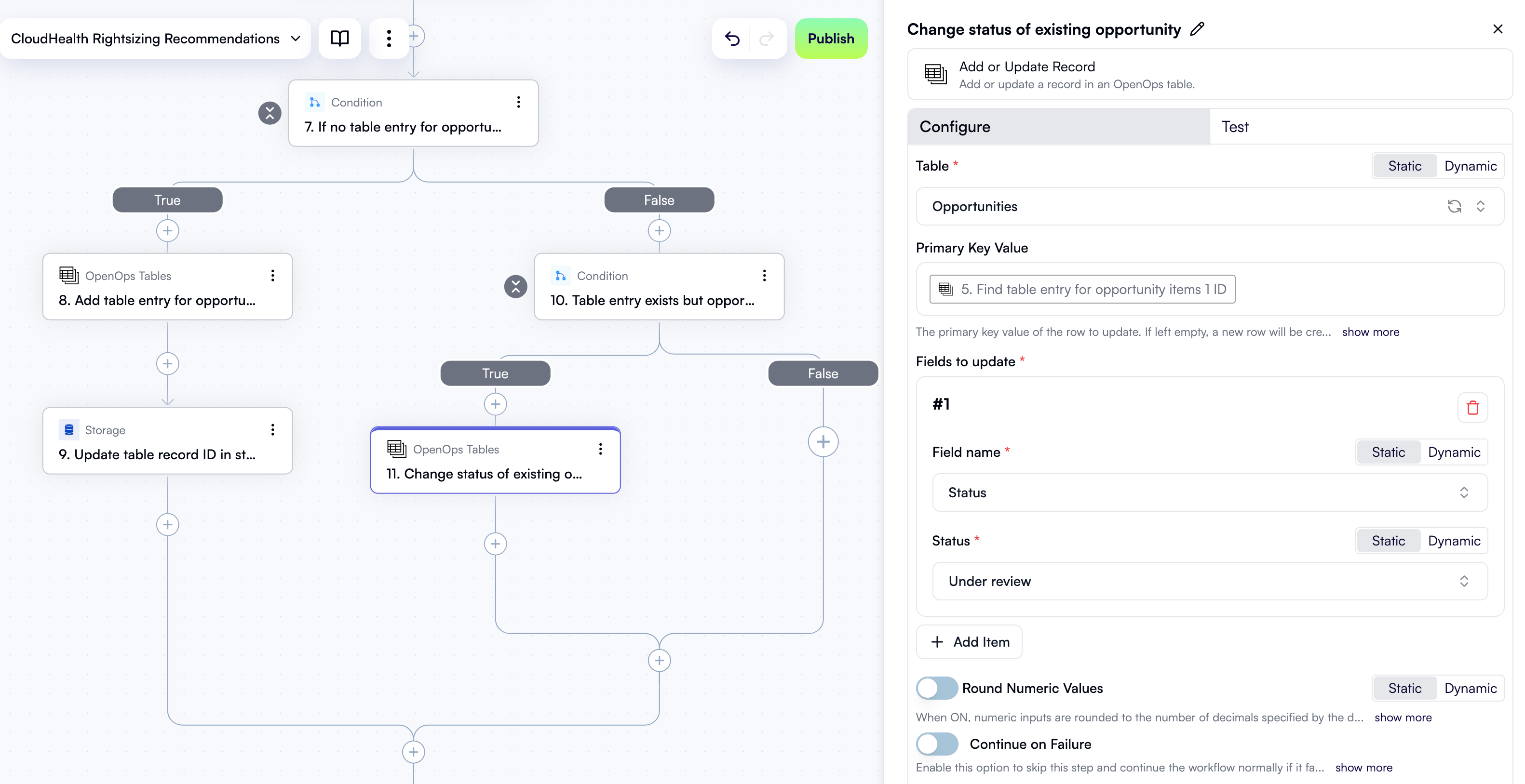 Click the **Test** tab in the properties pane, then under **Step output**, click **Test Step**. The output should represent the updated status of the existing table entry:
```json theme={null}
{
"id": 48,
"order": "1.00000000000000000000",
"ID": "6cc0f15a-f3eb-4d77-b6b3-2f51eebbe8cf",
"Status": {
"id": 9,
"value": "Under review",
"color": "pink"
},
...
}
```
### Get the current date
You've now written all steps inside the outer **If no table entry for opportunity** condition. To create the next step, click **+** in the location on the workflow graph right after both branches of the condition merge:
Click the **Test** tab in the properties pane, then under **Step output**, click **Test Step**. The output should represent the updated status of the existing table entry:
```json theme={null}
{
"id": 48,
"order": "1.00000000000000000000",
"ID": "6cc0f15a-f3eb-4d77-b6b3-2f51eebbe8cf",
"Status": {
"id": 9,
"value": "Under review",
"color": "pink"
},
...
}
```
### Get the current date
You've now written all steps inside the outer **If no table entry for opportunity** condition. To create the next step, click **+** in the location on the workflow graph right after both branches of the condition merge:
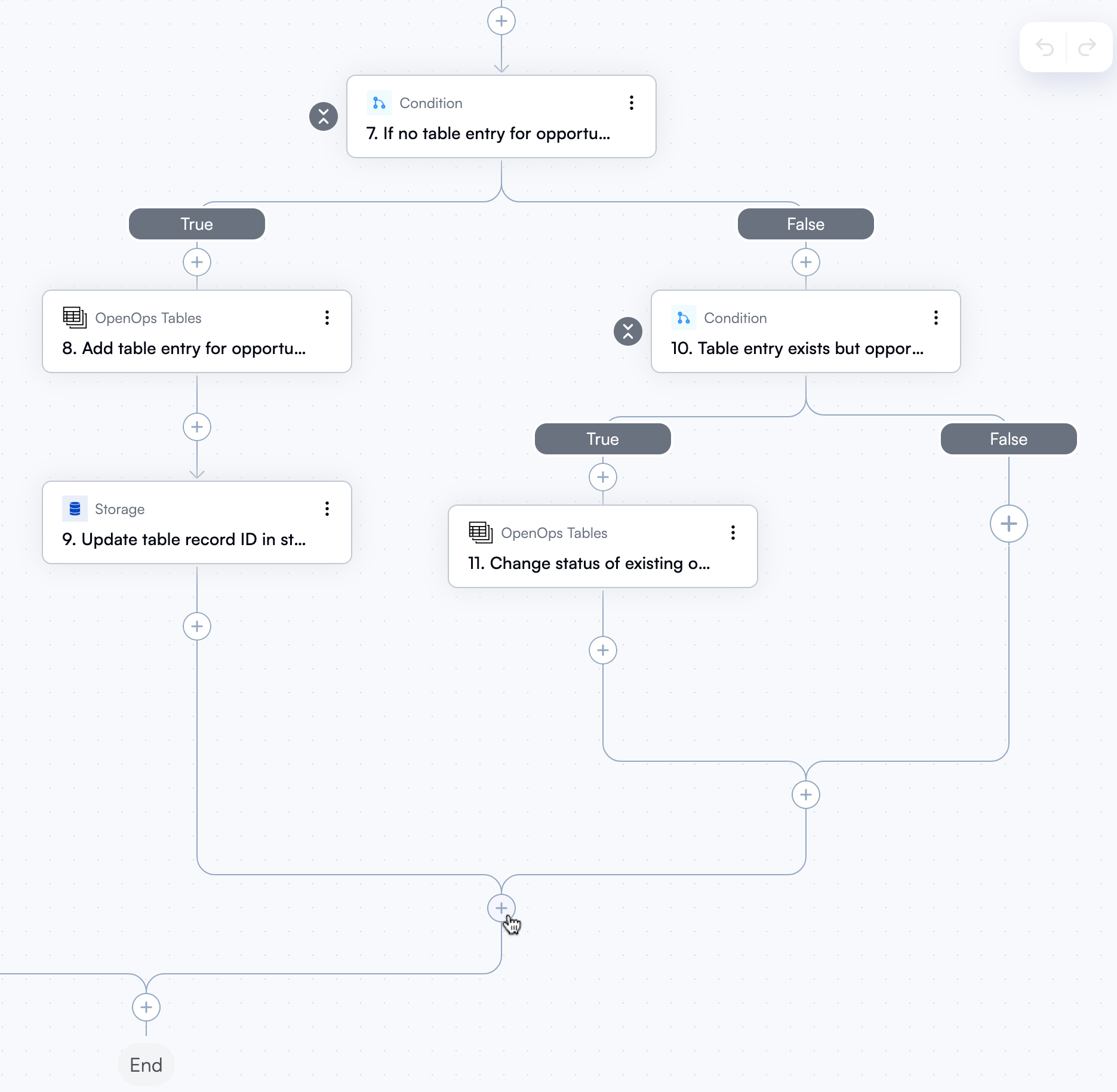 In the pop-up menu, select **Date Operations** in the left pane, then click **Get Current Date** in the right pane.
Keep the default settings in the **Configure** tab of the properties pane. Switch to the **Test** tab, then under **Step output**, click **Test Step**. The output should be the current date:
```text theme={null}
2025-09-24
```
You will use this date in a later step when you decide whether to send a Slack notification for a previously snoozed recommendation.
### Get table ID for recommendation
Soon you'll need to decide if the project owner should be notified about the current CloudHealth recommendation. To prepare for this, you first need to fetch the ID of the table record for this recommendation.
Click **+** to add a new step.
In the pop-up menu, select **Storage** in the left pane, then click **Get** in the right pane.
At the top of the new step's properties pane, click **Edit Step Name** and rename the step *Get table ID for opportunity*.
In the **Key** field, use **Data Selector** to select **4. Opportunity ID**. Keep **Default Value** blank and **Store Scope** at the default value.
The new step in the workflow graph and the **Configure** tab in its properties pane should now look like this:
In the pop-up menu, select **Date Operations** in the left pane, then click **Get Current Date** in the right pane.
Keep the default settings in the **Configure** tab of the properties pane. Switch to the **Test** tab, then under **Step output**, click **Test Step**. The output should be the current date:
```text theme={null}
2025-09-24
```
You will use this date in a later step when you decide whether to send a Slack notification for a previously snoozed recommendation.
### Get table ID for recommendation
Soon you'll need to decide if the project owner should be notified about the current CloudHealth recommendation. To prepare for this, you first need to fetch the ID of the table record for this recommendation.
Click **+** to add a new step.
In the pop-up menu, select **Storage** in the left pane, then click **Get** in the right pane.
At the top of the new step's properties pane, click **Edit Step Name** and rename the step *Get table ID for opportunity*.
In the **Key** field, use **Data Selector** to select **4. Opportunity ID**. Keep **Default Value** blank and **Store Scope** at the default value.
The new step in the workflow graph and the **Configure** tab in its properties pane should now look like this:
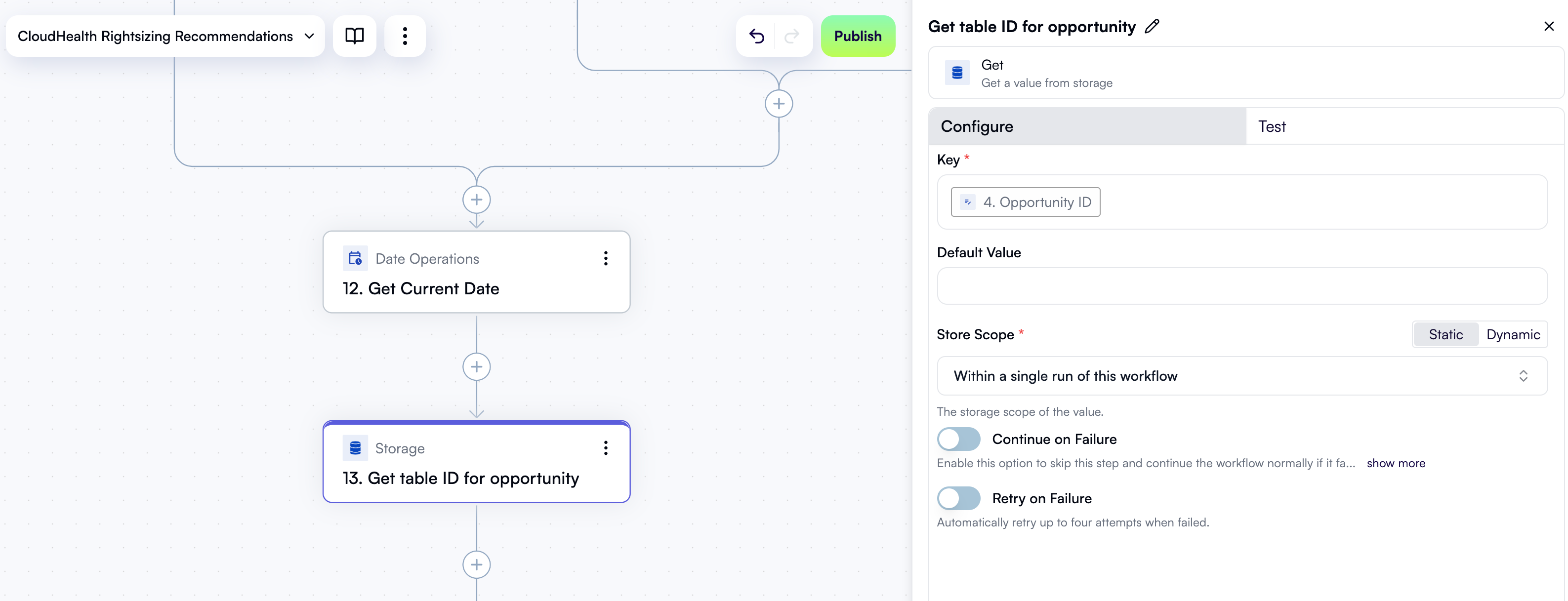 Click the **Test** tab in the properties pane, then under **Step output**, click **Test Step**. The expected output is the ID of the current CloudHealth recommendation in the *Opportunities* table:
```text theme={null}
43bd78d2-18d9-4908-b035-c854364a19bd
```
### Get table entry for recommendation
With the ID of the current CloudHealth recommendation in the *Opportunities* table, you can now read its full entry from the table.
Click **+** to add a new step.
In the pop-up menu, select **OpenOps Tables** in the left pane, then click **Get Records** in the right pane.
At the top of the new step's properties pane, click **Edit Step Name** and rename the step *Get table entry for opportunity*.
In the **Table** field, select **Opportunities**.
Under **Fields to filter by**, click **Add Item**. In the new area:
* For **Field name**, select **ID**.
* For **Filter type**, select **Is equal**.
* In the **ID** field, use **Data Selector** to select **13. Get table ID for opportunity**.
Here's what the new step in the workflow graph and the **Configure** tab in its properties pane should now look like:
Click the **Test** tab in the properties pane, then under **Step output**, click **Test Step**. The expected output is the ID of the current CloudHealth recommendation in the *Opportunities* table:
```text theme={null}
43bd78d2-18d9-4908-b035-c854364a19bd
```
### Get table entry for recommendation
With the ID of the current CloudHealth recommendation in the *Opportunities* table, you can now read its full entry from the table.
Click **+** to add a new step.
In the pop-up menu, select **OpenOps Tables** in the left pane, then click **Get Records** in the right pane.
At the top of the new step's properties pane, click **Edit Step Name** and rename the step *Get table entry for opportunity*.
In the **Table** field, select **Opportunities**.
Under **Fields to filter by**, click **Add Item**. In the new area:
* For **Field name**, select **ID**.
* For **Filter type**, select **Is equal**.
* In the **ID** field, use **Data Selector** to select **13. Get table ID for opportunity**.
Here's what the new step in the workflow graph and the **Configure** tab in its properties pane should now look like:
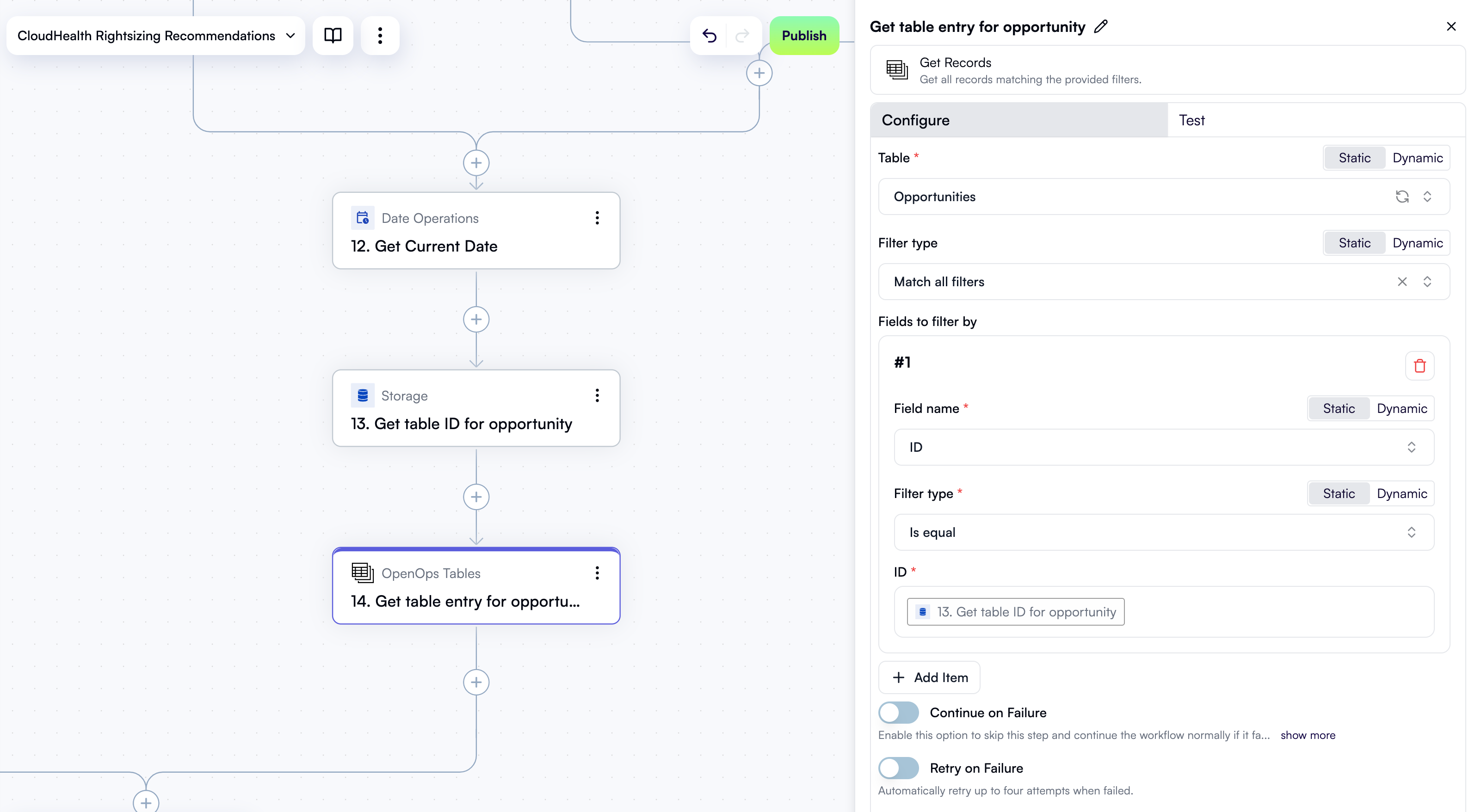 Click the **Test** tab in the properties pane, then under **Step output**, click **Test Step**. The output should represent the current recommendation's table entry:
```json theme={null}
{
"count": 1,
"items": [
{
"id": 49,
"order": "2.00000000000000000000",
"ID": "43bd78d2-18d9-4908-b035-c854364a19bd",
"Status": {
"id": 5,
"value": "Created",
"color": "grey"
},
...
}
]
}
```
### Decide to skip or notify the project owner
You now have all the information you need to decide whether to notify the project owner about the current recommendation over Slack. To make this decision, you'll need to introduce a condition step.
In the workflow graph, click **+** to add a new step.
In the pop-up menu, select **Condition** in the left pane, then click **Condition** in the right pane.
At the top of the new step's properties pane, click **Edit Step Name** and rename the step *Skip or notify?*.
You want to notify the project owner in two cases:
* If this is a new recommendation, as evidenced by the "Created" state.
* If the project owner has been notified of the current recommendation in the past, chose to snooze it, and the snooze date has passed.
Let's define these two cases. Under **Continue If**, click the left field. In **Data Selector**, expand **14. Get table entry for opportunity**, then **items**, then **items\[1]**, then **Status**. Click **Insert** alongside the **value** entry:
Click the **Test** tab in the properties pane, then under **Step output**, click **Test Step**. The output should represent the current recommendation's table entry:
```json theme={null}
{
"count": 1,
"items": [
{
"id": 49,
"order": "2.00000000000000000000",
"ID": "43bd78d2-18d9-4908-b035-c854364a19bd",
"Status": {
"id": 5,
"value": "Created",
"color": "grey"
},
...
}
]
}
```
### Decide to skip or notify the project owner
You now have all the information you need to decide whether to notify the project owner about the current recommendation over Slack. To make this decision, you'll need to introduce a condition step.
In the workflow graph, click **+** to add a new step.
In the pop-up menu, select **Condition** in the left pane, then click **Condition** in the right pane.
At the top of the new step's properties pane, click **Edit Step Name** and rename the step *Skip or notify?*.
You want to notify the project owner in two cases:
* If this is a new recommendation, as evidenced by the "Created" state.
* If the project owner has been notified of the current recommendation in the past, chose to snooze it, and the snooze date has passed.
Let's define these two cases. Under **Continue If**, click the left field. In **Data Selector**, expand **14. Get table entry for opportunity**, then **items**, then **items\[1]**, then **Status**. Click **Insert** alongside the **value** entry:
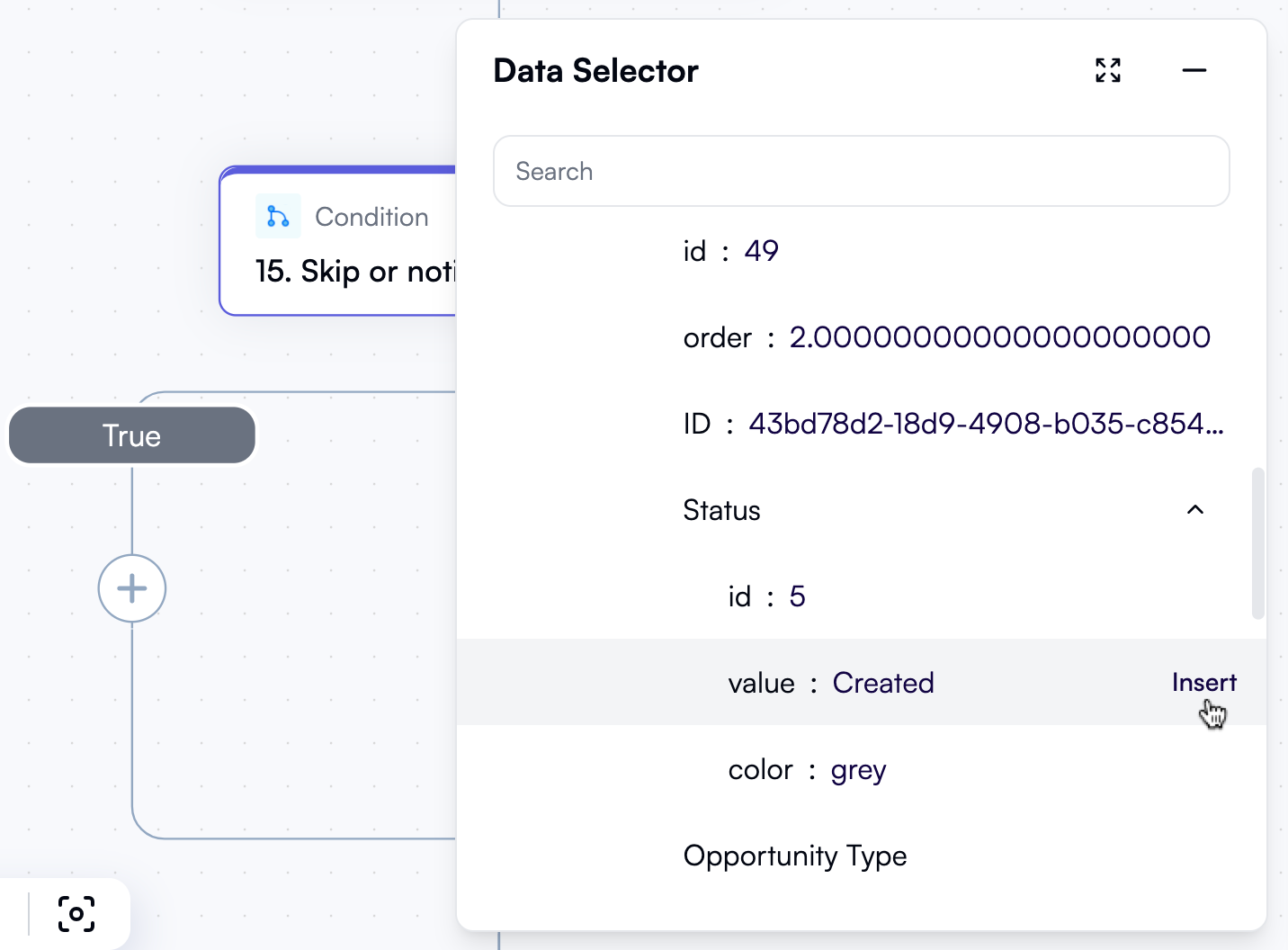 In the dropdown between the two fields, select **(Text) Is**.
In the right field, enter `Created`.
Click **+ Or**. In the new area, click the left field. In **Data Selector**, expand **14. Get table entry for opportunity**, then **items**, then **items\[1]**. Scroll down and click **Insert** alongside the **Snoozed until** entry.
In the dropdown between the two fields, select **(Date) Is before**.
In the right field, use **Data Selector** to insert **12. Get Current Date**.
The new step in the workflow graph and the **Configure** tab in its properties pane should now look like this:
In the dropdown between the two fields, select **(Text) Is**.
In the right field, enter `Created`.
Click **+ Or**. In the new area, click the left field. In **Data Selector**, expand **14. Get table entry for opportunity**, then **items**, then **items\[1]**. Scroll down and click **Insert** alongside the **Snoozed until** entry.
In the dropdown between the two fields, select **(Date) Is before**.
In the right field, use **Data Selector** to insert **12. Get Current Date**.
The new step in the workflow graph and the **Configure** tab in its properties pane should now look like this:
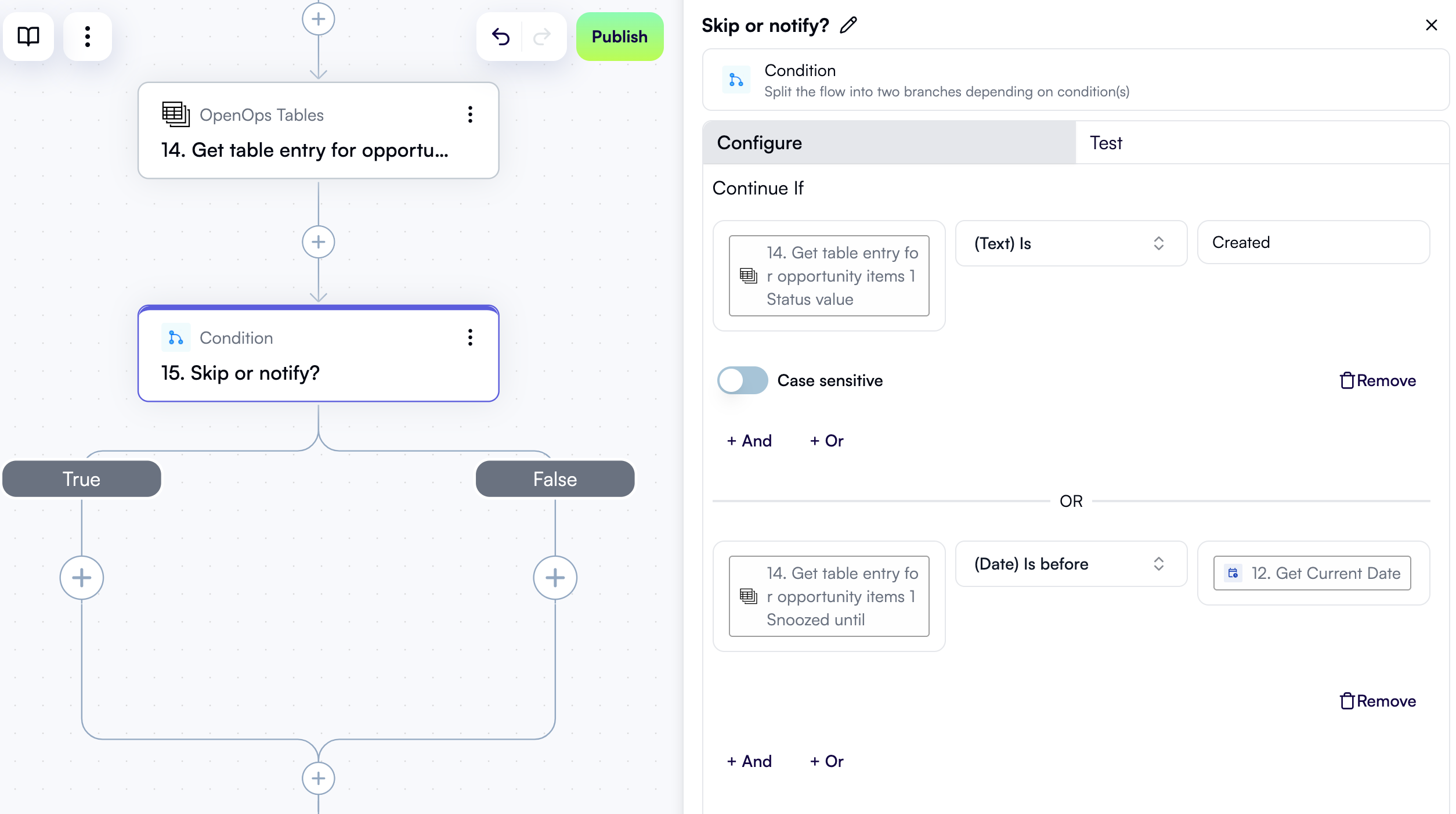 Click the **Test** tab in the properties pane, then under **Step output**, click **Test Step**.
All further steps in this workflow will be added inside the **True** branch of this condition.
### Get asset perspectives from CloudHealth
In case the project owner should be notified, you need to add several preparatory steps in the **True** branch of the condition, followed by steps to send a Slack notification and handle the project owner's response. Let's start with making a call to the CloudHealth API to determine which project the AWS instance related to the current recommendation belongs to.
In the **True** branch of the *Skip or notify?* condition, click **+** to add a new step.
In the pop-up menu, select **CloudHealth** in the left pane, then click **Get Asset Perspectives** in the right pane.
At the top of the new step's properties pane, click **Edit Step Name** and rename the step *Get project and more perspectives*.
Under **API Key** in the properties pane, select your existing CloudHealth connection.
Under **Asset Type**, select **AwsInstance**.
Under **Fields to filter by**, click **Add Item**. In the new area:
* Under **Field name**, select **instance\_id**.
* In the **Value to search for** field, use **Data Selector** to expand **3. For each recommendation**, then **item**, then **node**, then **targetAsset**. Click **Insert** alongside the **awsInstanceId** entry:
Here's what the new step in the workflow graph and the **Configure** tab in its properties pane should now look like:
Click the **Test** tab in the properties pane, then under **Step output**, click **Test Step**.
All further steps in this workflow will be added inside the **True** branch of this condition.
### Get asset perspectives from CloudHealth
In case the project owner should be notified, you need to add several preparatory steps in the **True** branch of the condition, followed by steps to send a Slack notification and handle the project owner's response. Let's start with making a call to the CloudHealth API to determine which project the AWS instance related to the current recommendation belongs to.
In the **True** branch of the *Skip or notify?* condition, click **+** to add a new step.
In the pop-up menu, select **CloudHealth** in the left pane, then click **Get Asset Perspectives** in the right pane.
At the top of the new step's properties pane, click **Edit Step Name** and rename the step *Get project and more perspectives*.
Under **API Key** in the properties pane, select your existing CloudHealth connection.
Under **Asset Type**, select **AwsInstance**.
Under **Fields to filter by**, click **Add Item**. In the new area:
* Under **Field name**, select **instance\_id**.
* In the **Value to search for** field, use **Data Selector** to expand **3. For each recommendation**, then **item**, then **node**, then **targetAsset**. Click **Insert** alongside the **awsInstanceId** entry:
Here's what the new step in the workflow graph and the **Configure** tab in its properties pane should now look like:
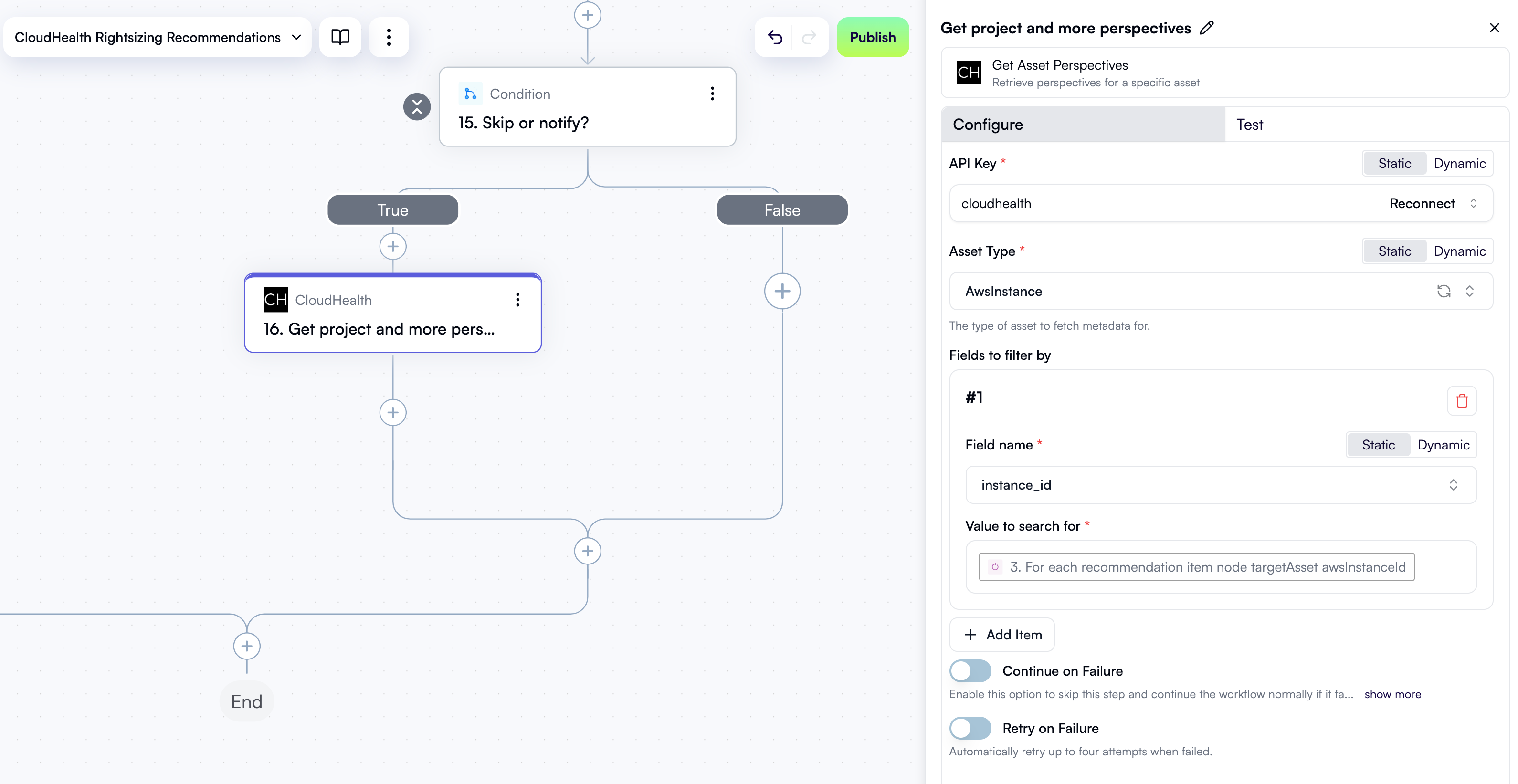 Click the **Test** tab in the properties pane, then under **Step output**, click **Test Step**. The output is a list of asset perspectives for the given AWS instance ID, including the project it belongs to:
```json theme={null}
[
{
"asset": {
"instance_id": "i-0fbc4dbf9ca0b46c0",
"name": "jeff-test-2-ng-2-Node",
"state": "running",
...
},
"perspectives": {
"Project": "Opencart",
...
}
}
]
```
### Get owner by project
Now that you know which project the recommendation belongs to, you can find out who owns the project.
Click **+** to add a new step.
In the pop-up menu, select **OpenOps Tables** in the left pane, then click **Get Records** in the right pane.
At the top of the new step's properties pane, click **Edit Step Name** and rename the step *Get owner by project*.
In the **Table** field, select **CloudHealth project-owner mapping**.
Under **Fields to filter by**, click **Add Item**. In the new area:
* For **Field name**, select **CloudHealth project**.
* For **Filter type**, select **Is equal**.
* In the **CloudHealth project** field, use **Data Selector** to expand **16. Get project and more perspectives**, then **16. Get project and more perspectives\[1]**, then **perspectives**. Click **Insert** alongside the **Project** entry:
Click the **Test** tab in the properties pane, then under **Step output**, click **Test Step**. The output is a list of asset perspectives for the given AWS instance ID, including the project it belongs to:
```json theme={null}
[
{
"asset": {
"instance_id": "i-0fbc4dbf9ca0b46c0",
"name": "jeff-test-2-ng-2-Node",
"state": "running",
...
},
"perspectives": {
"Project": "Opencart",
...
}
}
]
```
### Get owner by project
Now that you know which project the recommendation belongs to, you can find out who owns the project.
Click **+** to add a new step.
In the pop-up menu, select **OpenOps Tables** in the left pane, then click **Get Records** in the right pane.
At the top of the new step's properties pane, click **Edit Step Name** and rename the step *Get owner by project*.
In the **Table** field, select **CloudHealth project-owner mapping**.
Under **Fields to filter by**, click **Add Item**. In the new area:
* For **Field name**, select **CloudHealth project**.
* For **Filter type**, select **Is equal**.
* In the **CloudHealth project** field, use **Data Selector** to expand **16. Get project and more perspectives**, then **16. Get project and more perspectives\[1]**, then **perspectives**. Click **Insert** alongside the **Project** entry:
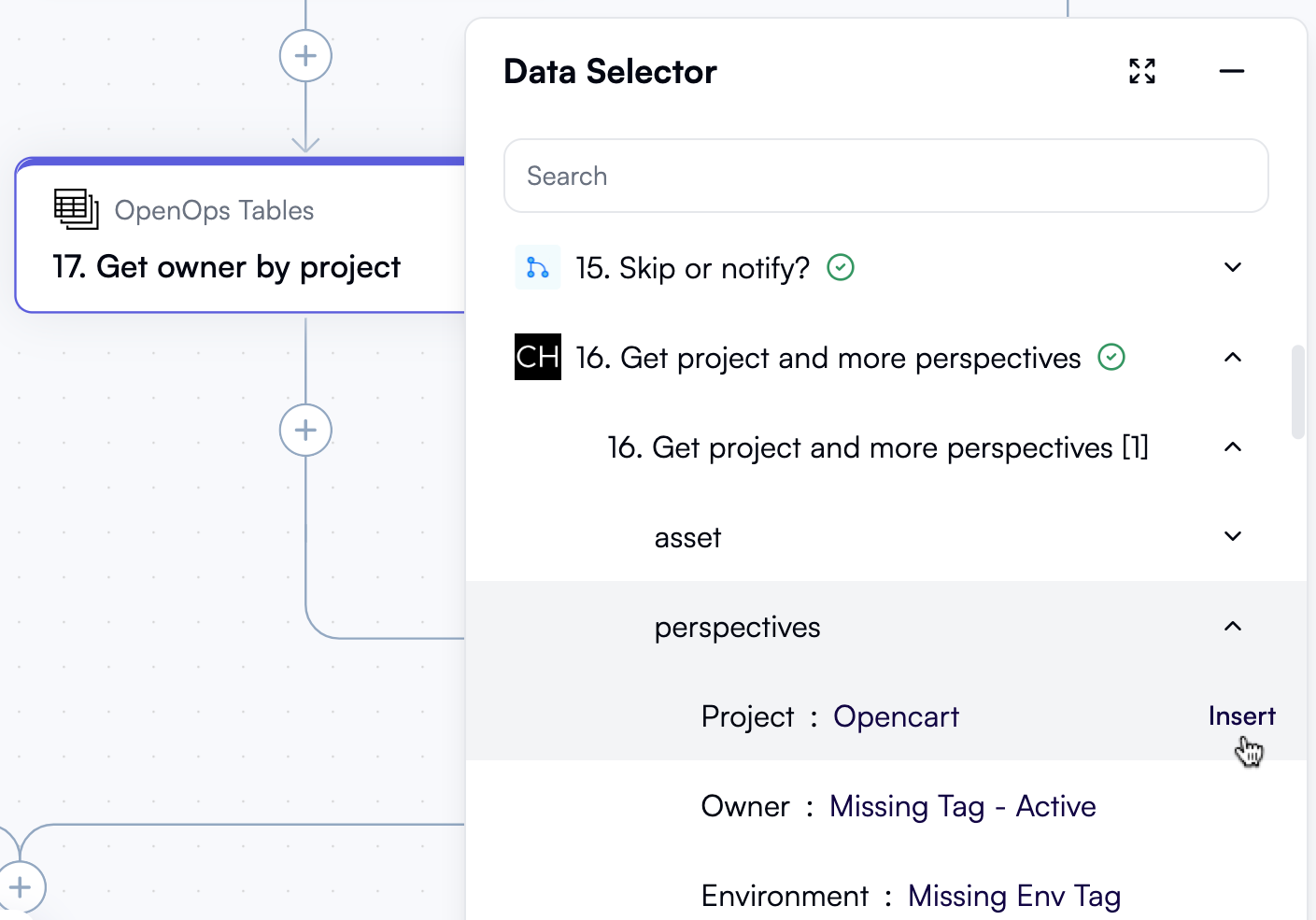 Here's what the new step in the workflow graph and the **Configure** tab in its properties pane should now look like:
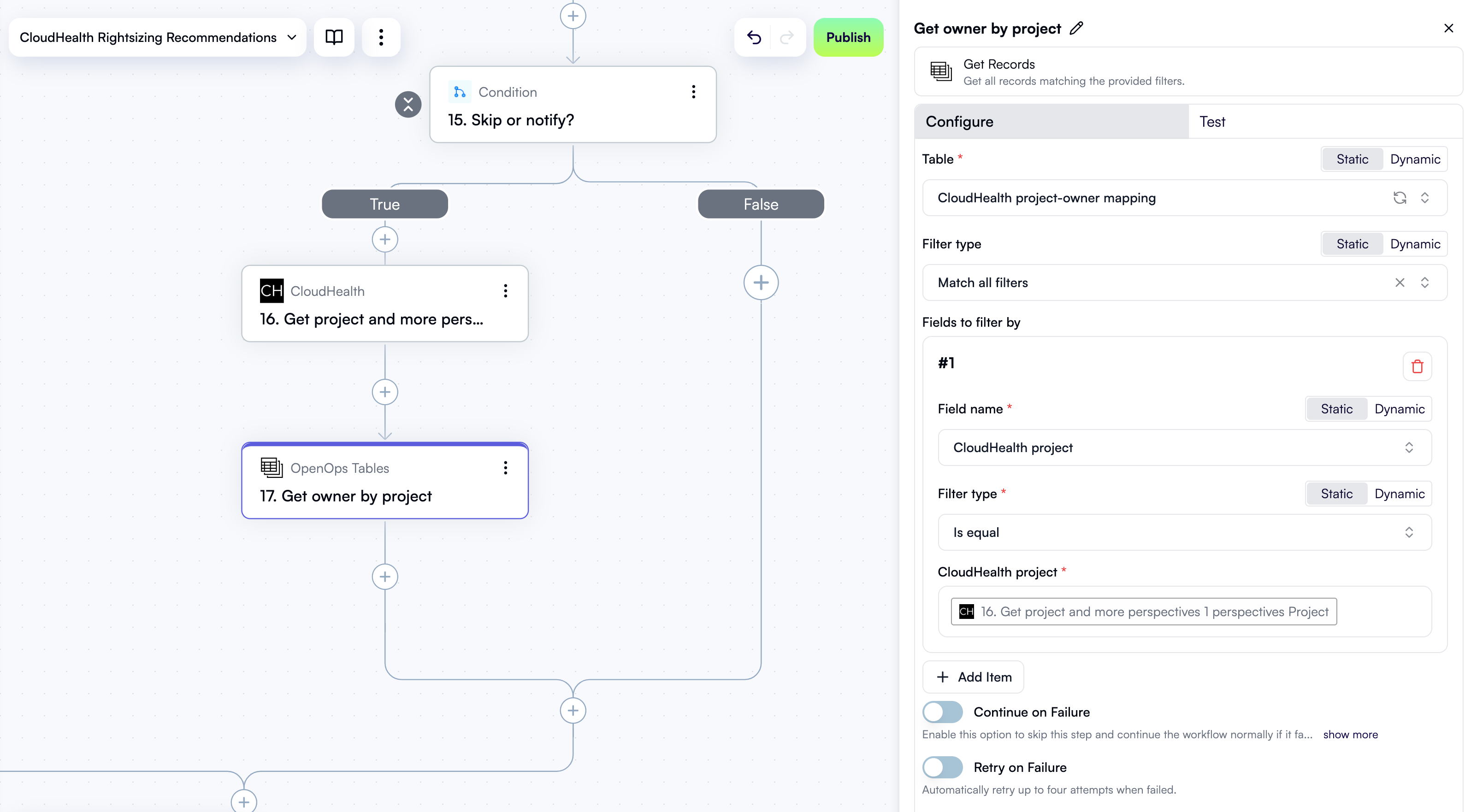 Click the **Test** tab in the properties pane, then under **Step output**, click **Test Step**. The output is a project-owner mapping table entry for the given project:
```json theme={null}
{
"count": 1,
"items": [
{
"id": 7,
"order": "2.00000000000000000000",
"CloudHealth project": "Opencart",
"Owner email": "your@email.here"
}
]
}
```
### Format monthly savings
You now know who to notify about the recommendation. What to include in the notification, though? This step and the next one will construct the notification message. First, let's take the monthly savings that CloudHealth predicts and format the number in a human-readable way.
Click **+** to add a new step.
In the pop-up menu, select **Math Operations** in the left pane, then click **Truncate** in the right pane.
At the top of the new step's properties pane, click **Edit Step Name** and rename the step *Format monthly savings*.
In the **Number to truncate** field, use **Data Selector** to expand **3. For each recommendation**, then **item**, then **node**. Scroll down and click **Insert** alongside the **projectedMonthlySavings** entry.
In **Number of decimal places**, enter `2`.
Here's what the new step in the workflow graph and the **Configure** tab in its properties pane should now look like:
Click the **Test** tab in the properties pane, then under **Step output**, click **Test Step**. The output is a project-owner mapping table entry for the given project:
```json theme={null}
{
"count": 1,
"items": [
{
"id": 7,
"order": "2.00000000000000000000",
"CloudHealth project": "Opencart",
"Owner email": "your@email.here"
}
]
}
```
### Format monthly savings
You now know who to notify about the recommendation. What to include in the notification, though? This step and the next one will construct the notification message. First, let's take the monthly savings that CloudHealth predicts and format the number in a human-readable way.
Click **+** to add a new step.
In the pop-up menu, select **Math Operations** in the left pane, then click **Truncate** in the right pane.
At the top of the new step's properties pane, click **Edit Step Name** and rename the step *Format monthly savings*.
In the **Number to truncate** field, use **Data Selector** to expand **3. For each recommendation**, then **item**, then **node**. Scroll down and click **Insert** alongside the **projectedMonthlySavings** entry.
In **Number of decimal places**, enter `2`.
Here's what the new step in the workflow graph and the **Configure** tab in its properties pane should now look like:
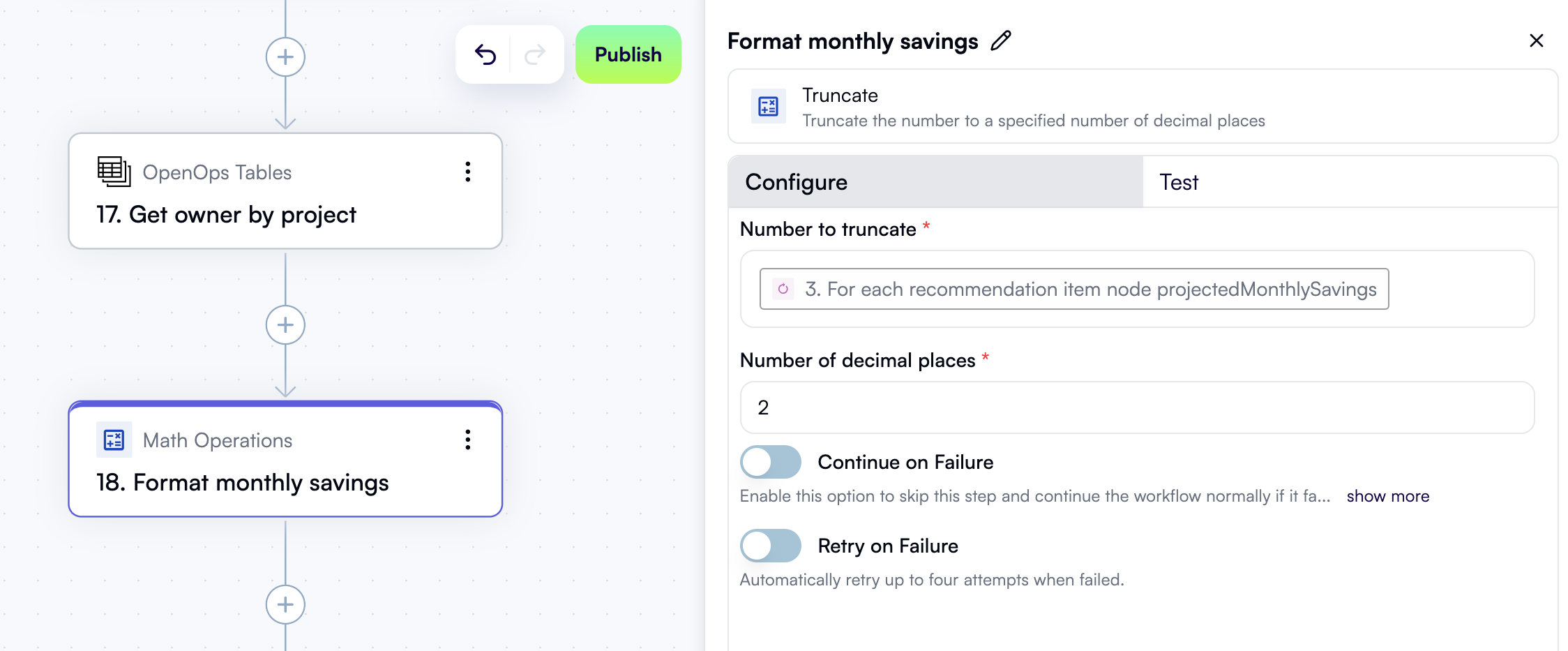 Click the **Test** tab in the properties pane, then under **Step output**, click **Test Step**. The output is the projected monthly savings value with two decimal places:
```json theme={null}
46.48
```
### Describe the recommendation
Let's now use formatted monthly savings and other recommendation details to construct a message that will be sent to the project owner. Later, if the project owner decides to create a Jira issue, this description will also be included in the issue.
Click **+** to add a new step.
In the pop-up menu, select **Storage** in the left pane, then click **Put** in the right pane.
At the top of the new step's properties pane, click **Edit Step Name** and rename the step *Opportunity description*.
In the **Key** field, use **Data Selector** to expand **3. For each recommendation**, then **item**, then **node**, then **targetAsset**. Click **Insert** alongside the **id** entry.
The **Value** field represents the opportunity description, and it needs to be multi-line:
1. In the first line, type in "Account: ", then use **Data Selector** to expand **3. For each recommendation**, then **item**, then **node**, then **targetAsset**, then **account**. Click **Insert** alongside the **name** entry.
2. In the second line, type in "Instance ID: ", then use **Data Selector** to expand **3. For each recommendation**, then **item**, then **node**, then **targetAsset**. Click **Insert** alongside the **awsInstanceId** entry.
3. In the third line, type in "Instance name: ", then use **Data Selector** to expand **3. For each recommendation**, then **item**, then **node**, then **targetAsset**. Click **Insert** alongside the **name** entry.
4. In the fourth line, type in "Projected monthly savings: \$", then in the **Data Selector**, insert **18. Format monthly savings**.
Here's what the new step in the workflow graph and the **Configure** tab in its properties pane should now look like:
Click the **Test** tab in the properties pane, then under **Step output**, click **Test Step**. The output is the projected monthly savings value with two decimal places:
```json theme={null}
46.48
```
### Describe the recommendation
Let's now use formatted monthly savings and other recommendation details to construct a message that will be sent to the project owner. Later, if the project owner decides to create a Jira issue, this description will also be included in the issue.
Click **+** to add a new step.
In the pop-up menu, select **Storage** in the left pane, then click **Put** in the right pane.
At the top of the new step's properties pane, click **Edit Step Name** and rename the step *Opportunity description*.
In the **Key** field, use **Data Selector** to expand **3. For each recommendation**, then **item**, then **node**, then **targetAsset**. Click **Insert** alongside the **id** entry.
The **Value** field represents the opportunity description, and it needs to be multi-line:
1. In the first line, type in "Account: ", then use **Data Selector** to expand **3. For each recommendation**, then **item**, then **node**, then **targetAsset**, then **account**. Click **Insert** alongside the **name** entry.
2. In the second line, type in "Instance ID: ", then use **Data Selector** to expand **3. For each recommendation**, then **item**, then **node**, then **targetAsset**. Click **Insert** alongside the **awsInstanceId** entry.
3. In the third line, type in "Instance name: ", then use **Data Selector** to expand **3. For each recommendation**, then **item**, then **node**, then **targetAsset**. Click **Insert** alongside the **name** entry.
4. In the fourth line, type in "Projected monthly savings: \$", then in the **Data Selector**, insert **18. Format monthly savings**.
Here's what the new step in the workflow graph and the **Configure** tab in its properties pane should now look like:
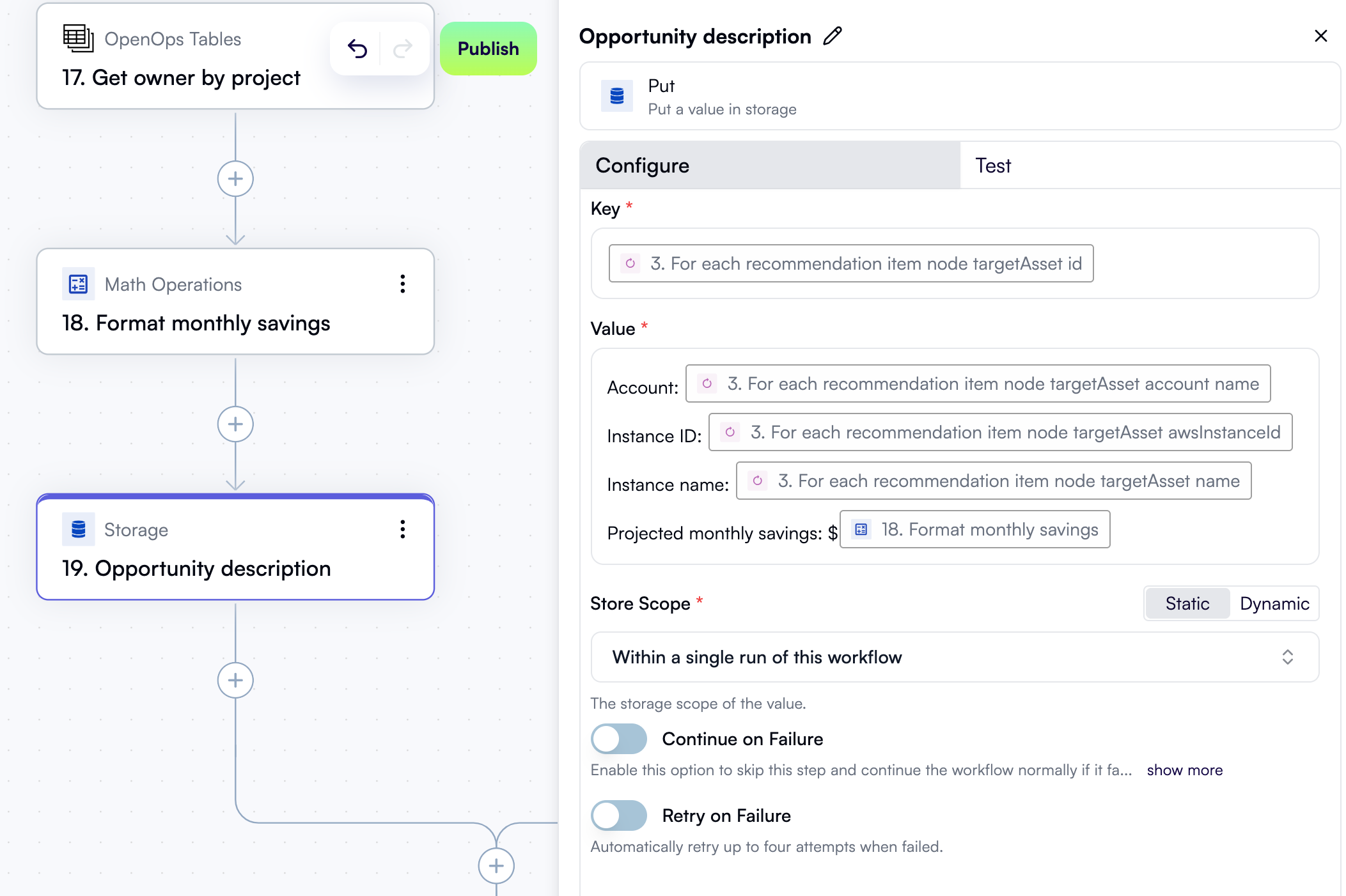 Click the **Test** tab in the properties pane, then under **Step output**, click **Test Step**. The output is a part of the message that the project owner will receive:
```text theme={null}
Account: CloudHealth Redshirt
Instance ID: i-0fbc4dbf9ca0b46c0
Instance name: jeff-test-2-ng-2-Node
Projected monthly savings: $46.48
```
### Get table record ID from storage
You'll soon implement sending a Slack notification and handling the project owner's response. For this, you'll need the ID of the record in the *Opportunities* table that represents the current recommendation. Let's fetch this ID from storage.
Click **+** to add a new step.
In the pop-up menu, select **Storage** in the left pane, then click **Get** in the right pane.
At the top of the new step's properties pane, click **Edit Step Name** and rename the step *Get table record ID from storage*.
In the **Key** field, use **Data Selector** to insert **4. Opportunity ID**.
Click the **Test** tab in the properties pane, then under **Step output**, click **Test Step**.
### Send a Slack notification with action buttons
You now have everything you need to notify the project owner about the current recommendation and suggest actions.
Click **+** to add a new step.
In the pop-up menu, select **Slack** in the left pane, then click **Request Action** in the right pane.
In the **Connection** dropdown, select the Slack connection you created earlier.
Alongside the **Recipient Channel or User** field, click **Dynamic** to enable specifying the output of a previous step instead of selecting from a dropdown. Then, in **Recipient Channel or User**, use **Data Selector** to expand **17. Get owner by project**, then **items**, then **items\[1]**. Click **Insert** alongside the **Owner email** entry.
In the **Header** field, enter "New CloudHealth savings opportunity".
The value in the **Message** field is going to be multi-line:
1. In the first line, paste the following text:
```text theme={null}
:moneybag: *CloudHealth has identified an opportunity to rightsize an EC2 instance*
```
2. In the second line, use **Data Selector** to insert **19. Opportunity description**.
3. In the third line, paste the following text:
```text theme={null}
Would you like to open a Jira ticket to investigate it?
```
Here's what the **Configure** tab in this step's properties pane should look like so far:
Click the **Test** tab in the properties pane, then under **Step output**, click **Test Step**. The output is a part of the message that the project owner will receive:
```text theme={null}
Account: CloudHealth Redshirt
Instance ID: i-0fbc4dbf9ca0b46c0
Instance name: jeff-test-2-ng-2-Node
Projected monthly savings: $46.48
```
### Get table record ID from storage
You'll soon implement sending a Slack notification and handling the project owner's response. For this, you'll need the ID of the record in the *Opportunities* table that represents the current recommendation. Let's fetch this ID from storage.
Click **+** to add a new step.
In the pop-up menu, select **Storage** in the left pane, then click **Get** in the right pane.
At the top of the new step's properties pane, click **Edit Step Name** and rename the step *Get table record ID from storage*.
In the **Key** field, use **Data Selector** to insert **4. Opportunity ID**.
Click the **Test** tab in the properties pane, then under **Step output**, click **Test Step**.
### Send a Slack notification with action buttons
You now have everything you need to notify the project owner about the current recommendation and suggest actions.
Click **+** to add a new step.
In the pop-up menu, select **Slack** in the left pane, then click **Request Action** in the right pane.
In the **Connection** dropdown, select the Slack connection you created earlier.
Alongside the **Recipient Channel or User** field, click **Dynamic** to enable specifying the output of a previous step instead of selecting from a dropdown. Then, in **Recipient Channel or User**, use **Data Selector** to expand **17. Get owner by project**, then **items**, then **items\[1]**. Click **Insert** alongside the **Owner email** entry.
In the **Header** field, enter "New CloudHealth savings opportunity".
The value in the **Message** field is going to be multi-line:
1. In the first line, paste the following text:
```text theme={null}
:moneybag: *CloudHealth has identified an opportunity to rightsize an EC2 instance*
```
2. In the second line, use **Data Selector** to insert **19. Opportunity description**.
3. In the third line, paste the following text:
```text theme={null}
Would you like to open a Jira ticket to investigate it?
```
Here's what the **Configure** tab in this step's properties pane should look like so far:
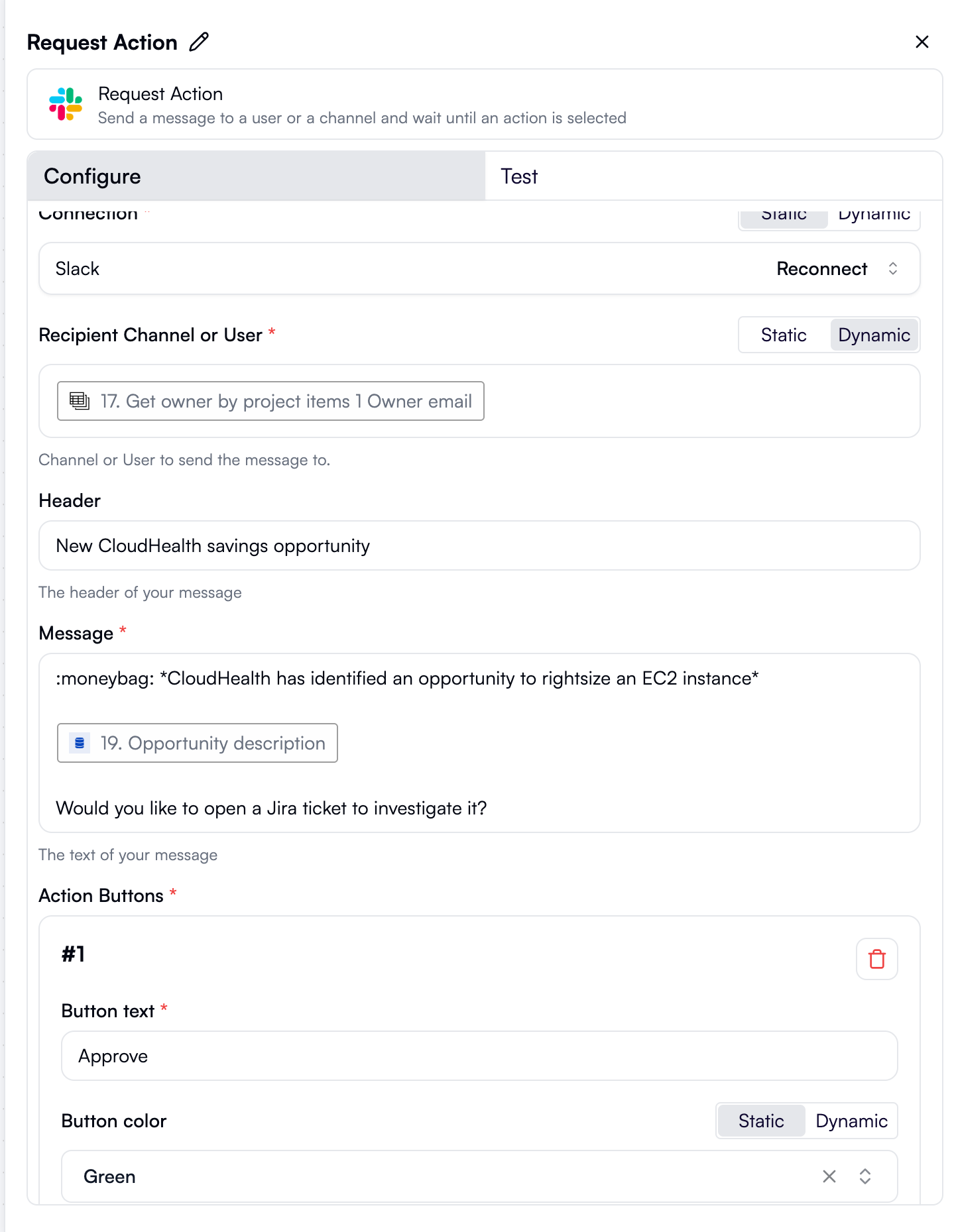 The properties pane, however, contains more settings to configure.
In the **Action Buttons** section, under **#1**:
1. In the **Button text** field, paste the following:
```text theme={null}
:ticket: Open a Jira ticket
```
2. For **Button color**, keep **Green** selected.
3. Enable **Add confirmation popup**.
4. In **Confirmation popup text**, paste the following instead of the placeholder:
```text theme={null}
Are you sure you want to create a new Jira ticket?
```
In the **Action Buttons** section, under **#2**:
1. In the **Button text** field, paste the following:
```text theme={null}
:zzz: Snooze for 7 days
```
2. For **Button color**, select **Transparent**.
In the **Action Buttons** section, under **#3**:
1. In the **Button text** field, paste the following:
```text theme={null}
:no_entry_sign: Dismiss
```
2. For **Button color**, select **Red**.
3. Enable **Add confirmation popup**.
4. In **Confirmation popup text**, paste the following instead of the placeholder:
```text theme={null}
Are you sure you want to dismiss this opportunity?
```
Finally, set **Wait Timeout in Days** to `1`.
Here's what the rest of the **Configure** tab in this step's properties pane should now look like:
The properties pane, however, contains more settings to configure.
In the **Action Buttons** section, under **#1**:
1. In the **Button text** field, paste the following:
```text theme={null}
:ticket: Open a Jira ticket
```
2. For **Button color**, keep **Green** selected.
3. Enable **Add confirmation popup**.
4. In **Confirmation popup text**, paste the following instead of the placeholder:
```text theme={null}
Are you sure you want to create a new Jira ticket?
```
In the **Action Buttons** section, under **#2**:
1. In the **Button text** field, paste the following:
```text theme={null}
:zzz: Snooze for 7 days
```
2. For **Button color**, select **Transparent**.
In the **Action Buttons** section, under **#3**:
1. In the **Button text** field, paste the following:
```text theme={null}
:no_entry_sign: Dismiss
```
2. For **Button color**, select **Red**.
3. Enable **Add confirmation popup**.
4. In **Confirmation popup text**, paste the following instead of the placeholder:
```text theme={null}
Are you sure you want to dismiss this opportunity?
```
Finally, set **Wait Timeout in Days** to `1`.
Here's what the rest of the **Configure** tab in this step's properties pane should now look like:
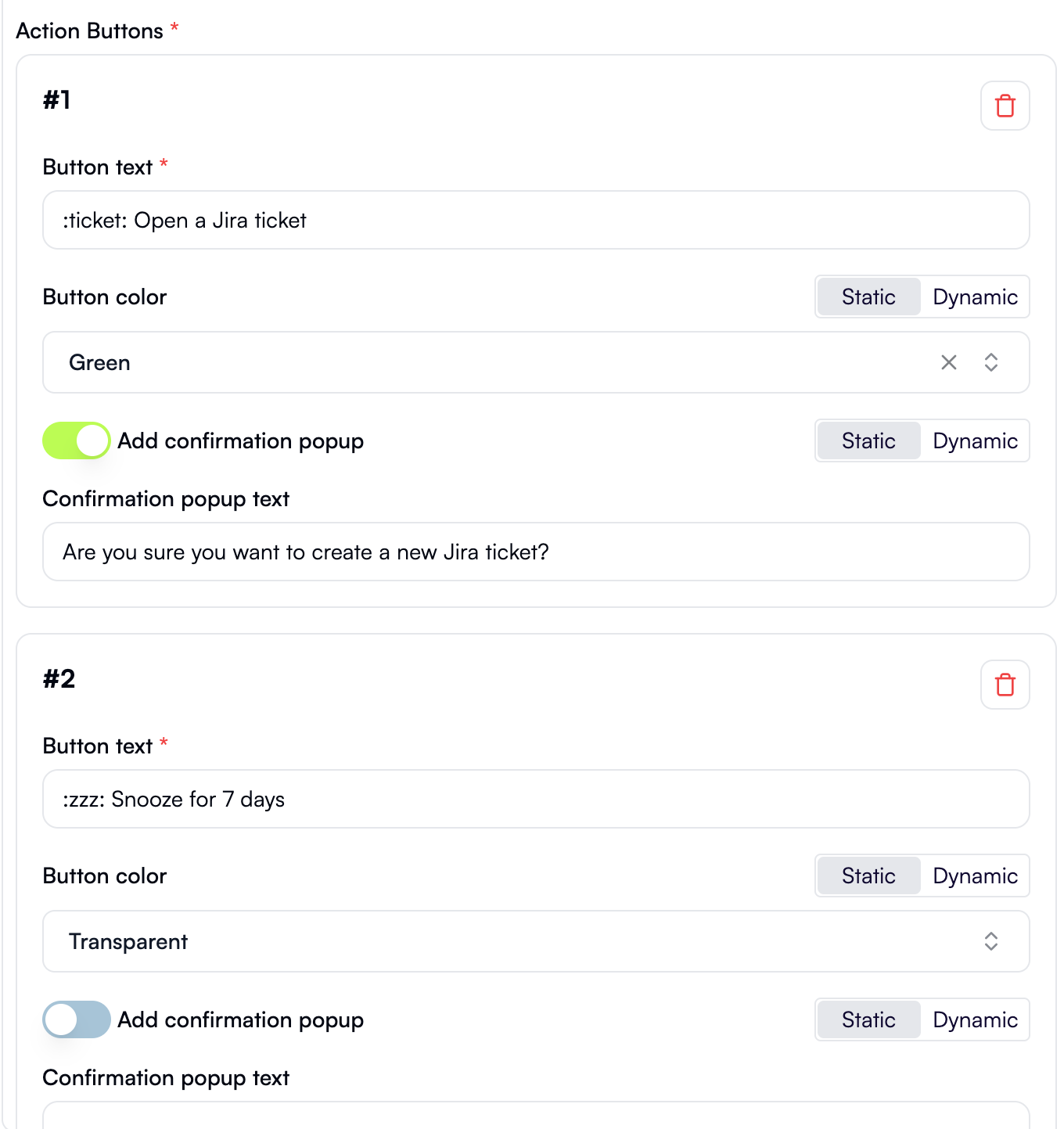
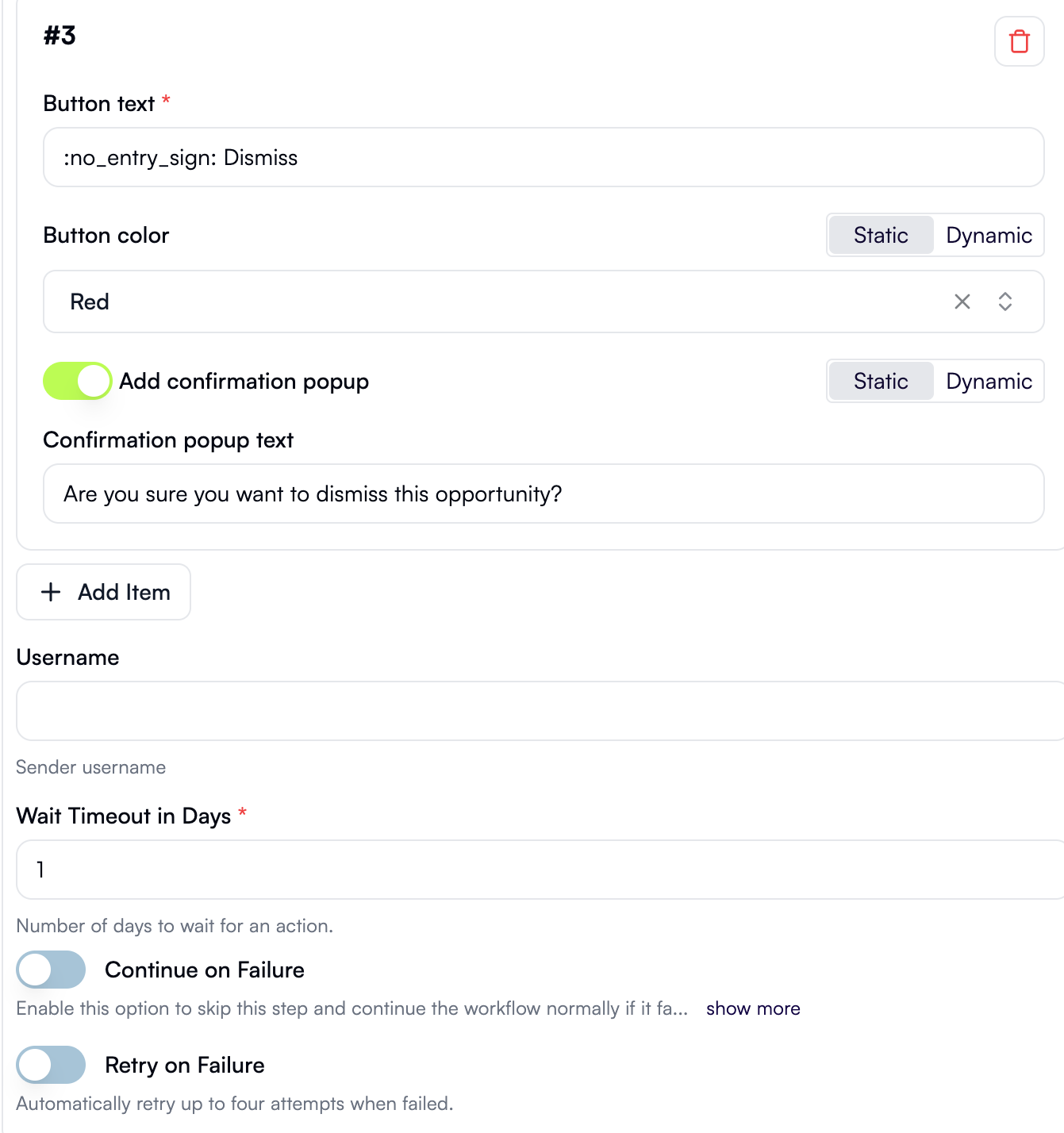 Click the **Test** tab in the properties pane, then under **Step output**, click **Test Step**. The output will be a lengthy JSON representing a Slack request. More importantly, since all entries in the project-owner mapping table currently contain your email address, you should now receive a Slack notification as a direct message in your Slack workspace:
According to the configuration that you've just set up, the notification contains three action buttons. If you click any of them now, nothing will happen. To change this, you'll need a step that handles the project owner's response.
### Handle project owner's response with a split
Click **+** to add a new step.
In the pop-up menu, select **Split** in the left pane, then click **Split** in the right pane.
Rename the default branch (**Branch 1**) to **Jira**.
Rename the second branch (**Branch 2**) to **Snooze**. In the **Where** section of this branch:
1. In the left field, use **Data Selector** to expand **21. Request Action**, then click **Insert** alongside the **action** entry.
2. In the dropdown, select **(Text) Contains**.
3. In the right field, enter `Snooze`.
Rename the third branch (**Branch 3**) to **Dismiss**. In the **Where** section of this branch:
1. In the left field, use **Data Selector** to expand **21. Request Action**, then click **Insert** alongside the **action** entry.
2. In the dropdown, select **(Text) Contains**.
3. In the right field, enter `Dismiss`.
Here's what the new step in the workflow graph and the **Configure** tab in its properties pane should now look like:
Click the **Test** tab in the properties pane, then under **Step output**, click **Test Step**. The output will be a lengthy JSON representing a Slack request. More importantly, since all entries in the project-owner mapping table currently contain your email address, you should now receive a Slack notification as a direct message in your Slack workspace:
According to the configuration that you've just set up, the notification contains three action buttons. If you click any of them now, nothing will happen. To change this, you'll need a step that handles the project owner's response.
### Handle project owner's response with a split
Click **+** to add a new step.
In the pop-up menu, select **Split** in the left pane, then click **Split** in the right pane.
Rename the default branch (**Branch 1**) to **Jira**.
Rename the second branch (**Branch 2**) to **Snooze**. In the **Where** section of this branch:
1. In the left field, use **Data Selector** to expand **21. Request Action**, then click **Insert** alongside the **action** entry.
2. In the dropdown, select **(Text) Contains**.
3. In the right field, enter `Snooze`.
Rename the third branch (**Branch 3**) to **Dismiss**. In the **Where** section of this branch:
1. In the left field, use **Data Selector** to expand **21. Request Action**, then click **Insert** alongside the **action** entry.
2. In the dropdown, select **(Text) Contains**.
3. In the right field, enter `Dismiss`.
Here's what the new step in the workflow graph and the **Configure** tab in its properties pane should now look like:
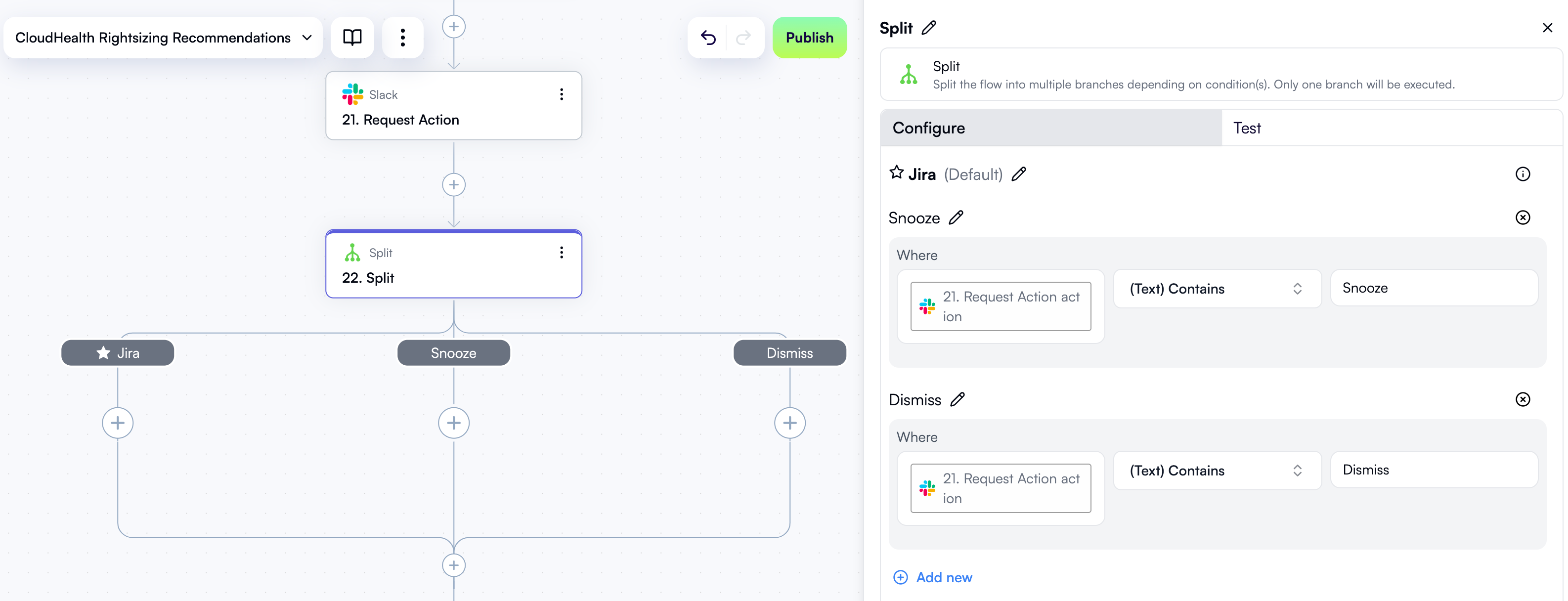 Click the **Test** tab in the properties pane, then under **Step output**, click **Test Step**.
### Create a Jira issue
Let's now add the steps that the workflow should take if the project owner clicks the **Open a Jira ticket** button. There will be three of them:
1. Actually creating a Jira issue.
2. Updating the recommendation in the *Opportunities* table by setting it to *Approved* status.
3. Sending a confirmation on Slack.
#### Create a new issue in Jira Cloud
In the **Jira** branch, click **+** to add a new step.
In the pop-up menu, select **Jira Cloud** in the left pane, then click **Create Issue** in the right pane.
At the top of the new step's properties pane, click **Edit Step Name** and rename the step *Create Jira issue to investigate opportunity*.
In the **Connection** dropdown, select the Jira connection you created earlier.
In the **Project** dropdown, select a project in your Jira Cloud instance that you want to create issues in.
In the **Issue Type** dropdown, select **Task**.
In the **Summary** field, type in "\[Investigate EC2 Rightsizing Opportunity]". Add a space, and use **Data Selector** to expand **3. For each recommendation**, then **item**, then **node**, then **targetAsset**. Click **Insert** alongside the **awsInstanceId** entry:
In the **Description** field, use **Data Selector** to insert **19. Opportunity description**.
Here's what the new step in the workflow graph and the **Configure** tab in its properties pane should now look like:
Click the **Test** tab in the properties pane, then under **Step output**, click **Test Step**.
### Create a Jira issue
Let's now add the steps that the workflow should take if the project owner clicks the **Open a Jira ticket** button. There will be three of them:
1. Actually creating a Jira issue.
2. Updating the recommendation in the *Opportunities* table by setting it to *Approved* status.
3. Sending a confirmation on Slack.
#### Create a new issue in Jira Cloud
In the **Jira** branch, click **+** to add a new step.
In the pop-up menu, select **Jira Cloud** in the left pane, then click **Create Issue** in the right pane.
At the top of the new step's properties pane, click **Edit Step Name** and rename the step *Create Jira issue to investigate opportunity*.
In the **Connection** dropdown, select the Jira connection you created earlier.
In the **Project** dropdown, select a project in your Jira Cloud instance that you want to create issues in.
In the **Issue Type** dropdown, select **Task**.
In the **Summary** field, type in "\[Investigate EC2 Rightsizing Opportunity]". Add a space, and use **Data Selector** to expand **3. For each recommendation**, then **item**, then **node**, then **targetAsset**. Click **Insert** alongside the **awsInstanceId** entry:
In the **Description** field, use **Data Selector** to insert **19. Opportunity description**.
Here's what the new step in the workflow graph and the **Configure** tab in its properties pane should now look like:
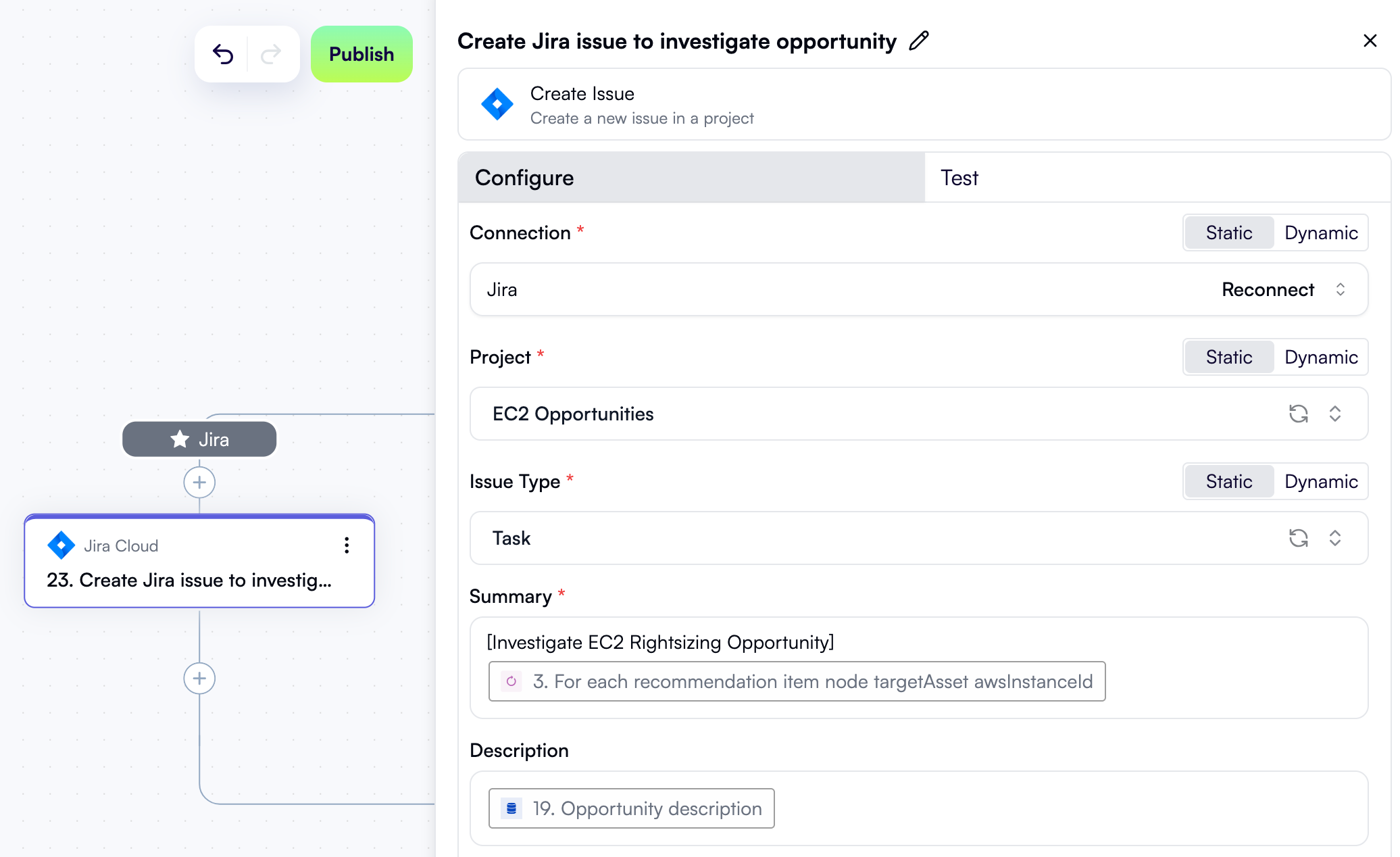 Click the **Test** tab in the properties pane, then under **Step output**, click **Test Step**. The output will contain the ID, key, and URLs of the newly created Jira issue:
```json theme={null}
{
"id": "13706",
"key": "EO-95",
"self": "https://openops.atlassian.net/rest/api/3/issue/13706",
"htmlUrl": "https://openops.atlassian.net//browse/EO-95"
}
```
Navigate to the `htmlUrl` to see the issue in your Jira Cloud instance:
Click the **Test** tab in the properties pane, then under **Step output**, click **Test Step**. The output will contain the ID, key, and URLs of the newly created Jira issue:
```json theme={null}
{
"id": "13706",
"key": "EO-95",
"self": "https://openops.atlassian.net/rest/api/3/issue/13706",
"htmlUrl": "https://openops.atlassian.net//browse/EO-95"
}
```
Navigate to the `htmlUrl` to see the issue in your Jira Cloud instance:
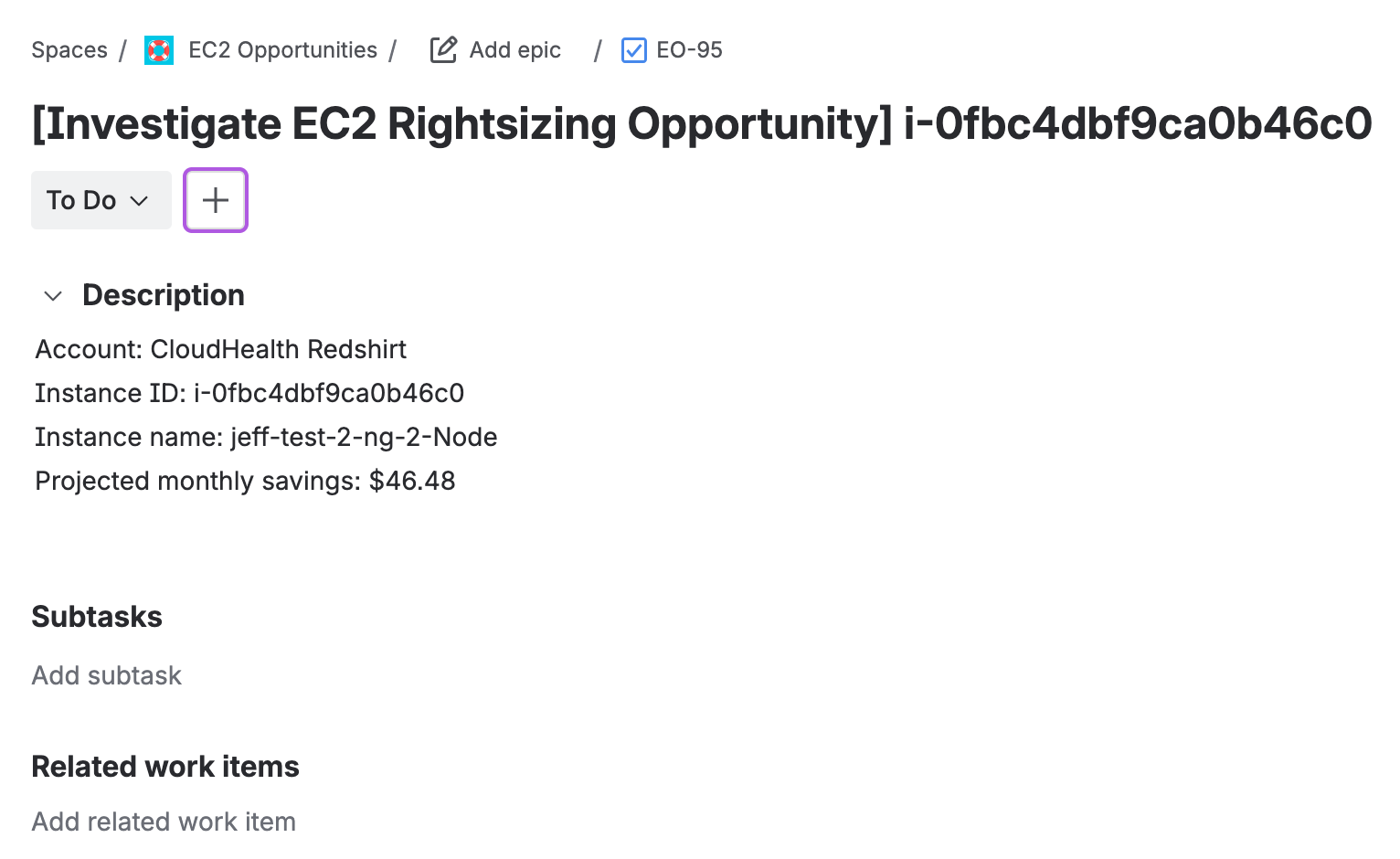 #### Update recommendation status
Since the project owner has selected to raise a Jira issue for the CloudHealth recommendation, it means further work on addressing the recommendation will be performed in Jira, and there's no need for your workflow to notify the project owner about it in subsequent runs. To make this happen, you'll need to update the status of the current recommendation in the *Opportunities* table.
In the **Jira** branch, click **+** to add a new step.
In the pop-up menu, select **OpenOps Tables** in the left pane, then click **Add or Update Record** in the right pane.
At the top of the new step's properties pane, click **Edit Step Name** and rename the step *Set to Approved*.
In the **Table** field, select **Opportunities**.
In the **Primary Key Value** field, use **Data Selector** to select **20. Get table record ID from storage**.
In the **Fields to update** section, click **Add Item**. In the new area:
* For **Field name**, select **Status**.
* For **Status**, select **Approved**.
Here's what the new step in the workflow graph and the **Configure** tab in its properties pane should now look like:
#### Update recommendation status
Since the project owner has selected to raise a Jira issue for the CloudHealth recommendation, it means further work on addressing the recommendation will be performed in Jira, and there's no need for your workflow to notify the project owner about it in subsequent runs. To make this happen, you'll need to update the status of the current recommendation in the *Opportunities* table.
In the **Jira** branch, click **+** to add a new step.
In the pop-up menu, select **OpenOps Tables** in the left pane, then click **Add or Update Record** in the right pane.
At the top of the new step's properties pane, click **Edit Step Name** and rename the step *Set to Approved*.
In the **Table** field, select **Opportunities**.
In the **Primary Key Value** field, use **Data Selector** to select **20. Get table record ID from storage**.
In the **Fields to update** section, click **Add Item**. In the new area:
* For **Field name**, select **Status**.
* For **Status**, select **Approved**.
Here's what the new step in the workflow graph and the **Configure** tab in its properties pane should now look like:
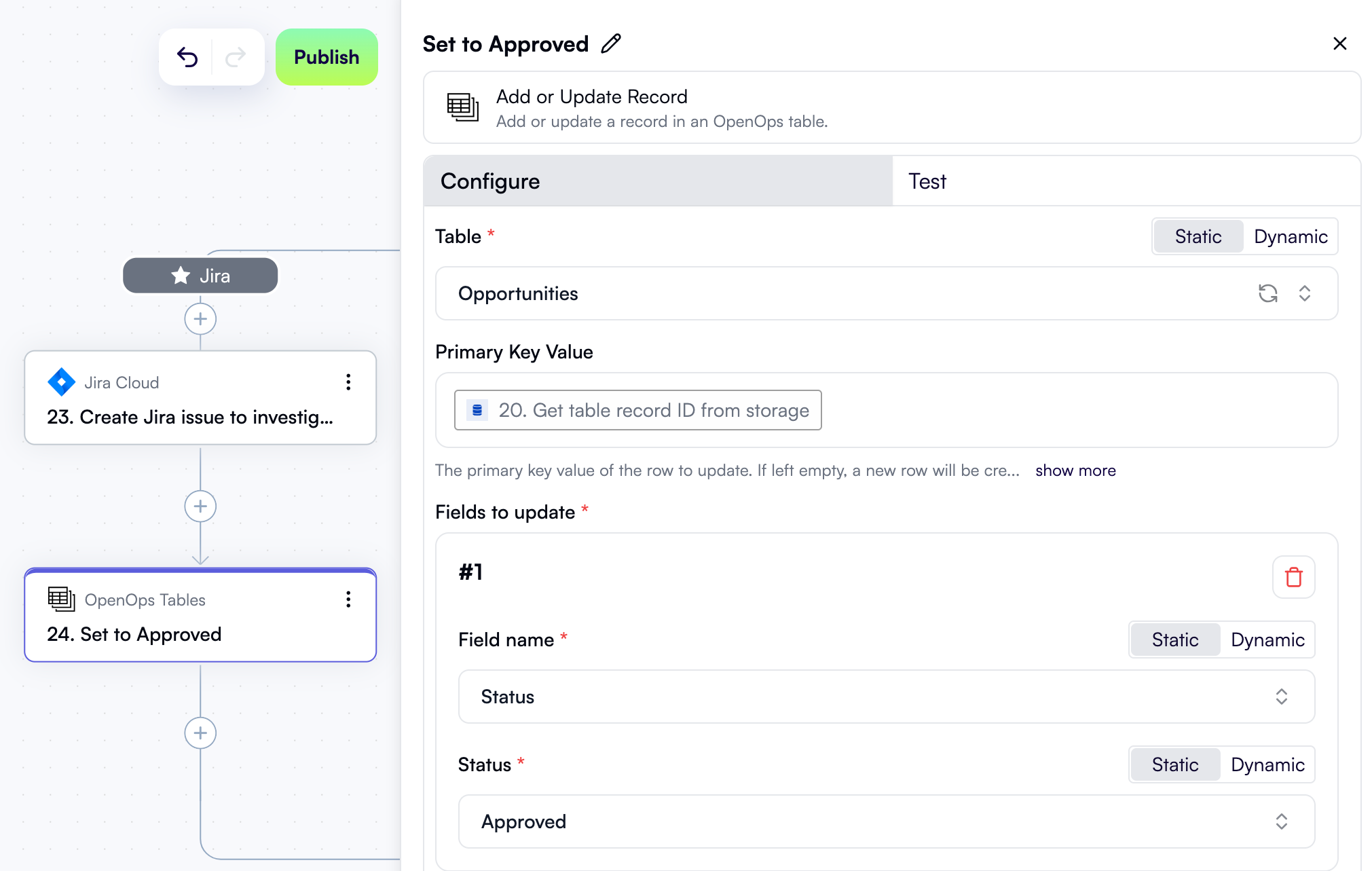 Click the **Test** tab in the properties pane, then under **Step output**, click **Test Step**. The output is a JSON object with details of the updated record in the *Opportunities* table:
```json theme={null}
{
"id": 49,
"order": "2.00000000000000000000",
"ID": "43bd78d2-18d9-4908-b035-c854364a19bd",
"Status": {
"id": 8,
"value": "Approved",
"color": "dark-green"
},
...
}
```
#### Send a Slack confirmation
Lastly, after creating a Jira issue, it makes sense to notify the project owner about it and provide a link to the issue.
In the **Jira** branch, click **+** to add a new step.
In the pop-up menu, select **Slack** in the left pane, then click **Send Message** in the right pane.
At the top of the new step's properties pane, click **Edit Step Name** and rename the step *Send confirmation on Slack*.
In the **Connection** dropdown, select the Slack connection that you created earlier.
Alongside the **Recipient Channel or User** field, click **Dynamic**. Then use **Data Selector** to expand **17. Get owner by project**, then **items**, then **items\[1]**. Click **Insert** alongside the **Owner email** entry.
Scroll down to the **Message** field. There, type in "✅ Issue created successfully: ", then use **Data Selector** to expand **23. Create Jira issue to investigate opportunity**, and click **Insert** alongside the **htmlUrl** entry.
Here's what the **Configure** tab in this step's properties pane should look like so far:
Click the **Test** tab in the properties pane, then under **Step output**, click **Test Step**. The output is a JSON object with details of the updated record in the *Opportunities* table:
```json theme={null}
{
"id": 49,
"order": "2.00000000000000000000",
"ID": "43bd78d2-18d9-4908-b035-c854364a19bd",
"Status": {
"id": 8,
"value": "Approved",
"color": "dark-green"
},
...
}
```
#### Send a Slack confirmation
Lastly, after creating a Jira issue, it makes sense to notify the project owner about it and provide a link to the issue.
In the **Jira** branch, click **+** to add a new step.
In the pop-up menu, select **Slack** in the left pane, then click **Send Message** in the right pane.
At the top of the new step's properties pane, click **Edit Step Name** and rename the step *Send confirmation on Slack*.
In the **Connection** dropdown, select the Slack connection that you created earlier.
Alongside the **Recipient Channel or User** field, click **Dynamic**. Then use **Data Selector** to expand **17. Get owner by project**, then **items**, then **items\[1]**. Click **Insert** alongside the **Owner email** entry.
Scroll down to the **Message** field. There, type in "✅ Issue created successfully: ", then use **Data Selector** to expand **23. Create Jira issue to investigate opportunity**, and click **Insert** alongside the **htmlUrl** entry.
Here's what the **Configure** tab in this step's properties pane should look like so far:
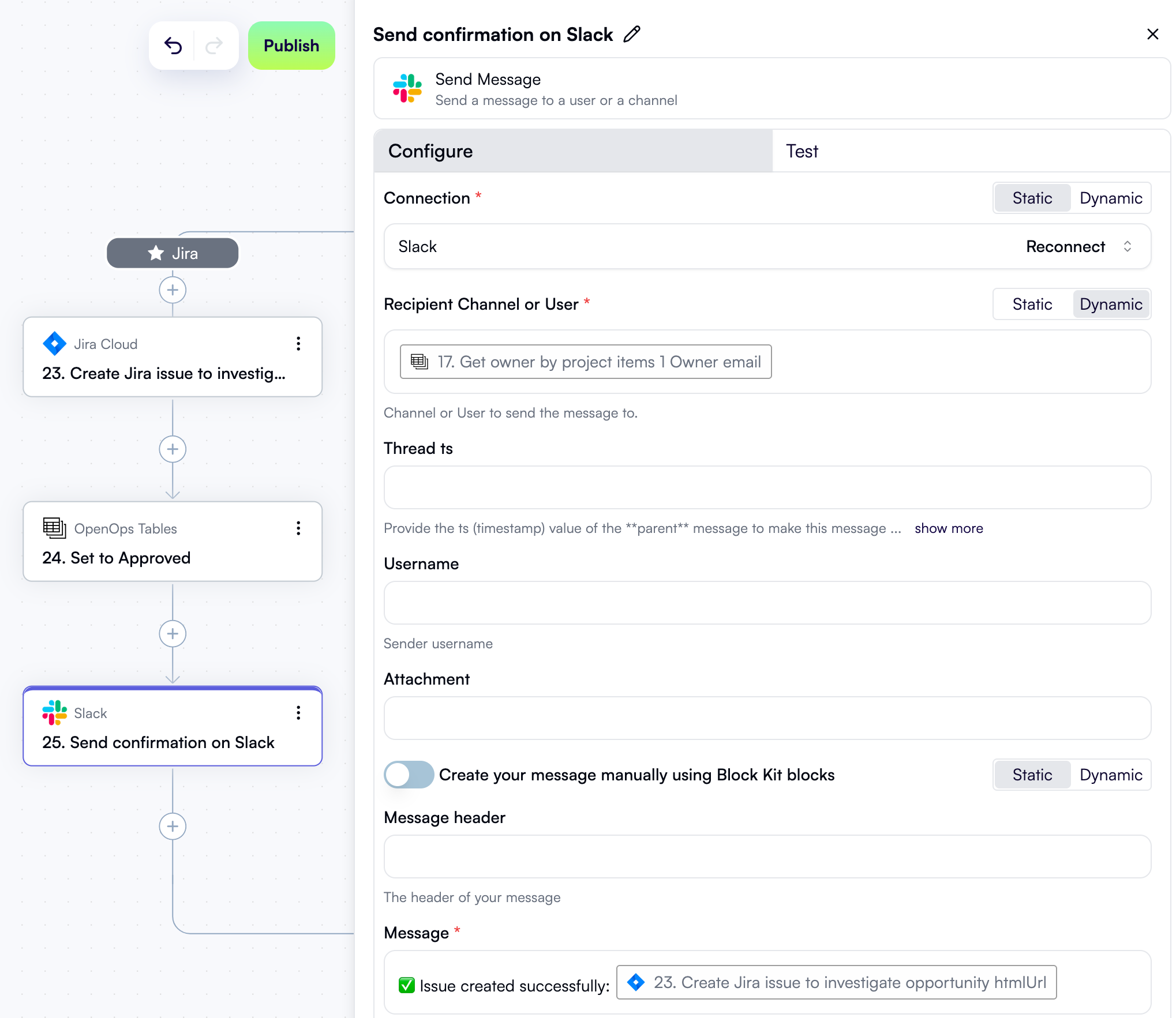 Click the **Test** tab in the properties pane, then under **Step output**, click **Test Step**. The output will be a lengthy JSON representing a Slack request. More importantly, you should receive a Slack notification with a link to the new Jira issue:
 ### Snooze the recommendation
Let's now handle the project owner's choice to snooze the recommendation for 7 days. To do this, you need two steps:
1. One that determines the date until which the recommendation should be snoozed.
2. One that updates the status of the recommendation in the *Opportunities* table.
#### Determine the snooze date
In the **Snooze** branch, click **+** to add a new step.
In the pop-up menu, select **Date Operations** in the left pane, then click **Add/Subtract Time** in the right pane.
At the top of the new step's properties pane, click **Edit Step Name** and rename the step *Date a week from now*.
In the **Input Date** field, use **Data Selector** to select **12. Get Current Date**.
In the **Expression** field, type in `+ 7 day`.
Here's what the new step in the workflow graph and the **Configure** tab in its properties pane should now look like:
### Snooze the recommendation
Let's now handle the project owner's choice to snooze the recommendation for 7 days. To do this, you need two steps:
1. One that determines the date until which the recommendation should be snoozed.
2. One that updates the status of the recommendation in the *Opportunities* table.
#### Determine the snooze date
In the **Snooze** branch, click **+** to add a new step.
In the pop-up menu, select **Date Operations** in the left pane, then click **Add/Subtract Time** in the right pane.
At the top of the new step's properties pane, click **Edit Step Name** and rename the step *Date a week from now*.
In the **Input Date** field, use **Data Selector** to select **12. Get Current Date**.
In the **Expression** field, type in `+ 7 day`.
Here's what the new step in the workflow graph and the **Configure** tab in its properties pane should now look like:
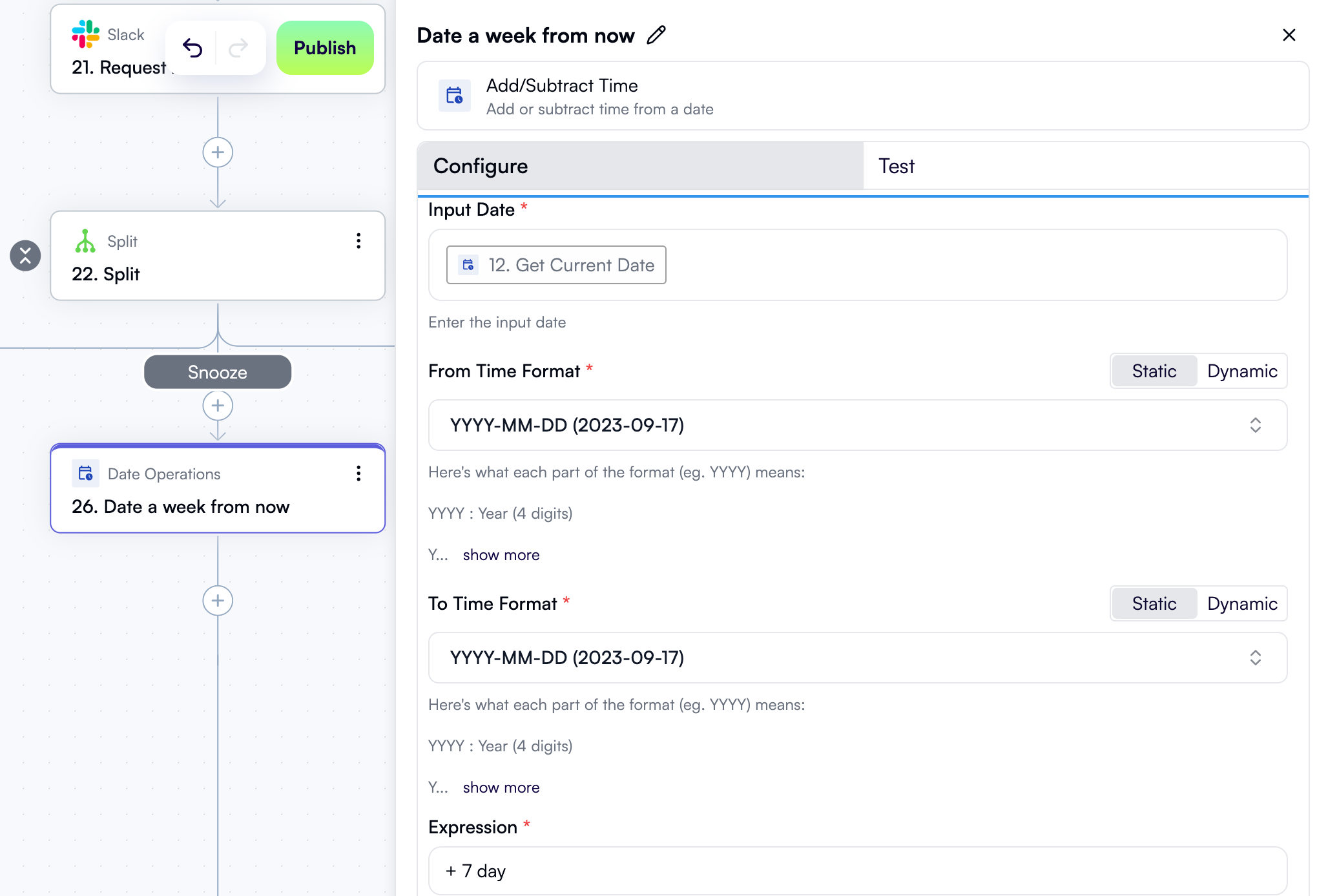 Click the **Test** tab in the properties pane, then under **Step output**, click **Test Step**. The output is the date until which the recommendation should be snoozed.
#### Update recommendation status
In the **Snooze** branch, click **+** to add a new step.
In the pop-up menu, select **OpenOps Tables** in the left pane, then click **Add or Update Record** in the right pane.
At the top of the new step's properties pane, click **Edit Step Name** and rename the step *Snooze for a week*.
In the **Table** field, select **Opportunities**.
In the **Primary Key Value** field, use **Data Selector** to select **20. Get table record ID from storage**.
In the **Fields to update** section, click **Add Item**. In the new area:
* For **Field name**, select **Status**.
* For **Status**, select **Snoozed**.
Click **Add Item** once more. In the new area:
* For **Field name**, select **Snooze until**.
* For **Snooze Until**, use **Data Selector** to select **26. Date a week from now**.
Here's what the new step in the workflow graph and the **Configure** tab in its properties pane should now look like:
Click the **Test** tab in the properties pane, then under **Step output**, click **Test Step**. The output is the date until which the recommendation should be snoozed.
#### Update recommendation status
In the **Snooze** branch, click **+** to add a new step.
In the pop-up menu, select **OpenOps Tables** in the left pane, then click **Add or Update Record** in the right pane.
At the top of the new step's properties pane, click **Edit Step Name** and rename the step *Snooze for a week*.
In the **Table** field, select **Opportunities**.
In the **Primary Key Value** field, use **Data Selector** to select **20. Get table record ID from storage**.
In the **Fields to update** section, click **Add Item**. In the new area:
* For **Field name**, select **Status**.
* For **Status**, select **Snoozed**.
Click **Add Item** once more. In the new area:
* For **Field name**, select **Snooze until**.
* For **Snooze Until**, use **Data Selector** to select **26. Date a week from now**.
Here's what the new step in the workflow graph and the **Configure** tab in its properties pane should now look like:
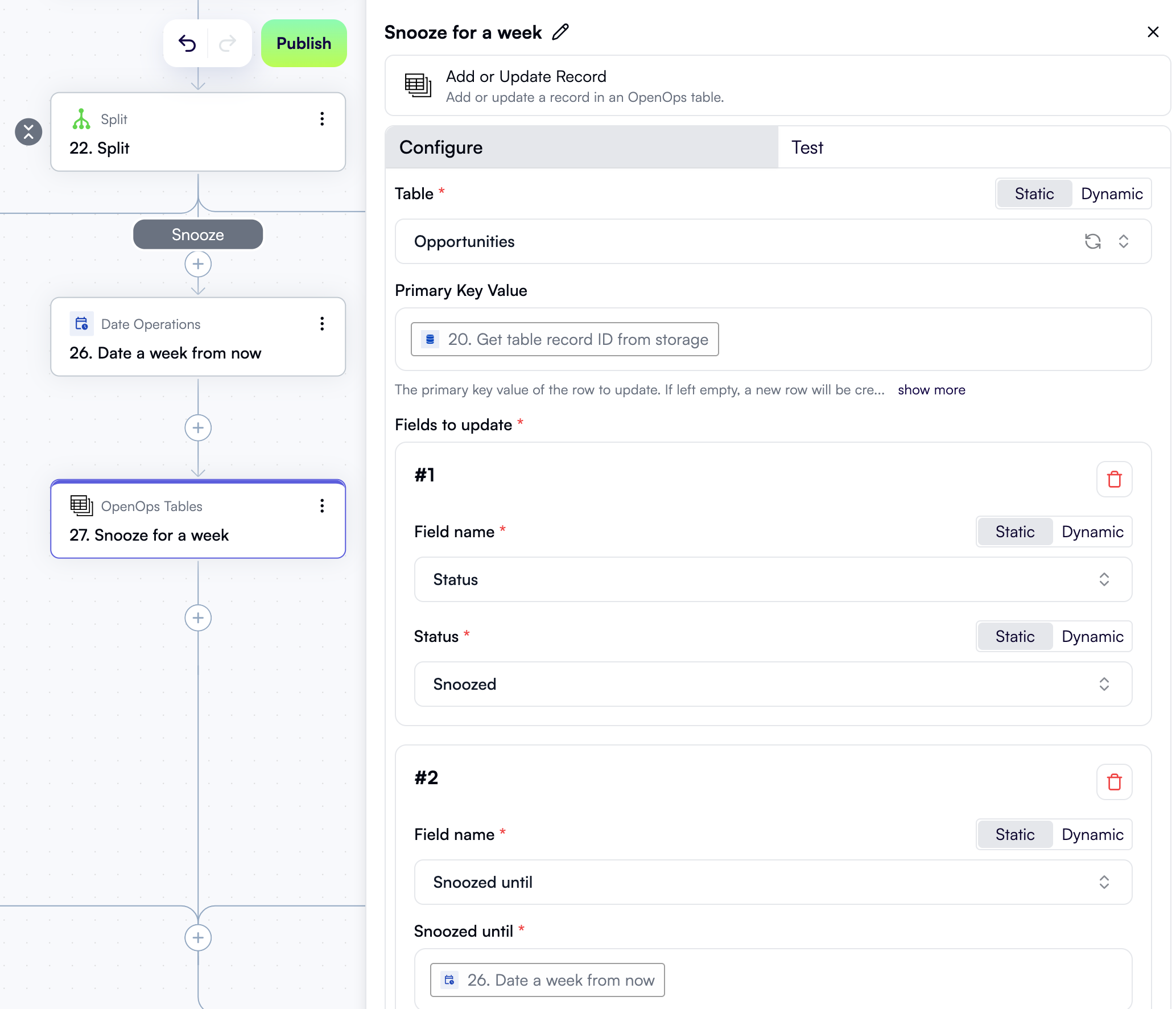 Click the **Test** tab in the properties pane, then under **Step output**, click **Test Step**. The output is a JSON object with details of the updated record in the *Opportunities* table, including the snooze date:
```json theme={null}
{
"id": 49,
"order": "2.00000000000000000000",
"ID": "43bd78d2-18d9-4908-b035-c854364a19bd",
"Status": {
"id": 7,
"value": "Snoozed",
"color": "yellow"
},
...
"Snoozed until": "2025-10-01T00:00:00Z",
...
}
```
The project owner will not be notified about this CloudHealth recommendation until the snooze date passes.
### Dismiss the recommendation
Finally, if the project owner chooses to dismiss the CloudHealth recommendation, you need to update the status of the current recommendation in the *Opportunities* table to make sure that OpenOps does not send any further notifications about it.
In the **Dismiss** branch, click **+** to add a new step.
In the pop-up menu, select **OpenOps Tables** in the left pane, then click **Add or Update Record** in the right pane.
At the top of the new step's properties pane, click **Edit Step Name** and rename the step *Set to Dismissed*.
In the **Table** field, select **Opportunities**.
In the **Primary Key Value** field, use **Data Selector** to select **20. Get table record ID from storage**.
In the **Fields to update** section, click **Add Item**. In the new area:
* For **Field name**, select **Status**.
* For **Status**, select **Dismissed**.
Here's what the new step in the workflow graph and the **Configure** tab in its properties pane should now look like:
Click the **Test** tab in the properties pane, then under **Step output**, click **Test Step**. The output is a JSON object with details of the updated record in the *Opportunities* table, including the snooze date:
```json theme={null}
{
"id": 49,
"order": "2.00000000000000000000",
"ID": "43bd78d2-18d9-4908-b035-c854364a19bd",
"Status": {
"id": 7,
"value": "Snoozed",
"color": "yellow"
},
...
"Snoozed until": "2025-10-01T00:00:00Z",
...
}
```
The project owner will not be notified about this CloudHealth recommendation until the snooze date passes.
### Dismiss the recommendation
Finally, if the project owner chooses to dismiss the CloudHealth recommendation, you need to update the status of the current recommendation in the *Opportunities* table to make sure that OpenOps does not send any further notifications about it.
In the **Dismiss** branch, click **+** to add a new step.
In the pop-up menu, select **OpenOps Tables** in the left pane, then click **Add or Update Record** in the right pane.
At the top of the new step's properties pane, click **Edit Step Name** and rename the step *Set to Dismissed*.
In the **Table** field, select **Opportunities**.
In the **Primary Key Value** field, use **Data Selector** to select **20. Get table record ID from storage**.
In the **Fields to update** section, click **Add Item**. In the new area:
* For **Field name**, select **Status**.
* For **Status**, select **Dismissed**.
Here's what the new step in the workflow graph and the **Configure** tab in its properties pane should now look like:
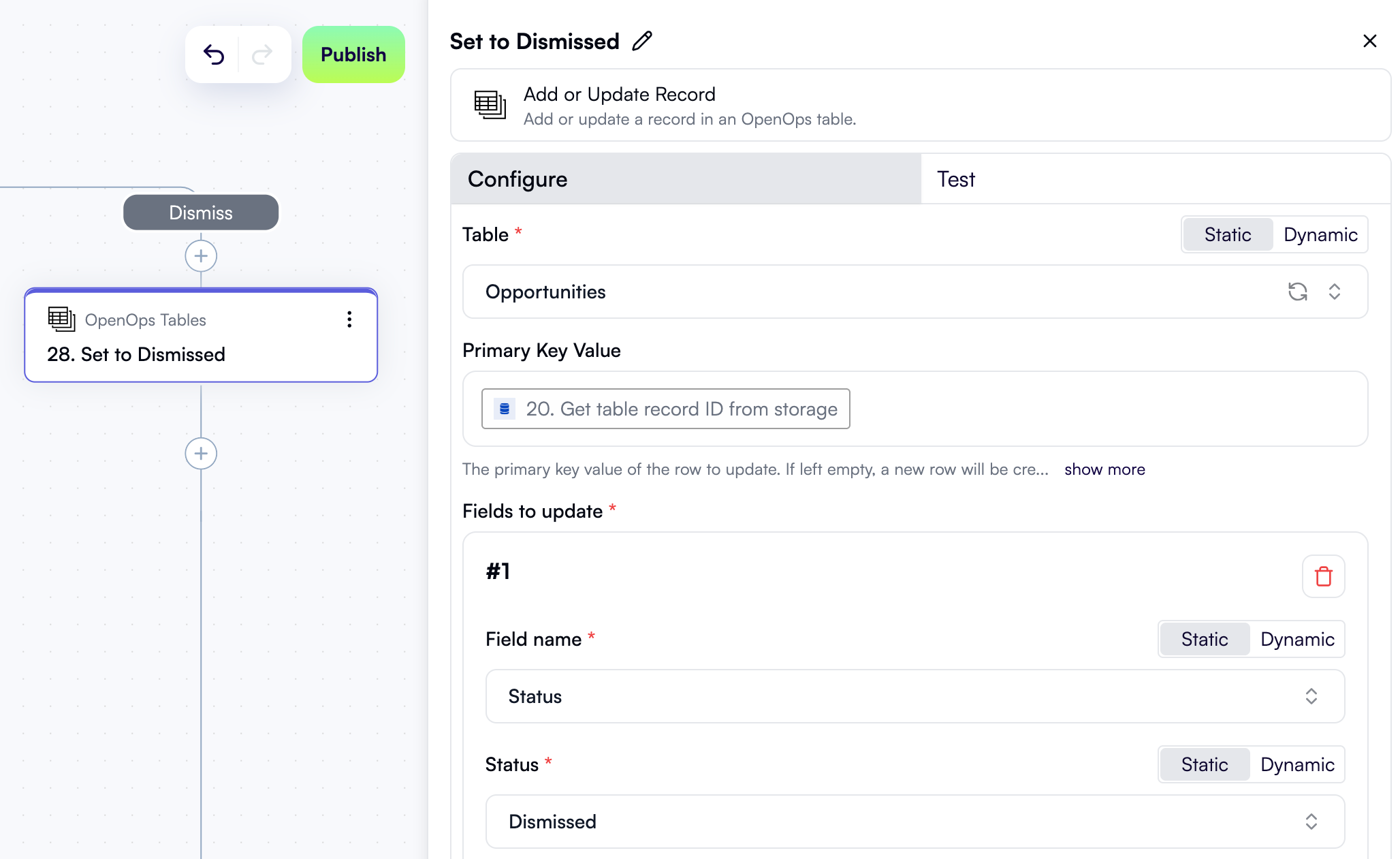 Click the **Test** tab in the properties pane, then under **Step output**, click **Test Step**. The output is a JSON object with details of the updated record in the *Opportunities* table:
```json theme={null}
{
"id": 49,
"order": "2.00000000000000000000",
"ID": "43bd78d2-18d9-4908-b035-c854364a19bd",
"Status": {
"id": 6,
"value": "Dismissed",
"color": "darker-red"
},
...
}
```
## Finishing touches
The rightsizing workflow now contains all the steps that you need for OpenOps to get current CloudHealth recommendations, determine if each of them needs to be addressed, and notify the relevant project owners about them.
### Increase the limit on recommendations
Remember that when configuring the step to fetch CloudHealth recommendations, you set the limit to 3?
This was just fine for testing purposes, but now that you're ready to start running the workflow in real-world conditions, you may want to increase the limit.
To do this, scroll the workflow graph up to step **2. Get EC2 rightsizing recommendations**, and in the **Configure** tab, either set the **Limit** field to a higher value, such as `10`, or remove the value altogether to fetch all available recommendations.
### Publish the workflow
To get the workflow live, click **Publish** in the top-right corner of the workflow editor.
Now, if you click **Workflows** in the left pane, you should see the workflow you just created, along with the project-owner mapping workflow, both in the *On* status:
Click the **Test** tab in the properties pane, then under **Step output**, click **Test Step**. The output is a JSON object with details of the updated record in the *Opportunities* table:
```json theme={null}
{
"id": 49,
"order": "2.00000000000000000000",
"ID": "43bd78d2-18d9-4908-b035-c854364a19bd",
"Status": {
"id": 6,
"value": "Dismissed",
"color": "darker-red"
},
...
}
```
## Finishing touches
The rightsizing workflow now contains all the steps that you need for OpenOps to get current CloudHealth recommendations, determine if each of them needs to be addressed, and notify the relevant project owners about them.
### Increase the limit on recommendations
Remember that when configuring the step to fetch CloudHealth recommendations, you set the limit to 3?
This was just fine for testing purposes, but now that you're ready to start running the workflow in real-world conditions, you may want to increase the limit.
To do this, scroll the workflow graph up to step **2. Get EC2 rightsizing recommendations**, and in the **Configure** tab, either set the **Limit** field to a higher value, such as `10`, or remove the value altogether to fetch all available recommendations.
### Publish the workflow
To get the workflow live, click **Publish** in the top-right corner of the workflow editor.
Now, if you click **Workflows** in the left pane, you should see the workflow you just created, along with the project-owner mapping workflow, both in the *On* status:
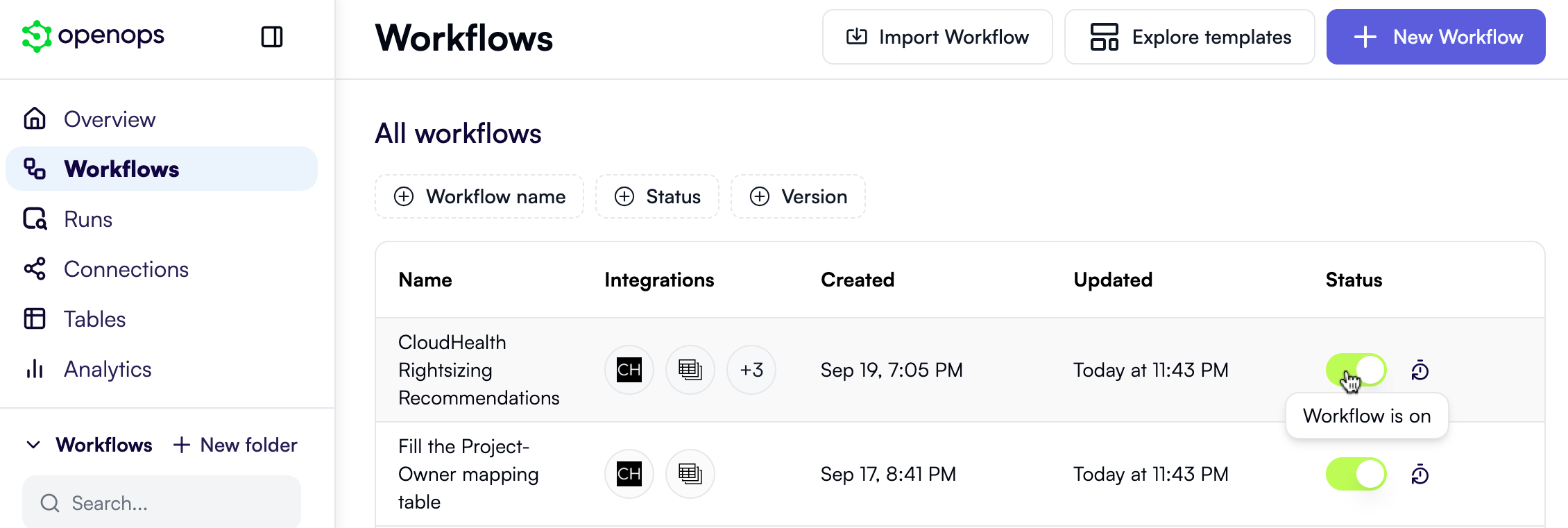 Whenever the two workflows execute, the runs will be logged in the **Runs** view that you can access from the left pane.
### Update the project-owner mapping table with real owner emails
Click **Tables** in the left-side menu. In the list of tables under **OpenOps Dataset**, click **CloudHealth project-owner mapping**.
Since both the project-owner mapping and rightsizing workflows are now ready, you can now update the table with real project owner emails. Make sure to enter the emails that the project owners use in your Slack installation.
Whenever the two workflows execute, the runs will be logged in the **Runs** view that you can access from the left pane.
### Update the project-owner mapping table with real owner emails
Click **Tables** in the left-side menu. In the list of tables under **OpenOps Dataset**, click **CloudHealth project-owner mapping**.
Since both the project-owner mapping and rightsizing workflows are now ready, you can now update the table with real project owner emails. Make sure to enter the emails that the project owners use in your Slack installation.