> ## Documentation Index
> Fetch the complete documentation index at: https://docs.openops.com/llms.txt
> Use this file to discover all available pages before exploring further.
# Analytics
> How to create and use charts and dashboards in OpenOps Analytics
export const NarrowImage = ({src, alt, widthPercent}) => {
const className = `narrow-image-${useId().replace(/:/g, '-')}`;
const widthRule = widthPercent ? `width: ${widthPercent}%;` : '';
return <>
 ;
};
You can visualize data that you collect with [OpenOps tables](/reporting-analytics/tables/) and display the visualizations in the **Analytics** view in OpenOps.
In addition to OpenOps tables, OpenOps Analytics can connect to and visualize your existing data sources, such as CSV files, Google Sheets, Postgres databases, and more.
The analytics service is optional. You can disable it by setting `OPS_ANALYTICS_ENABLED` variable to `false` in your `.env` file if you don't need analytics functionality.
## Analytics admin portal
To configure data visualizations, click **Analytics** on the main navigation bar in OpenOps. When the **Analytics** view opens, click **Admin Panel** to proceed to the Analytics admin portal that is separate from the main OpenOps application.
To sign in to the Analytics portal, use `admin` as the username and the password defined with the `OPS_ANALYTICS_ADMIN_PASSWORD` variable in the `.env` file in your OpenOps installation folder. (If you haven’t changed the password, the default is `please-change-this-password-1`.)
If you don't have access to the OpenOps installation folder:
* Contact your OpenOps instance administrator if you're using a self-managed OpenOps instance.
* [Contact OpenOps support](mailto:support@openops.com) if you're using an OpenOps-hosted instance.
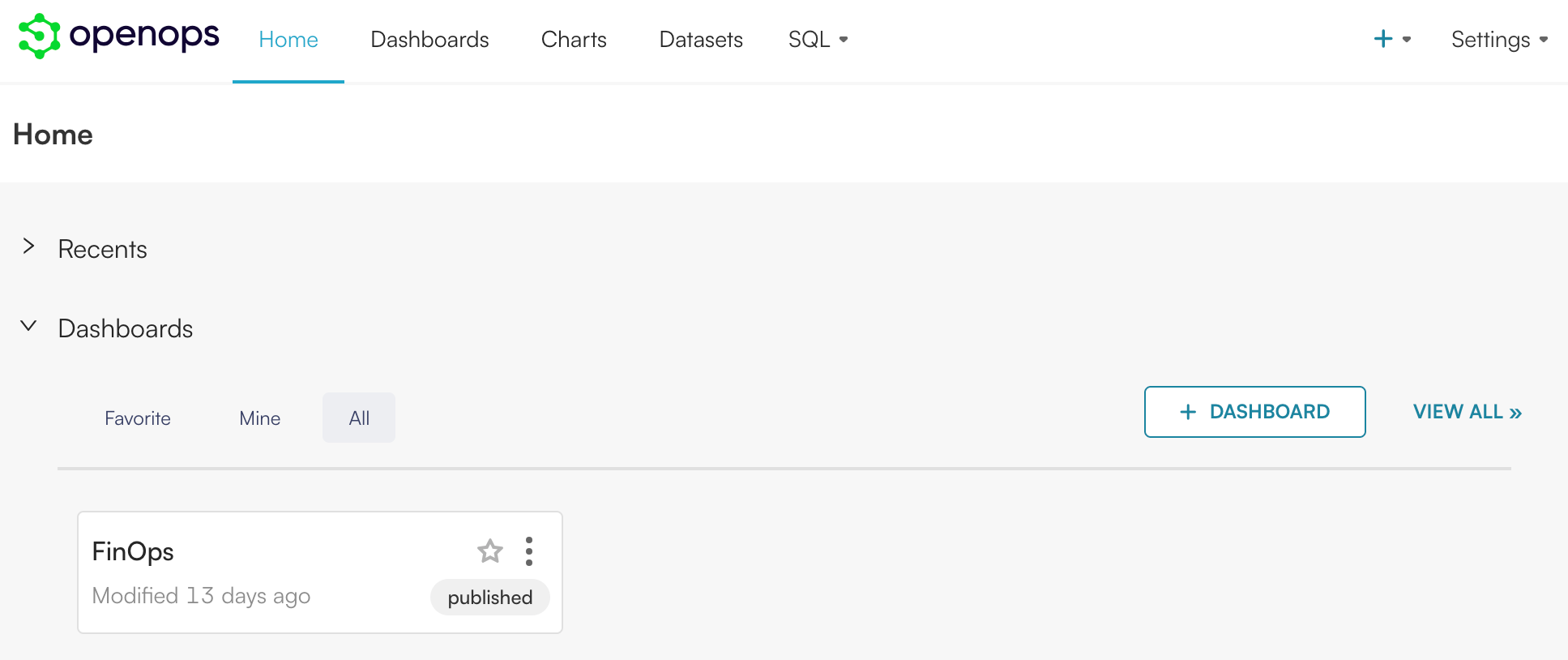
Once you log in, you can see a built-in dashboard called **FinOps**. Modifying this dashboard will affect the **Analytics** tab in OpenOps.
;
};
You can visualize data that you collect with [OpenOps tables](/reporting-analytics/tables/) and display the visualizations in the **Analytics** view in OpenOps.
In addition to OpenOps tables, OpenOps Analytics can connect to and visualize your existing data sources, such as CSV files, Google Sheets, Postgres databases, and more.
The analytics service is optional. You can disable it by setting `OPS_ANALYTICS_ENABLED` variable to `false` in your `.env` file if you don't need analytics functionality.
## Analytics admin portal
To configure data visualizations, click **Analytics** on the main navigation bar in OpenOps. When the **Analytics** view opens, click **Admin Panel** to proceed to the Analytics admin portal that is separate from the main OpenOps application.
To sign in to the Analytics portal, use `admin` as the username and the password defined with the `OPS_ANALYTICS_ADMIN_PASSWORD` variable in the `.env` file in your OpenOps installation folder. (If you haven’t changed the password, the default is `please-change-this-password-1`.)
If you don't have access to the OpenOps installation folder:
* Contact your OpenOps instance administrator if you're using a self-managed OpenOps instance.
* [Contact OpenOps support](mailto:support@openops.com) if you're using an OpenOps-hosted instance.
Once you log in, you can see a built-in dashboard called **FinOps**. Modifying this dashboard will affect the **Analytics** tab in OpenOps.
 Behind every OpenOps table, there is a Postgres database view that can be used to build charts and queries.
When a new table is created in [OpenOps tables](/reporting-analytics/tables/), the system automatically creates a new database view with the naming convention *table name \_ table id \_ userfriendly*. You can use this view to create dashboards in OpenOps, as well as connect it to other BI systems.
## Building new charts
To configure a new chart based on an OpenOps table to display in the **Analytics** view in OpenOps, do the following:
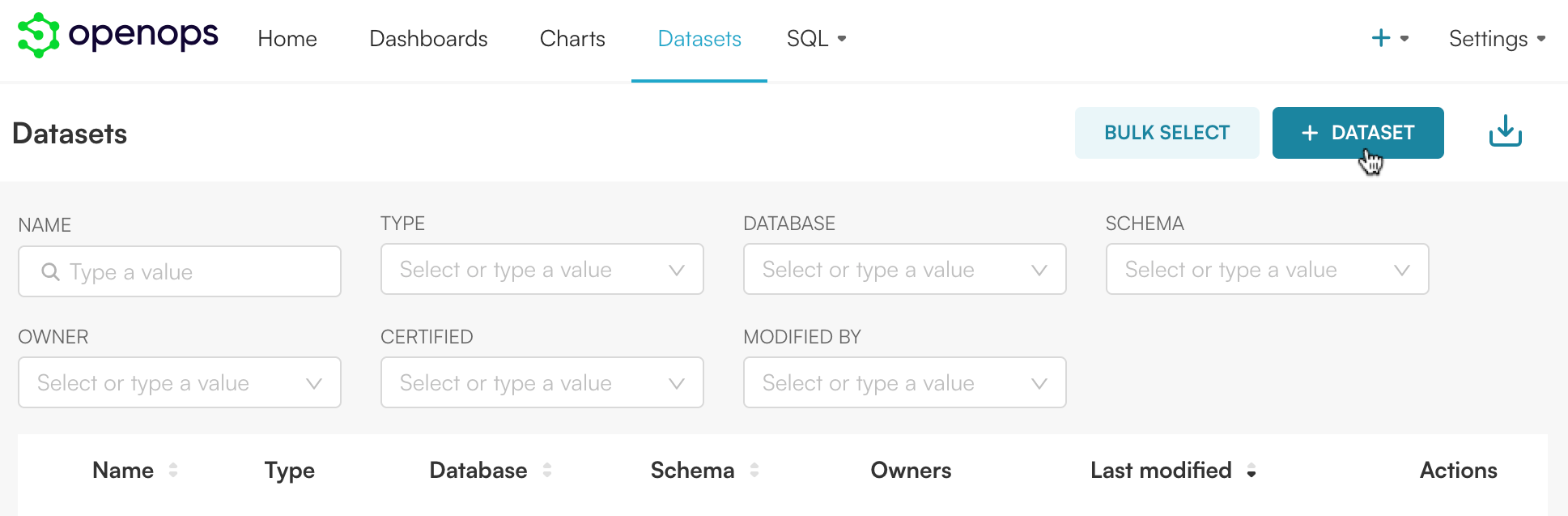
1. Navigate to **Datasets** and click **+ Dataset**:
Behind every OpenOps table, there is a Postgres database view that can be used to build charts and queries.
When a new table is created in [OpenOps tables](/reporting-analytics/tables/), the system automatically creates a new database view with the naming convention *table name \_ table id \_ userfriendly*. You can use this view to create dashboards in OpenOps, as well as connect it to other BI systems.
## Building new charts
To configure a new chart based on an OpenOps table to display in the **Analytics** view in OpenOps, do the following:
1. Navigate to **Datasets** and click **+ Dataset**:
 2. Select `openops_tables_connection` for **Database** and `public` for **Schema**. In the **Table** dropdown, select a Postgres DB view corresponding to the OpenOps table you want to source data from. For example, here is what a view may be named for the *Opportunities* table:
3. Click **Create dataset and create chart**.
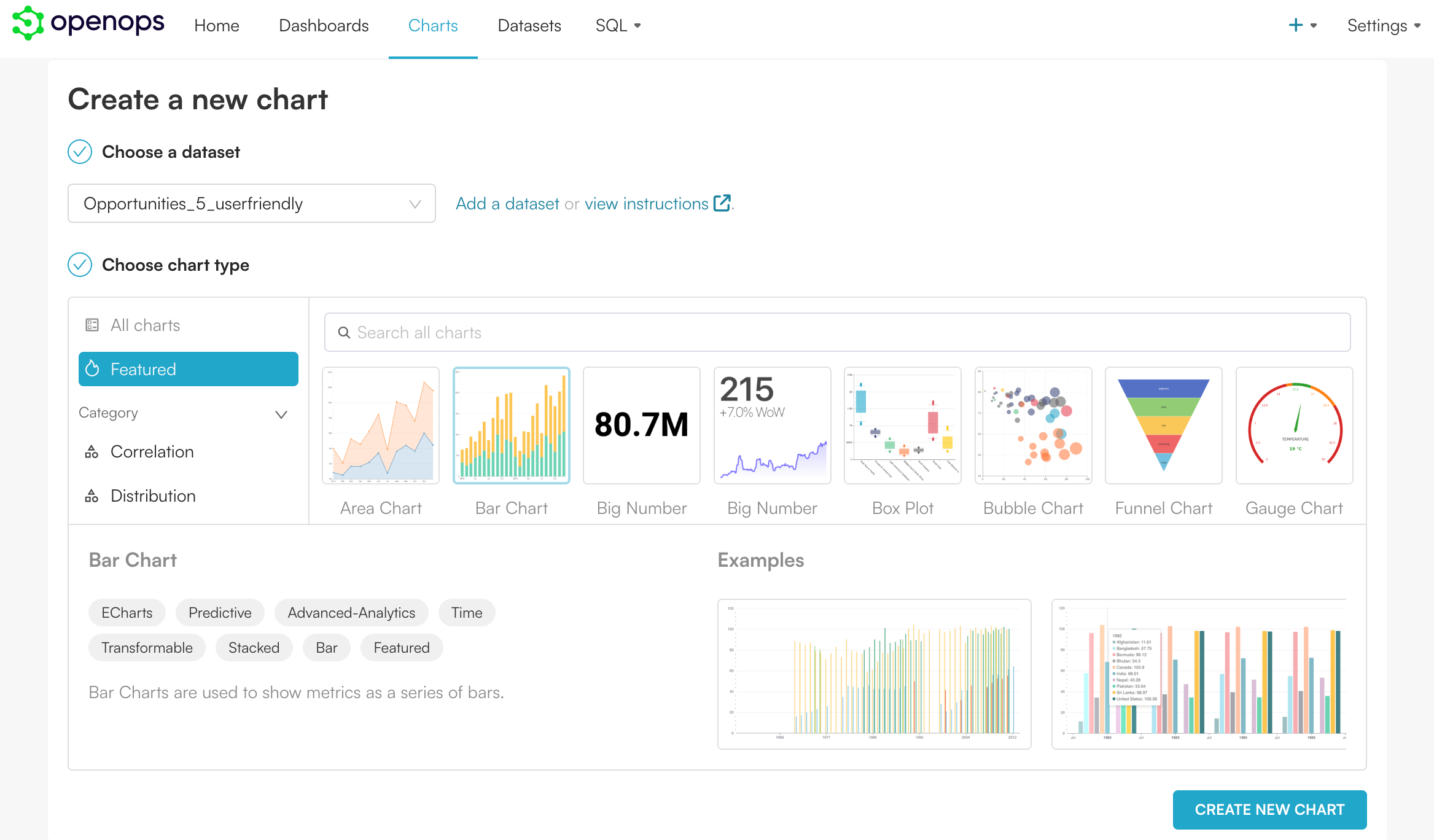
4. In the **Create a new chart** view, select a chart type, then click **Create new chart**:
2. Select `openops_tables_connection` for **Database** and `public` for **Schema**. In the **Table** dropdown, select a Postgres DB view corresponding to the OpenOps table you want to source data from. For example, here is what a view may be named for the *Opportunities* table:
3. Click **Create dataset and create chart**.
4. In the **Create a new chart** view, select a chart type, then click **Create new chart**:
 5. Configure your chart. Refer to [this Superset documentation page](https://superset.apache.org/docs/using-superset/creating-your-first-dashboard#creating-charts-in-explore-view) if you need help. To preview the configured chart, click **Create chart** in the right pane.
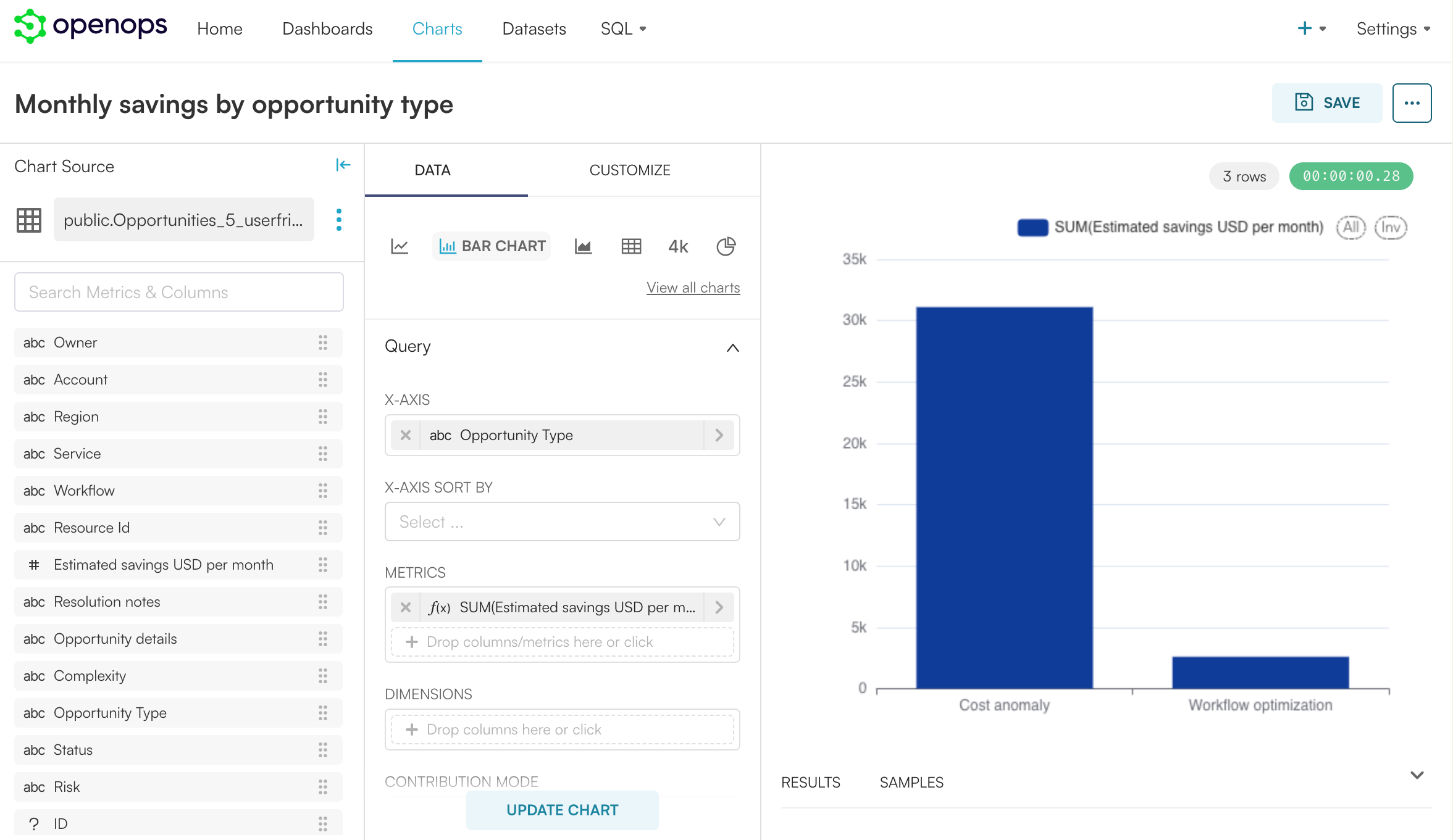 6. If you make further changes to the chart, click **Update chart** to refresh the preview.
7. When you're done, click **Save**. In the **Save chart** dialog, select **FinOps** in the **Add to dashboard** dropdown:
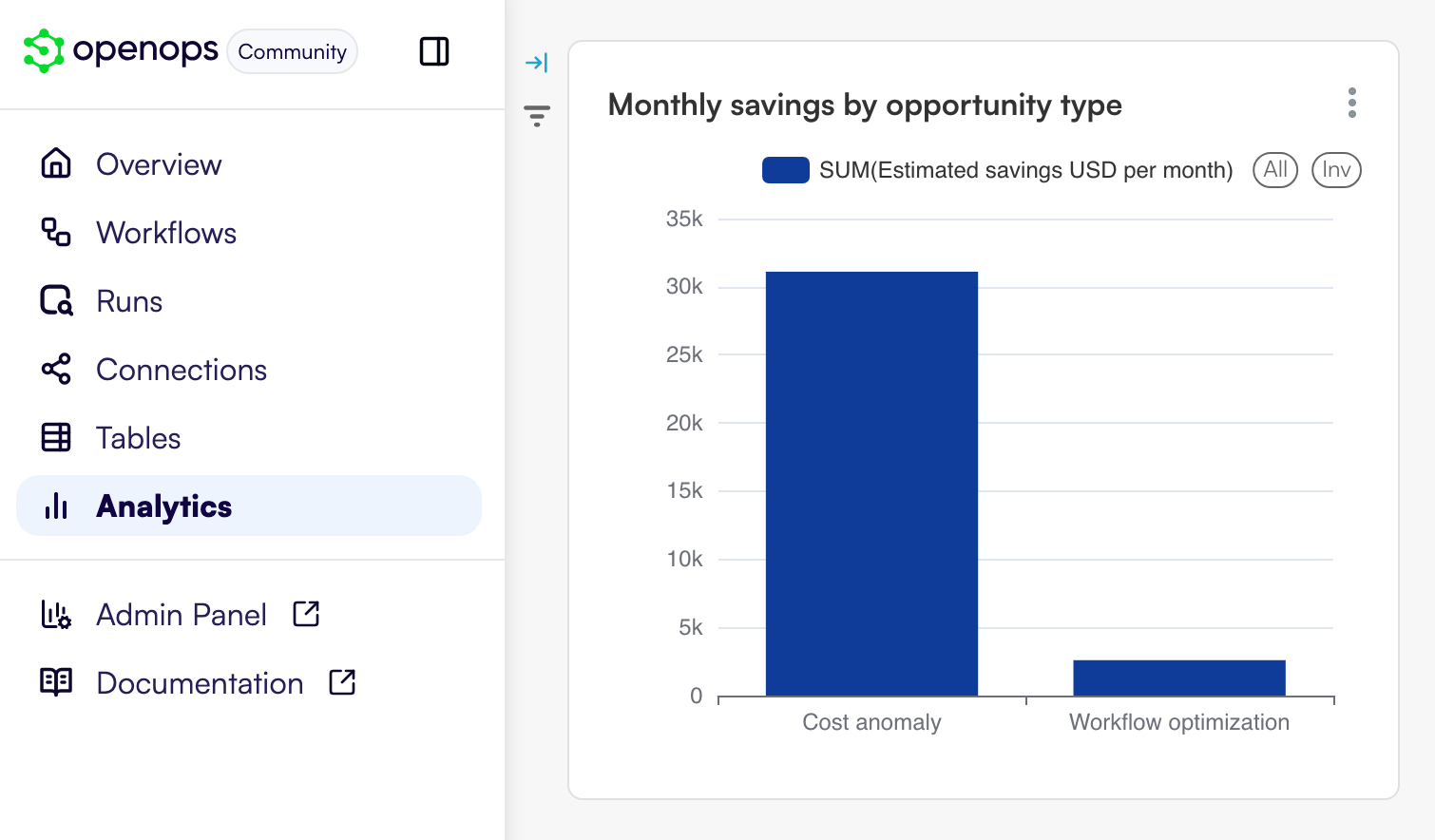
8. Click **Save**. When you go back to the **Analytics** view in OpenOps, you can see that the chart is now displayed there:
6. If you make further changes to the chart, click **Update chart** to refresh the preview.
7. When you're done, click **Save**. In the **Save chart** dialog, select **FinOps** in the **Add to dashboard** dropdown:
8. Click **Save**. When you go back to the **Analytics** view in OpenOps, you can see that the chart is now displayed there:
 For more information on how to create charts, see the [Superset documentation](https://superset.apache.org/docs/intro/).
## Connecting to external data sources
Here's what you can do to connect OpenOps Analytics to external data sources such as CSV files:
1. In the Analytics admin portal, in the top right corner, click **Settings**, then **Database Connections**.
2. Click **+ Database** to connect to an external data source, such as your own Postgres instance or Google Sheets.
3. Once you have created a database connection, if you’d like to upload CSVs to it, click the **Edit** icon for the database connection:
For more information on how to create charts, see the [Superset documentation](https://superset.apache.org/docs/intro/).
## Connecting to external data sources
Here's what you can do to connect OpenOps Analytics to external data sources such as CSV files:
1. In the Analytics admin portal, in the top right corner, click **Settings**, then **Database Connections**.
2. Click **+ Database** to connect to an external data source, such as your own Postgres instance or Google Sheets.
3. Once you have created a database connection, if you’d like to upload CSVs to it, click the **Edit** icon for the database connection:
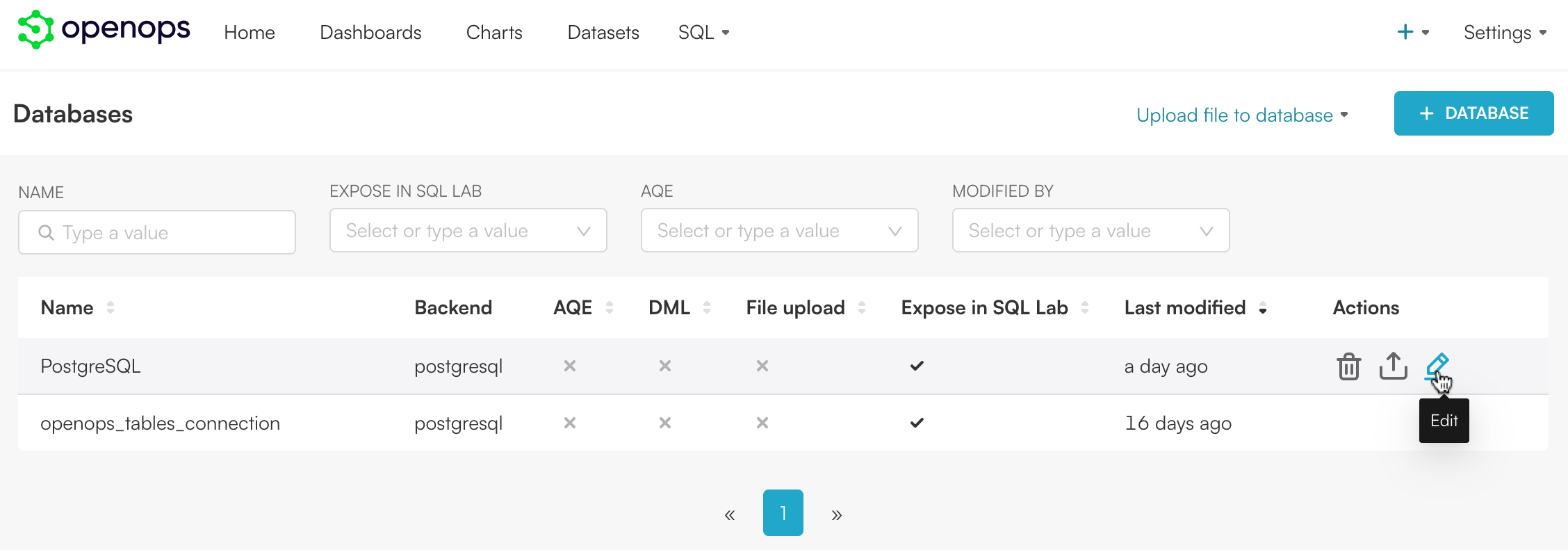 4. In the popup that displays, go to **Advanced > Security**, scroll down, and enable **Allow file uploads to database**.
5. Click **Finish**.
To upload CSV files into your database, click **+** in the top right corner, then select **Data > Upload CSV to database**:
You can now build charts based on the data from your external data source, similar to how you do it with OpenOps tables. When you add charts to the **FinOps** dashboard, they become available in the **Analytics** view in OpenOps.
## Support
Feel free to join our [Slack community](https://slack.openops.com) if you have any questions or need help with your installation.
4. In the popup that displays, go to **Advanced > Security**, scroll down, and enable **Allow file uploads to database**.
5. Click **Finish**.
To upload CSV files into your database, click **+** in the top right corner, then select **Data > Upload CSV to database**:
You can now build charts based on the data from your external data source, similar to how you do it with OpenOps tables. When you add charts to the **FinOps** dashboard, they become available in the **Analytics** view in OpenOps.
## Support
Feel free to join our [Slack community](https://slack.openops.com) if you have any questions or need help with your installation.